

Introduction: The Shift from UI-First to Data-First in AI Development
In the rapidly evolving landscape of AI-powered development tools, a critical flaw has persisted in most “no-code” and “low-code” app builders: the UI-first approach. Traditional platforms force product managers and developers to design visual screens first, which often traps data in rigid, closed ecosystems and leads to broken backend connections as the app scales.
Enter Visual Paradigm AI App Studio, a revolutionary tool that flips this formula on its head. By adopting a strict Data-First Strategy, App Studio allows teams to build hosted databases instantly and generate perfect coding blueprints with AI. Instead of wrestling with visual drag-and-drop limitations, you establish a solid data foundation first. The platform automatically builds your backend database structure and hands you a production-ready coding blueprint, giving your favorite AI coding tools a clear, unbreakable map to follow.
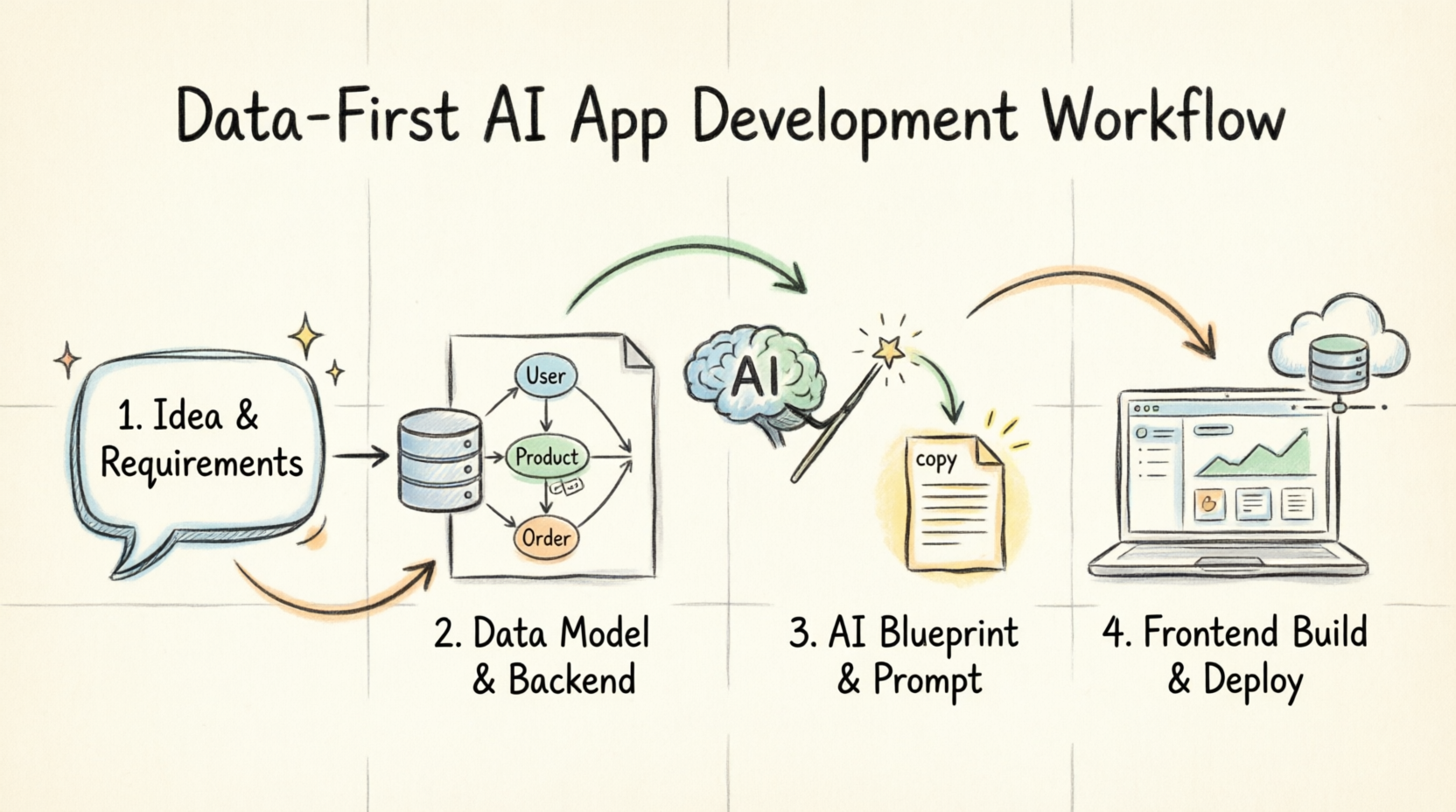
This guide provides a comprehensive review of App Studio’s key concepts, followed by a step-by-step tutorial on how to build and deploy a fully functional Internal IT Helpdesk System using Visual Paradigm App Studio, Google AI Studio, and Vercel.
Part 1: Visual Paradigm AI App Studio – Review, Key Concepts, and Guidelines
The Core Philosophy: A Data-First Strategy
Visual Paradigm AI App Studio changes how you build software by prioritizing the backend before the frontend. By launching a secure, live cloud database before you even touch the visual design, you eliminate guesswork and prevent broken connections. This results in stable, secure software that is ready to run every single time.
The 4-Step Guideline Workflow
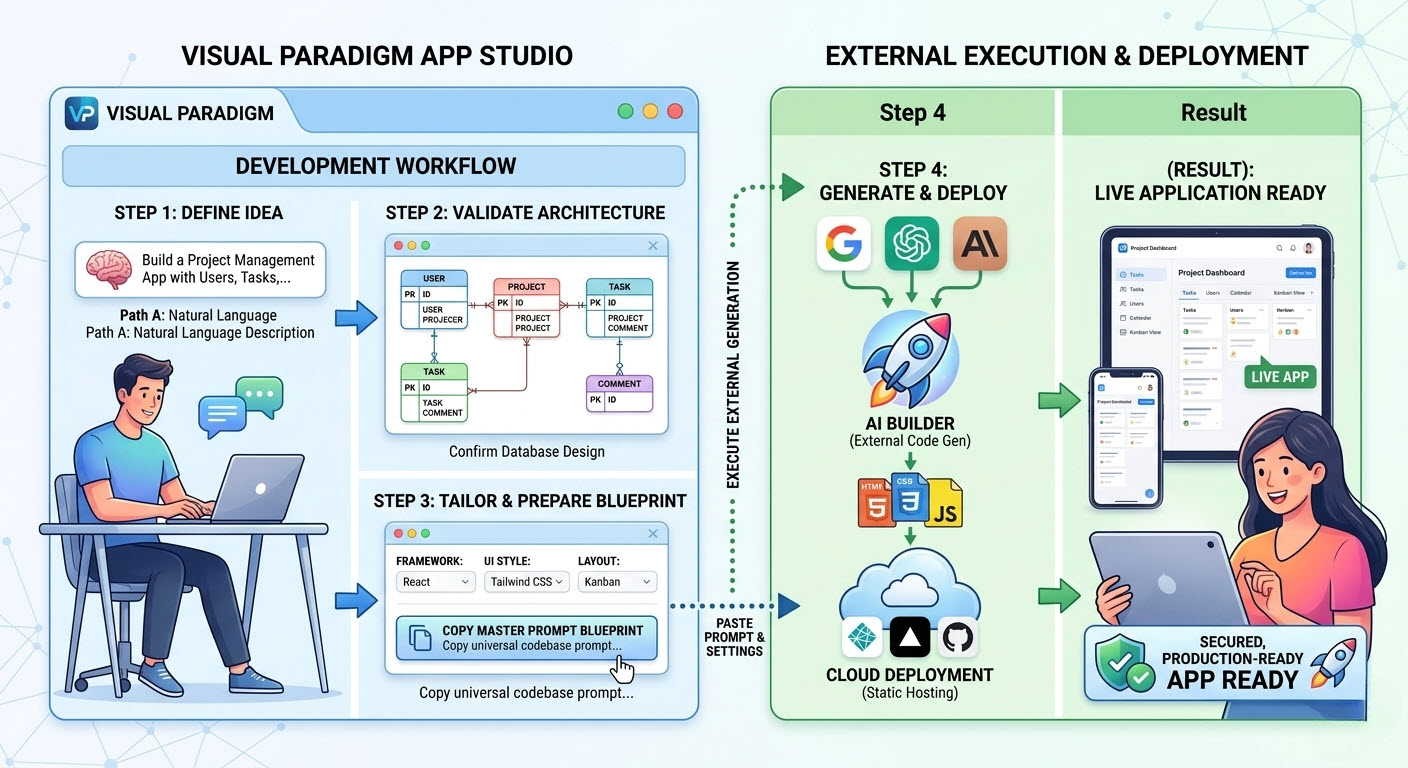
App Studio streamlines the development lifecycle into four distinct, manageable phases:
1. Enter App Requirement Description
Start by defining what you want to build in plain English. The AI parses your natural language requirements to understand the core business logic.
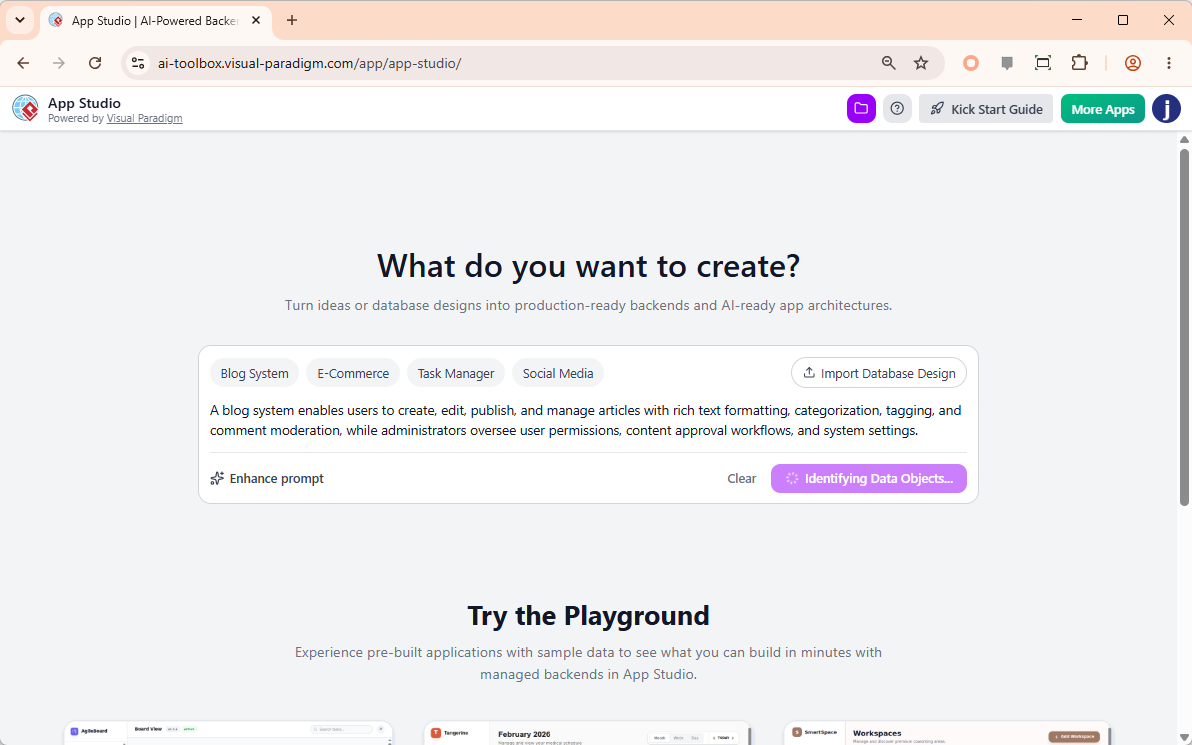
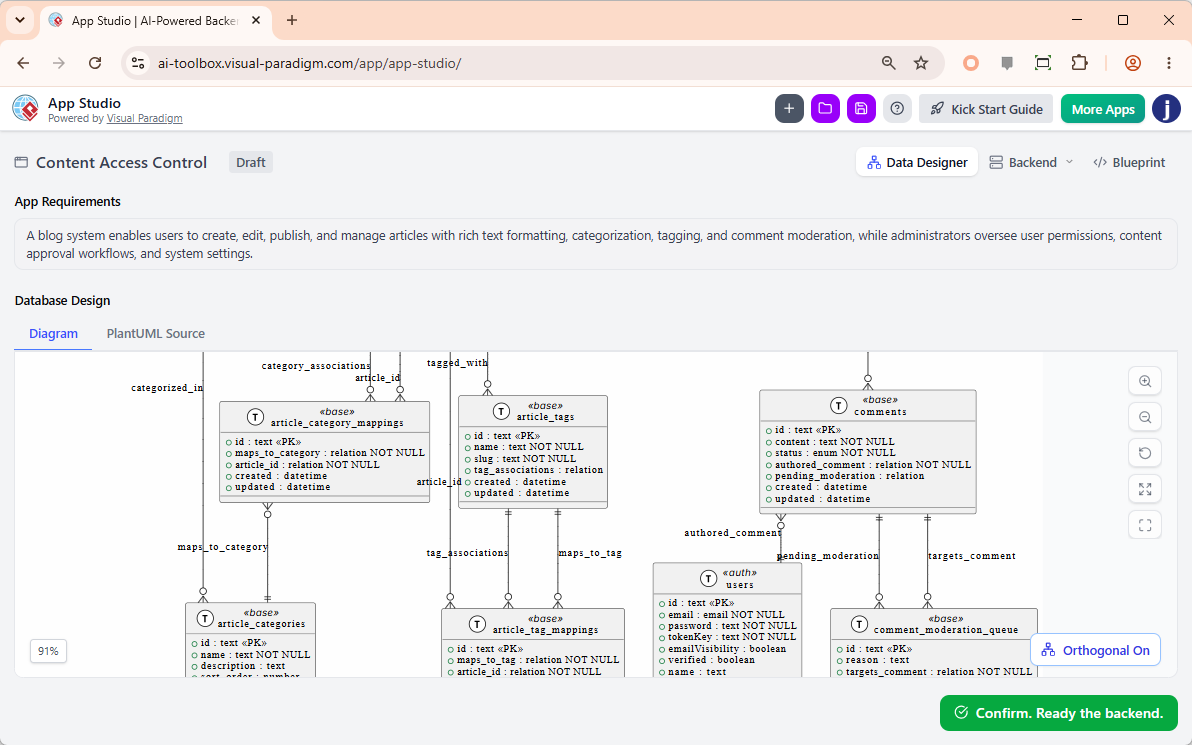
2. Review Data Design
The system instantly visualizes a complete database structure (Entity-Relationship Diagram). You can review, tweak, and confirm the data model without writing a single line of SQL.
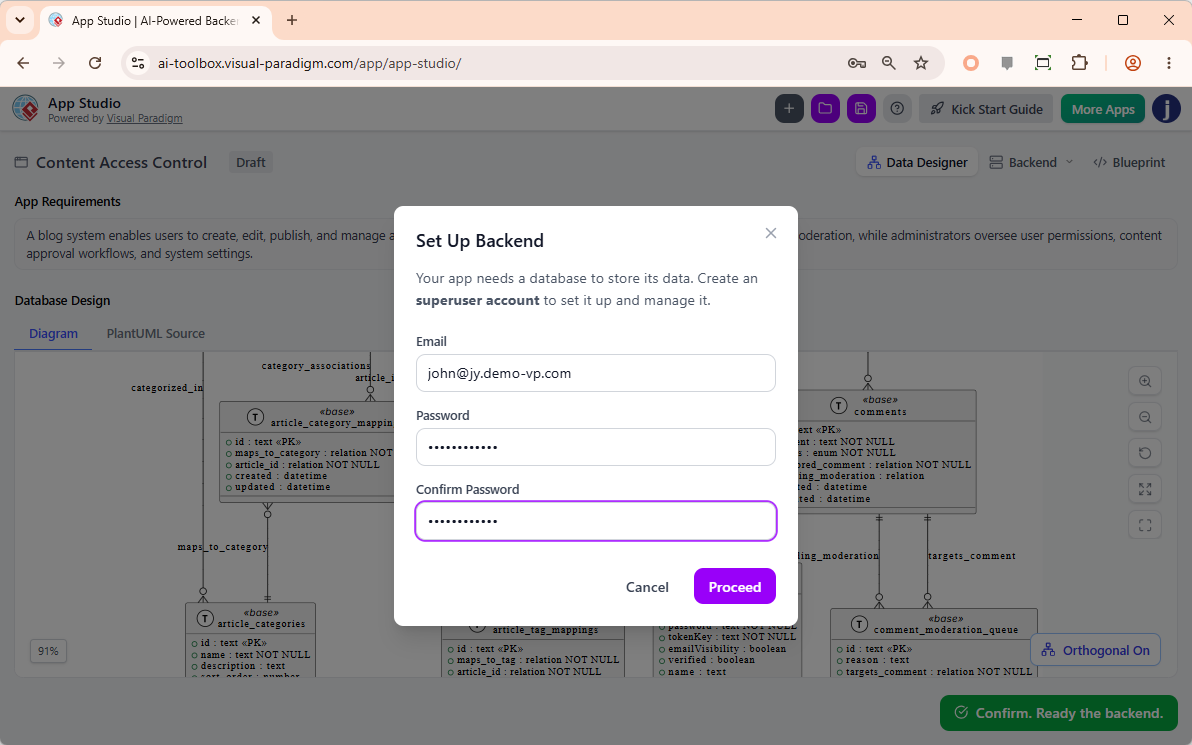
3. Set Up Backend
With a single click, App Studio provisions a secure, managed cloud database, configures active data APIs, and generates your admin credentials.
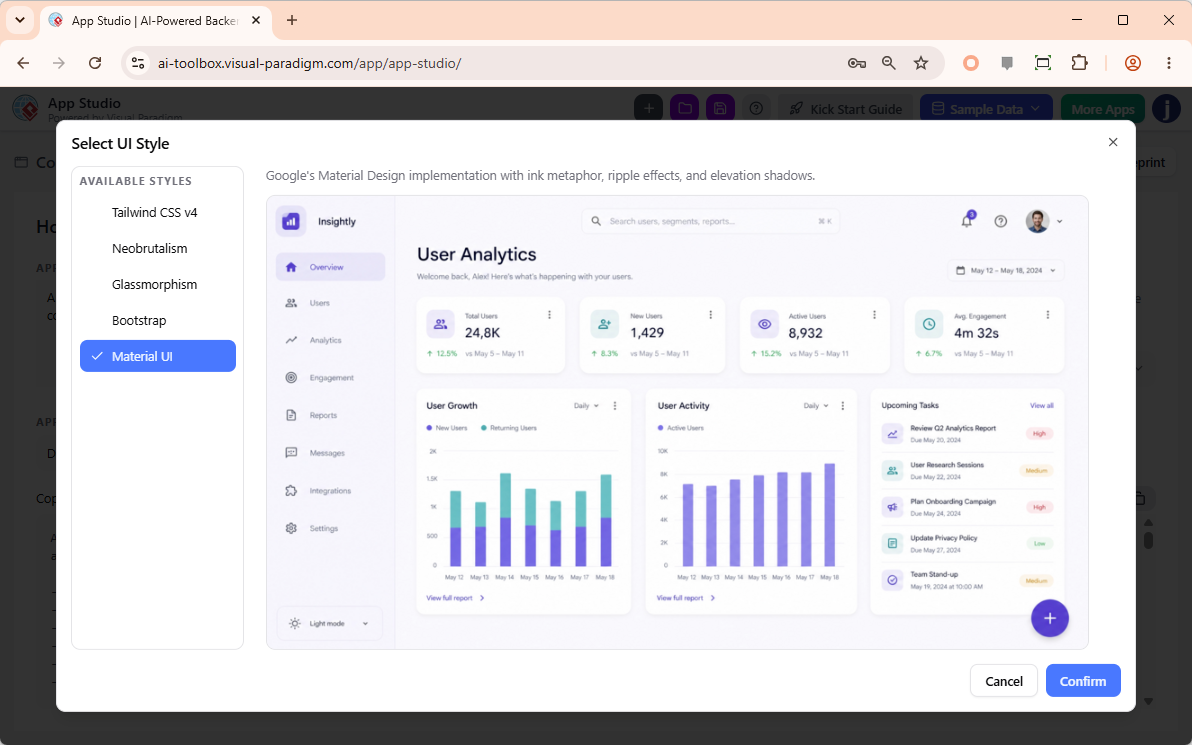
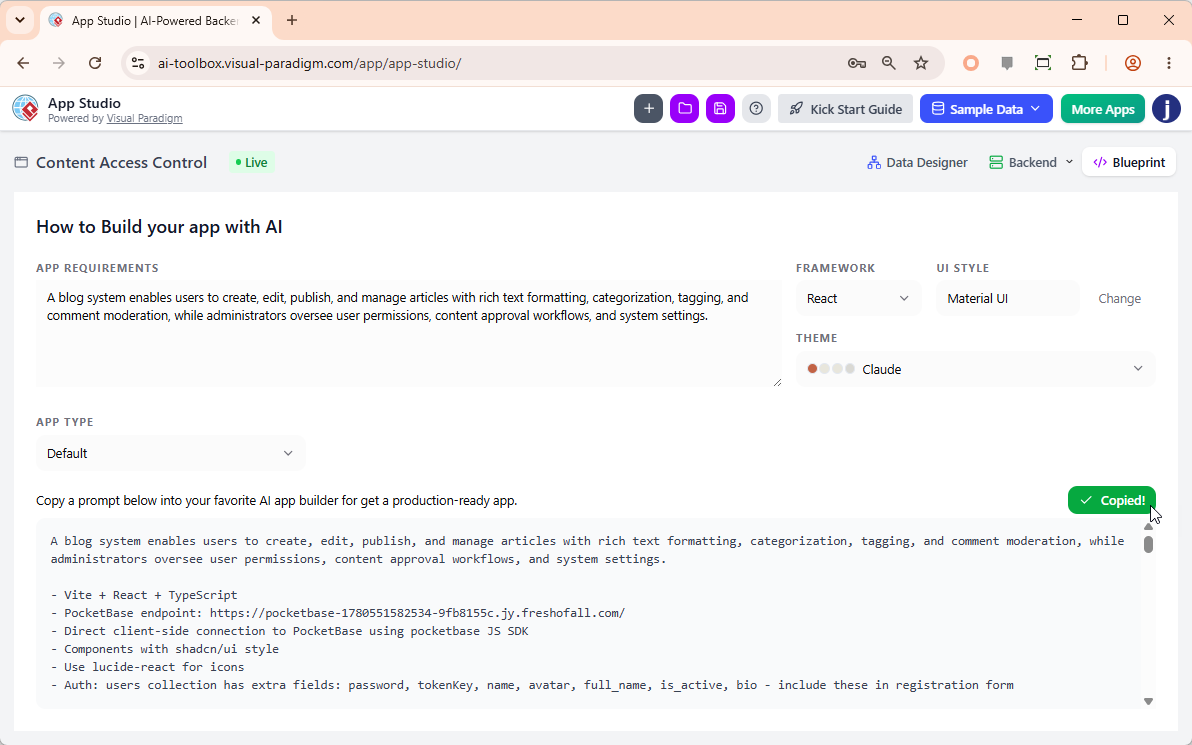
4. Adjust Style, Theme, and Copy the Prompt
Customize your frontend framework, UI style, and color theme. Finally, the system packages your live backend architecture and design rules into a master prompt.
5. Build and Finalize
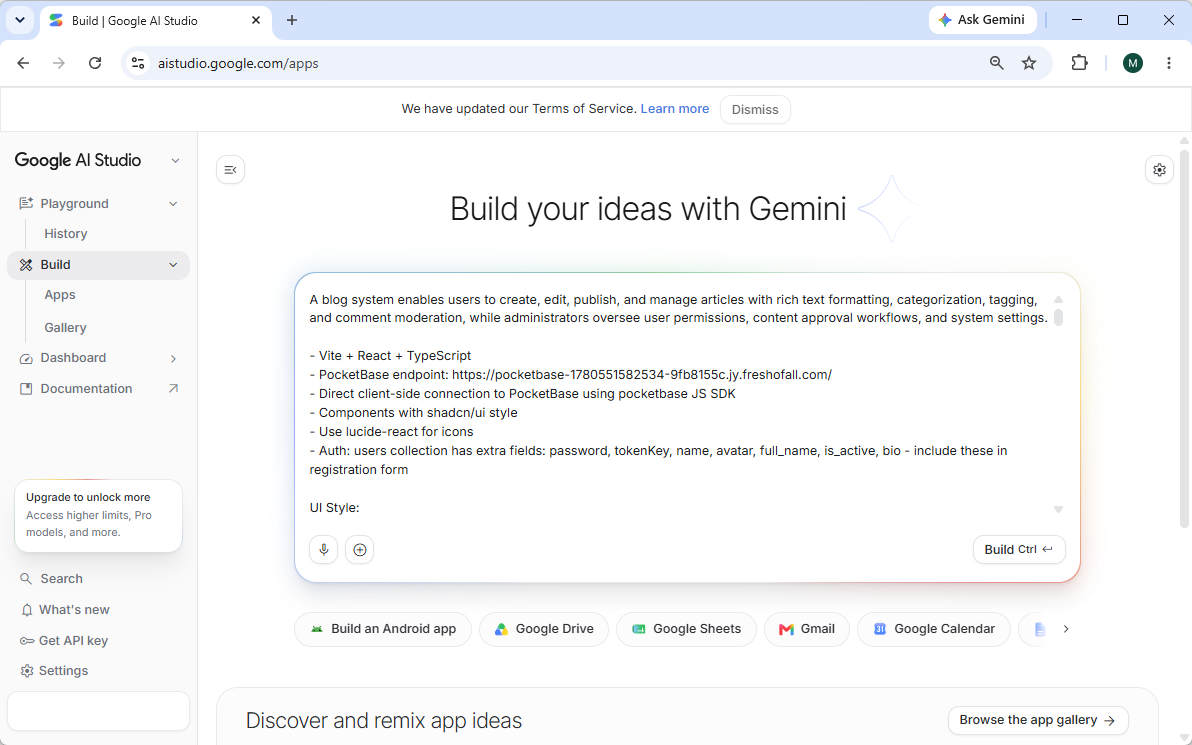
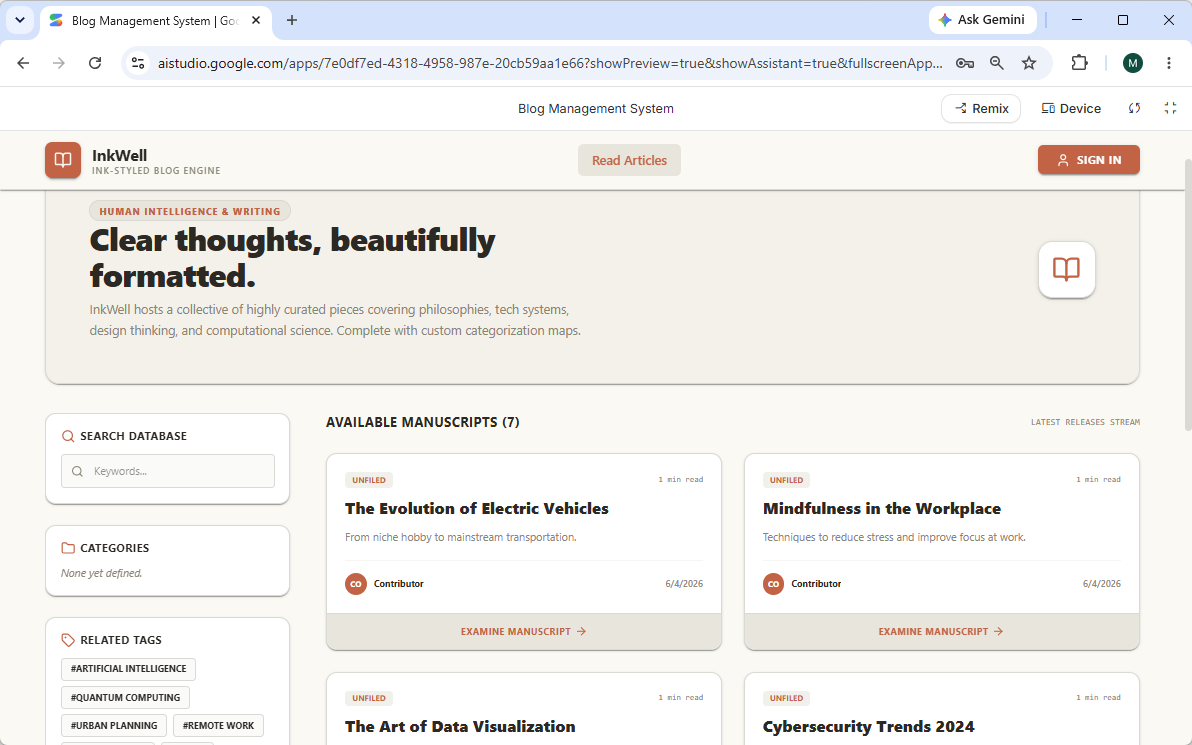
Paste the prompt into your favorite external AI coding tool to generate the frontend. The result is a fully functioning application connected to your live database.
Why Product Teams Choose App Studio
-
Total Freedom, No Vendor Lock-In: App Studio handles the heavy lifting of the database backend but leaves the frontend entirely up to you and your favorite AI coding environments.
-
Zero Database Coding Required: The system automatically structures, connects, and maps your data flawlessly based on plain English descriptions.
-
Instant Cloud Deployment: Skip server management and API setups. App Studio provisions a secure cloud database and generates active data endpoints instantly.
Part 2: Hands-On Tutorial – Building an Internal IT Helpdesk System
To demonstrate the power of this data-driven workflow, we will build a complete Internal IT Helpdesk System. We will use a powerful trio of tools: Visual Paradigm App Studio for the blueprint, Google AI Studio for application creation, and Vercel for seamless deployment.

Step 1: Kick-Starting Your Project in Visual Paradigm App Studio
-
Access and Login: Navigate to the Visual Paradigm App Studio. Ensure you are logged in with a valid license for Visual Paradigm Online Combo Edition or Desktop Professional Edition.
-
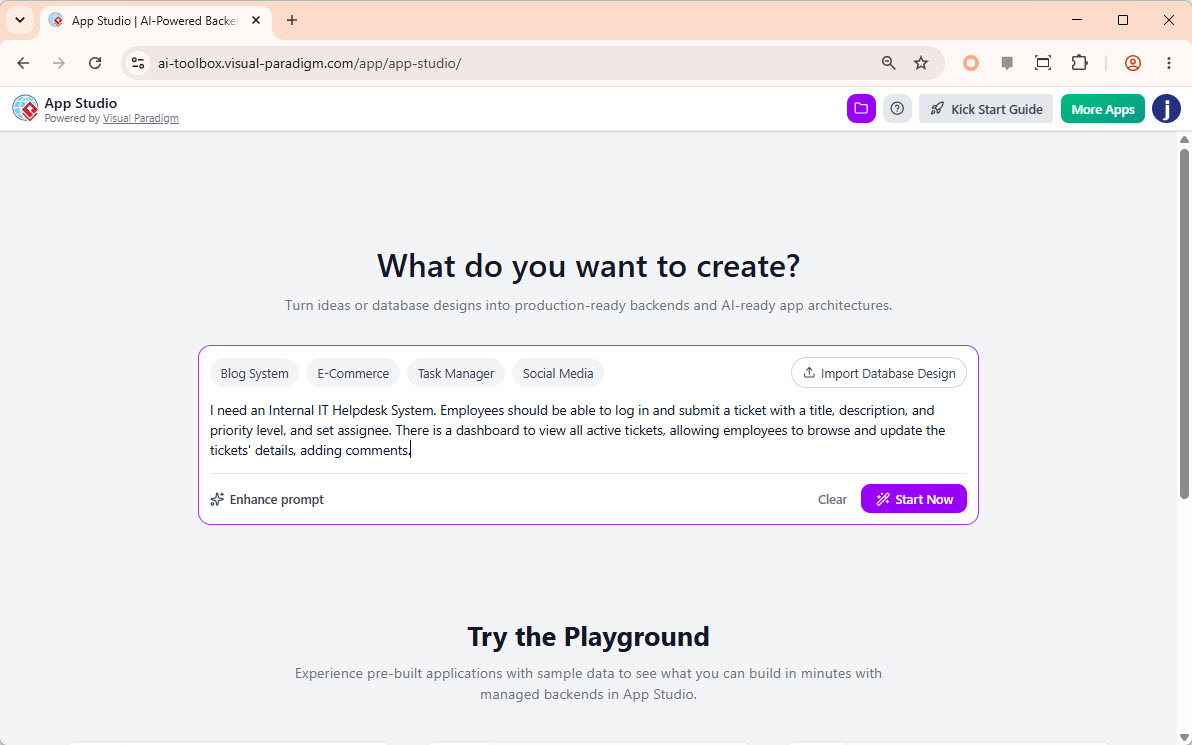
Define Requirements: Enter a detailed description of your app. For our Helpdesk System, input the following:
“I need an Internal IT Helpdesk System. Employees should be able to log in and submit a ticket with a title, description, priority level, and an assignee. There should be a dashboard to view all active tickets, allowing employees to browse and update ticket details, including adding comments.”
Pro Tip: Use the “Enhance Prompt” button if you need the AI to enrich a brief description.
-
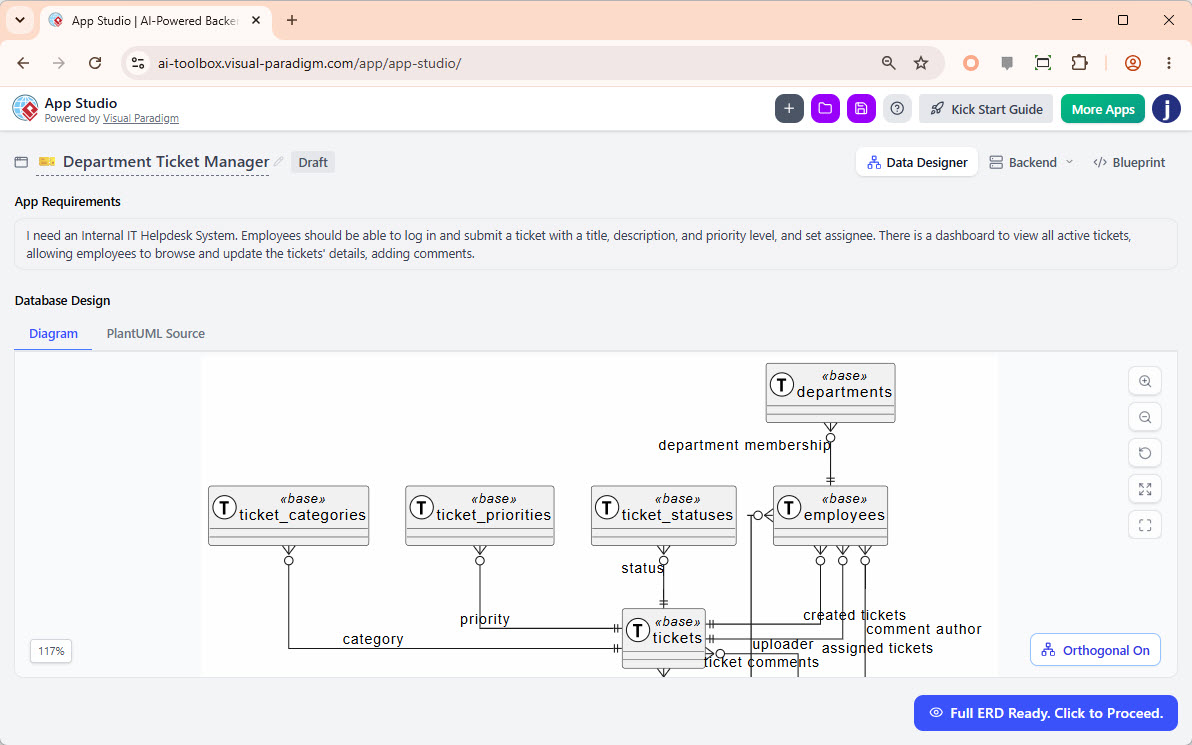
AI-Driven ERD Generation: Click “Start Now”. The AI will analyze your text and generate an initial Entity-Relationship Diagram (ERD). Wait a few moments for the full structure to populate.
-
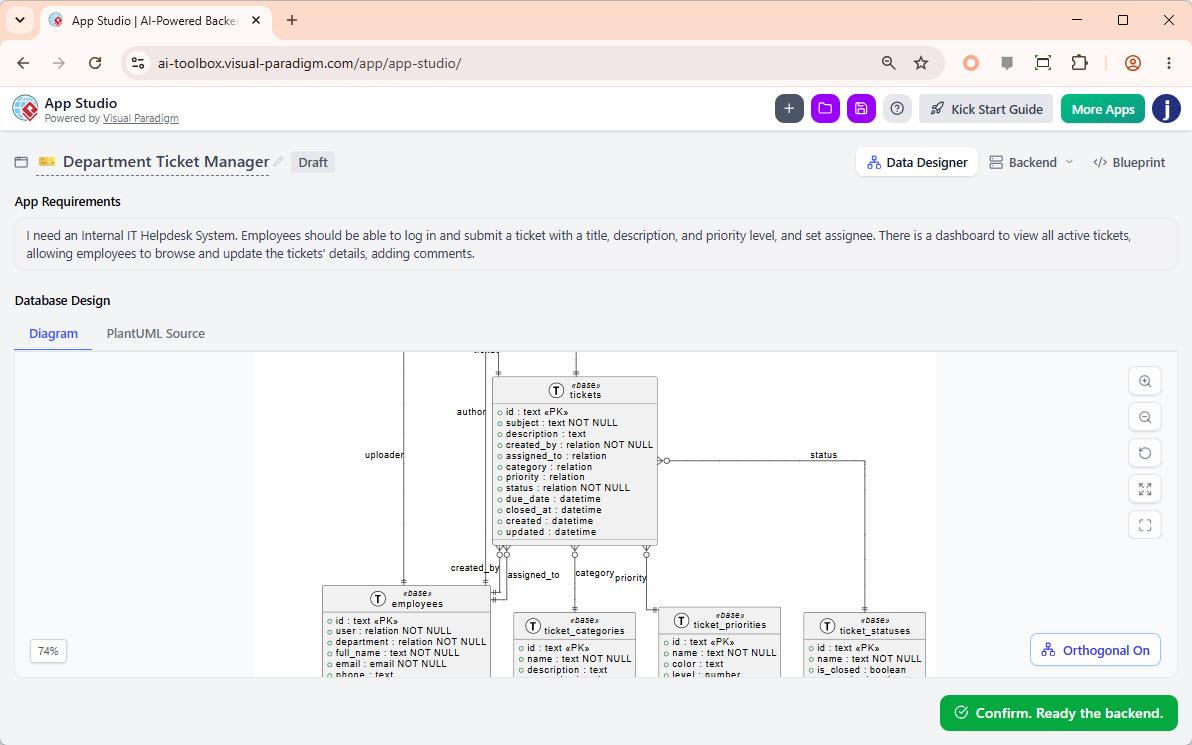
Review and Confirm: Once the “Full ERD Ready. Click to Proceed” button appears, click it to view the complete schema. Review the tables and columns, then click “Confirm, Ready the backend.”
-
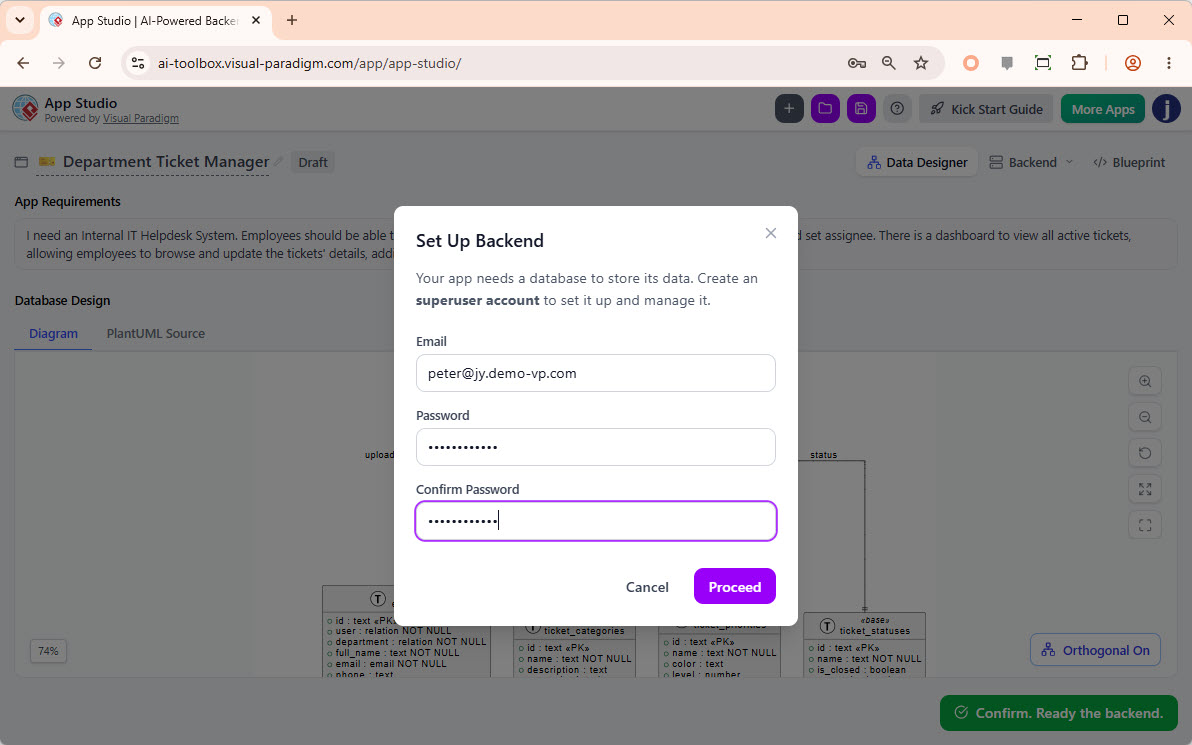
Set Up the Database Backend: Enter your preferred email and password to create a superuser account for your managed database. Click “Proceed”.
-
Database Provisioning: App Studio will provision the database and automatically insert sample records for testing.
-
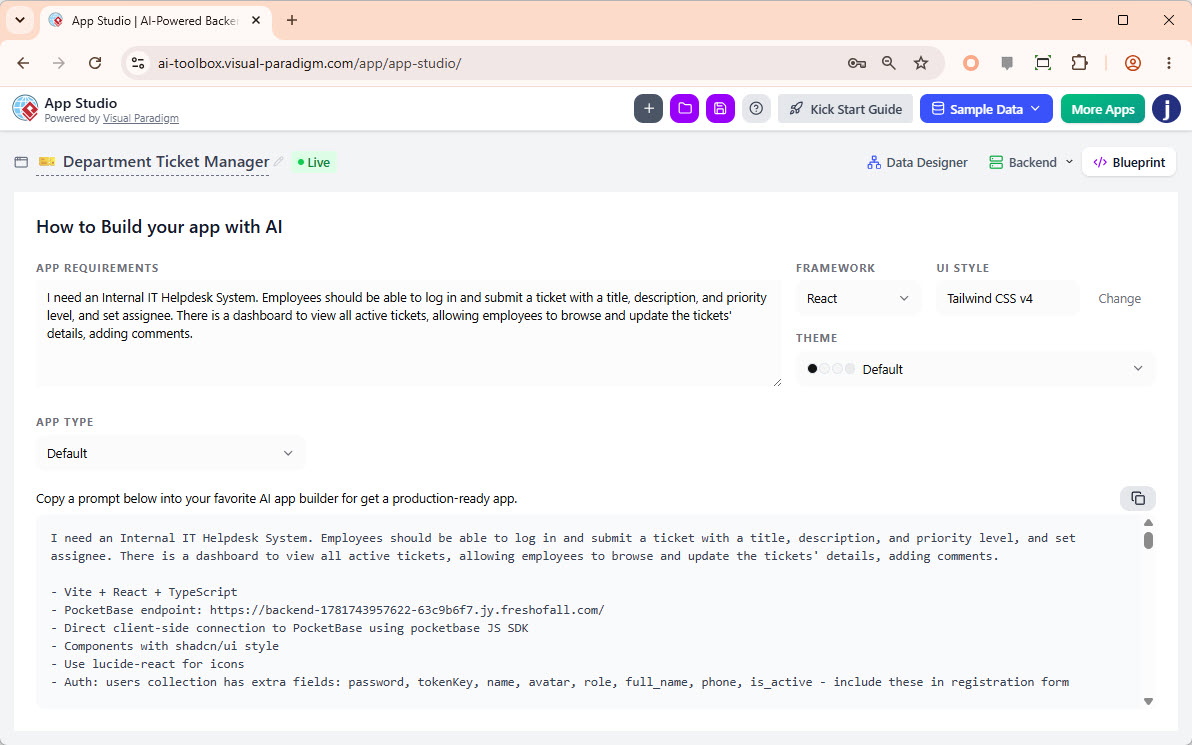
Customize Your Blueprint: On the “Blueprint” page, configure your frontend parameters:
-
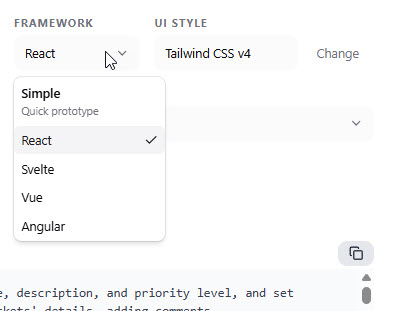
Framework: Select your preferred frontend framework (e.g., React, Vue, Angular). We will keep the default React.
-
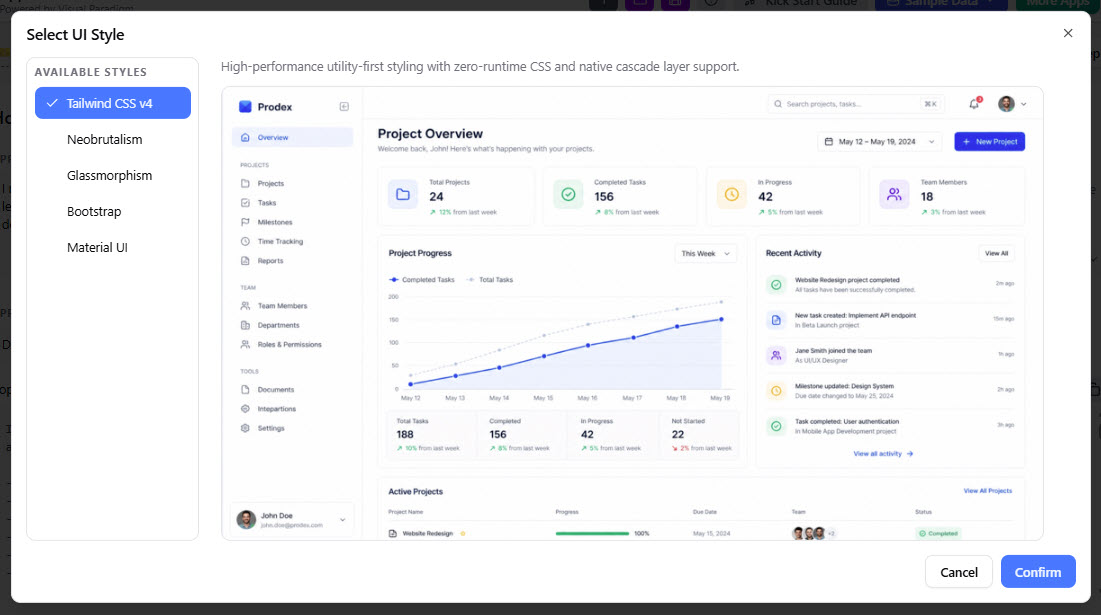
UI Style: Choose a design system like Tailwind CSS v4, Neobrutalism, or Bootstrap. We will select Tailwind CSS v4.
-
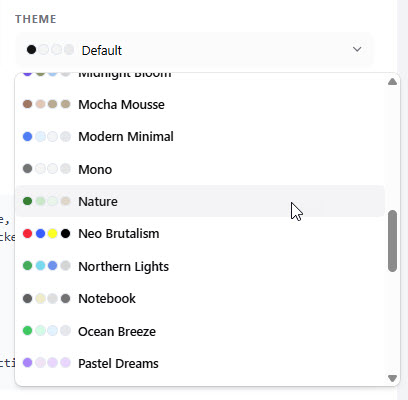
Theme: Choose a color palette. We will select the “Nature” palette.
-
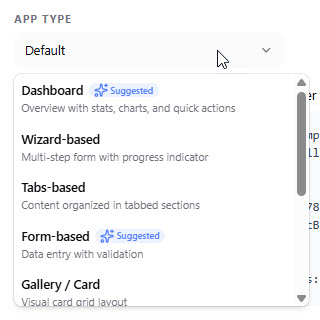
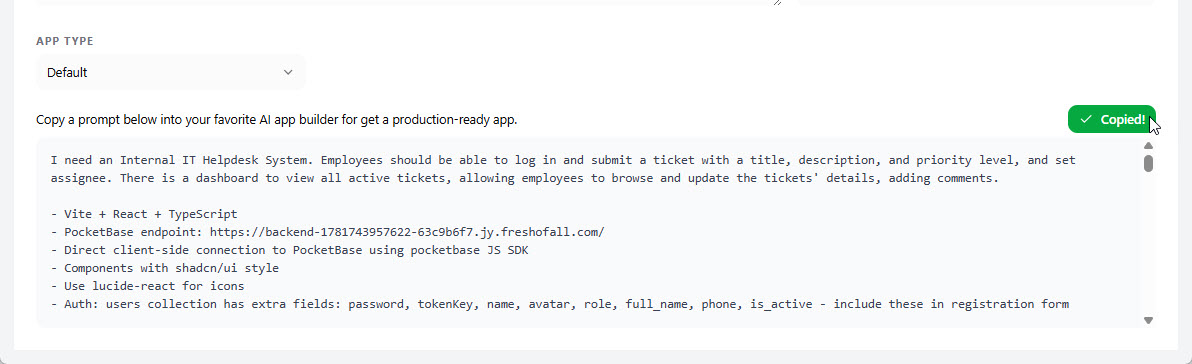
App Type: Select a layout type (e.g., Default, Kanban, List/Table). We will leave it as “Default”.
-
-
Copy the AI Prompt: Click the “Copy” button. This comprehensive prompt encapsulates your schema, backend logic, and design rules.
Step 2: Generating Your App in Google AI Studio
-
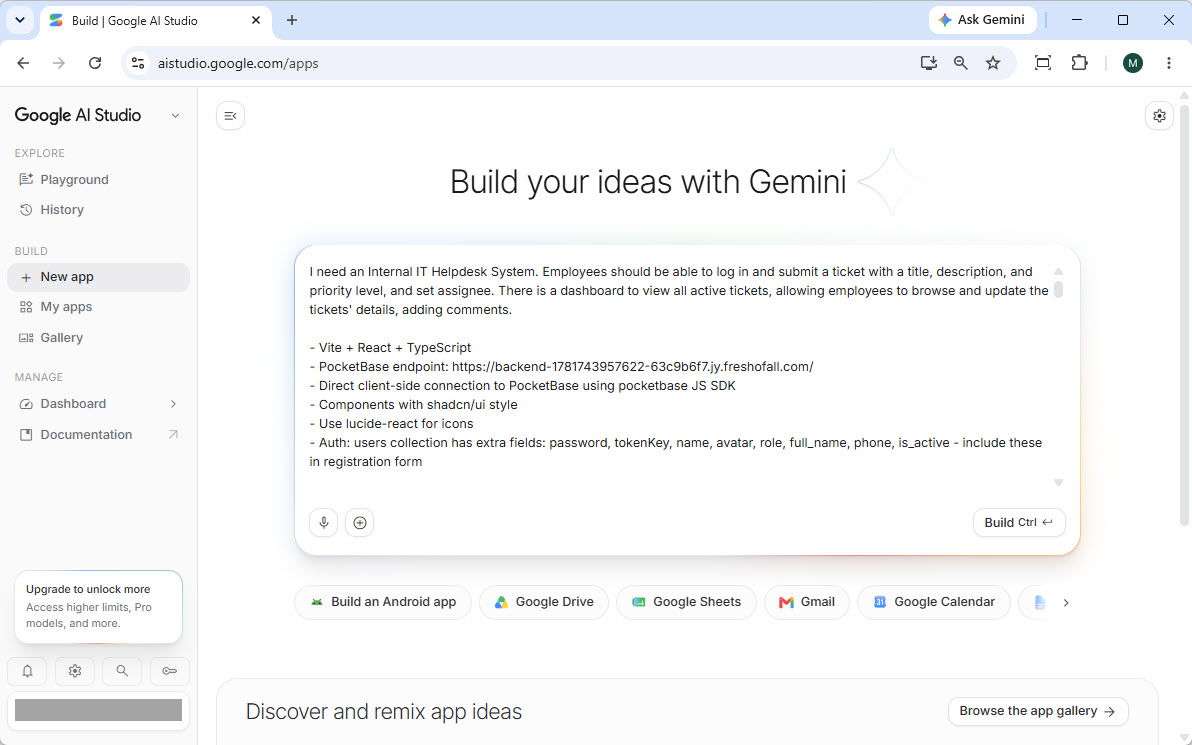
Paste the Prompt: Open Google AI Studio, create a new project, and paste the prompt inline.
-
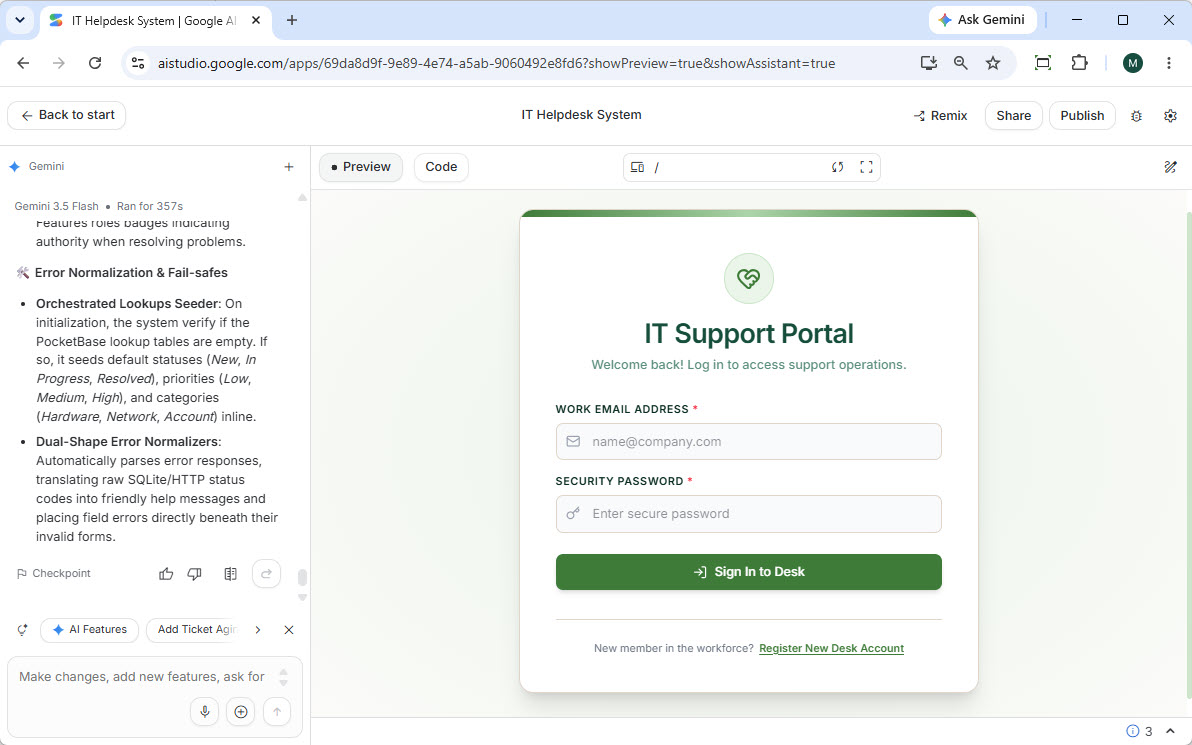
Build: Click the “Build” button. The AI will translate the prompt into a functional web application.
-
Test the Functionality:
-
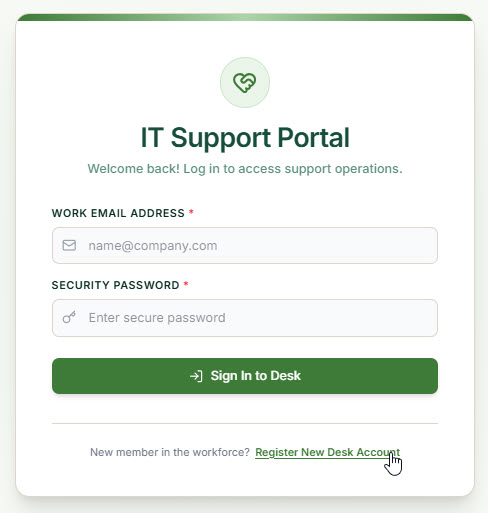
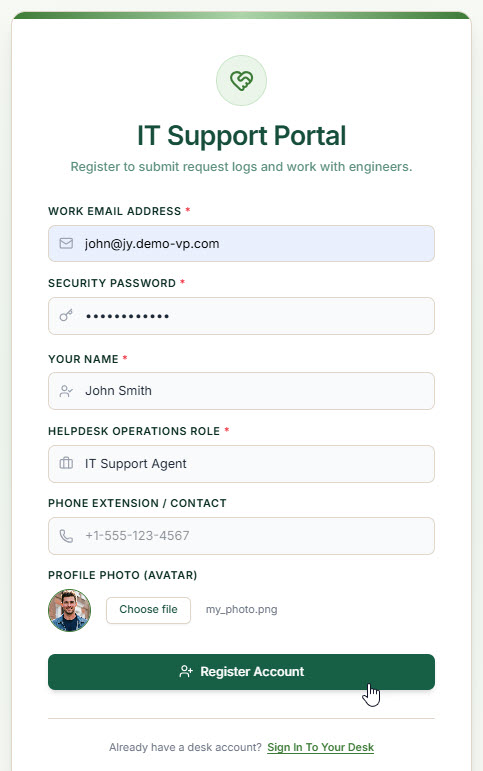
Click “Register New Deck Account” to create a user.
-
Enter your details and proceed.
-
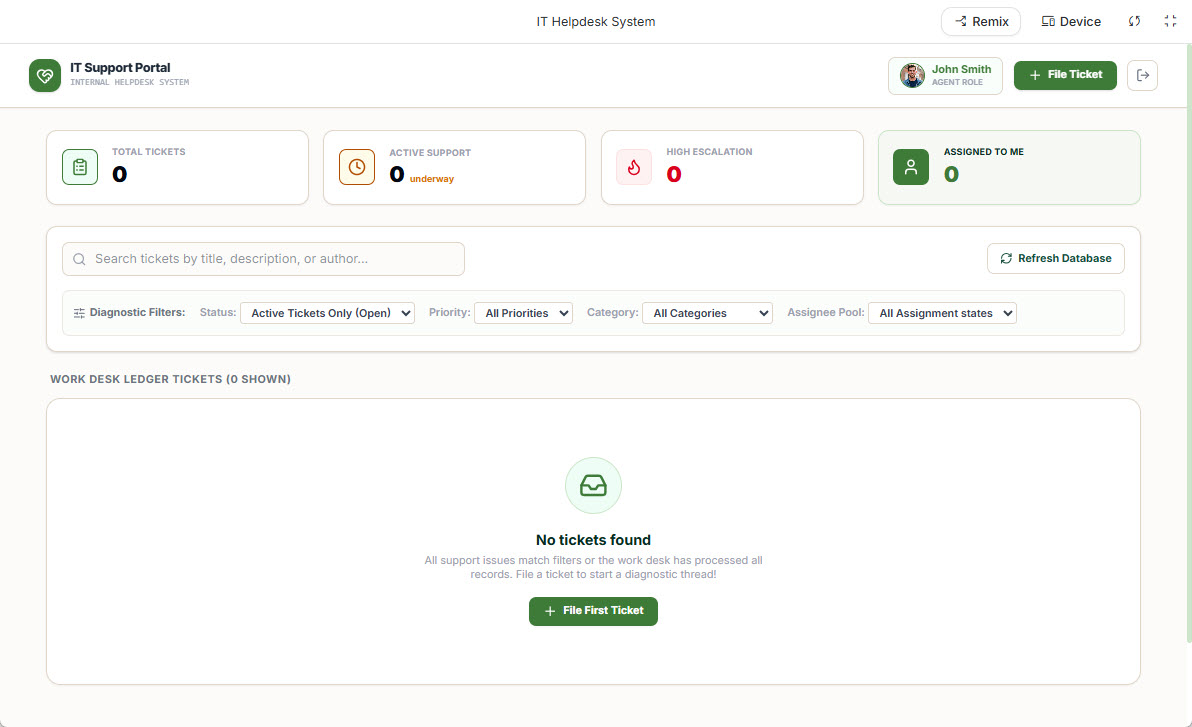
You will be directed to the functional dashboard.
-
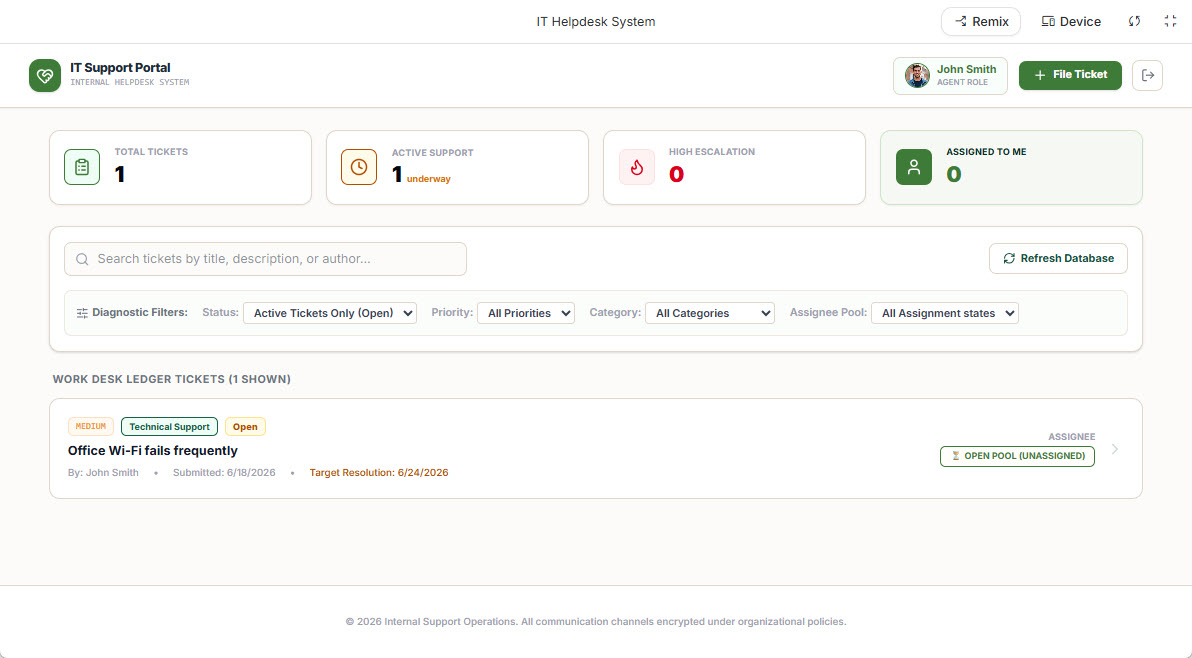
Click “File Ticket”, fill in the details (notice the pre-populated lookup fields from the seeded data), and submit.
-
Step 3: Managing the Database Before Production
Before going live, clean up your data.
-
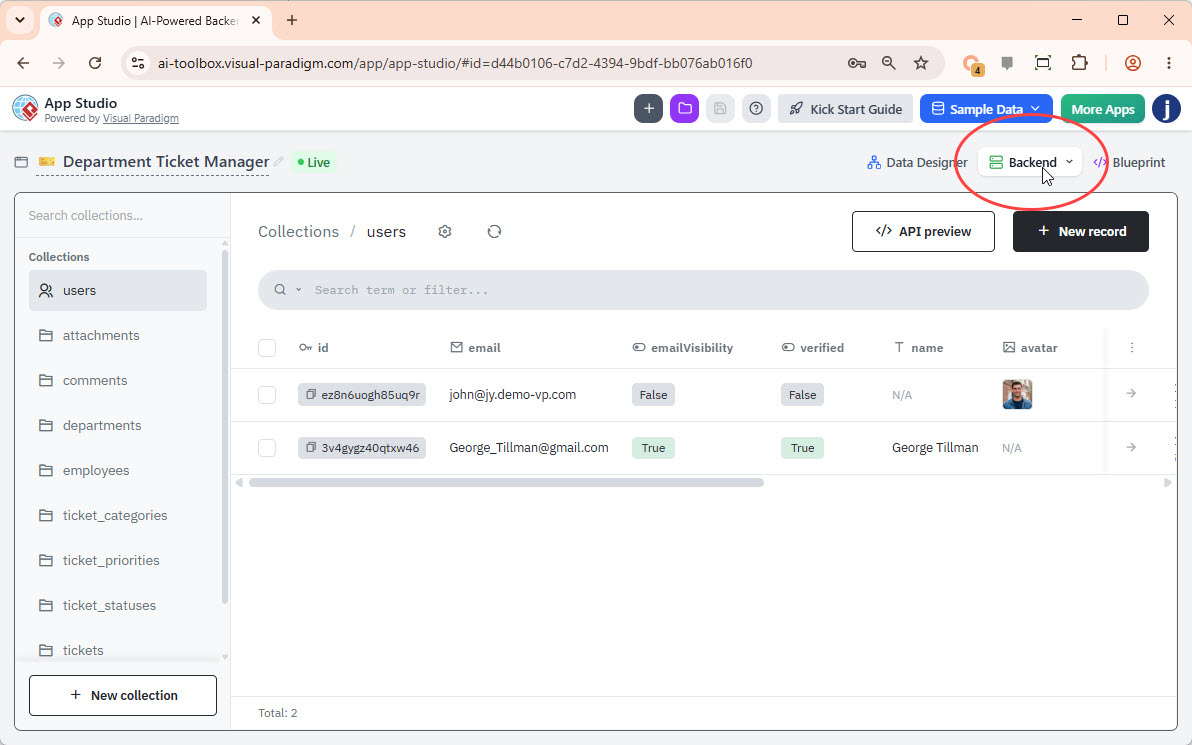
Return to Visual Paradigm App Studio and click the “Backend” button at the top right.
-
Use the console to view tables, delete sample records, add new data, or edit existing fields. Changes reflect instantly in your live app.
Step 4: Deploying to Production with Vercel
4.1 Syncing from Google AI Studio to GitHub
-
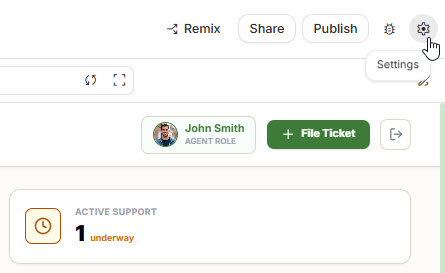
In Google AI Studio, click the Settings (gear icon).
-
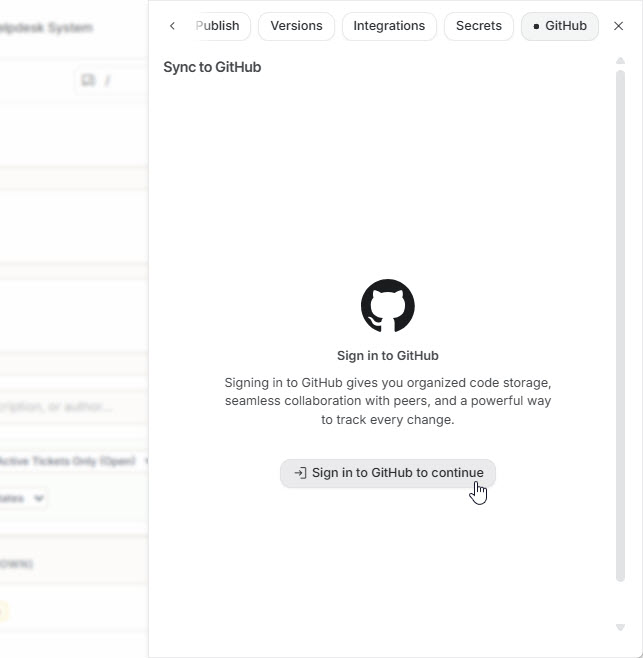
Go to the “GitHub” tab and sign in to authorize the integration.
-
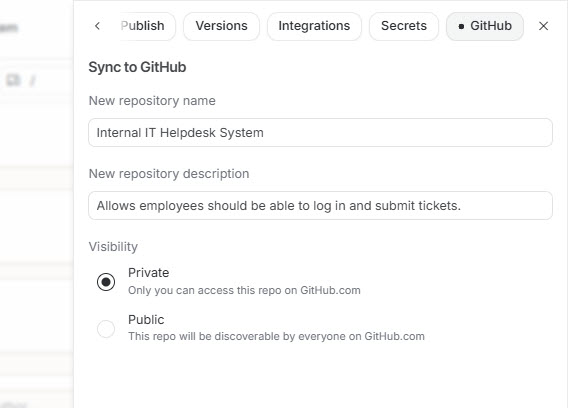
Create a new repository (name, description, visibility) and click “Create GitHub repository.”
-
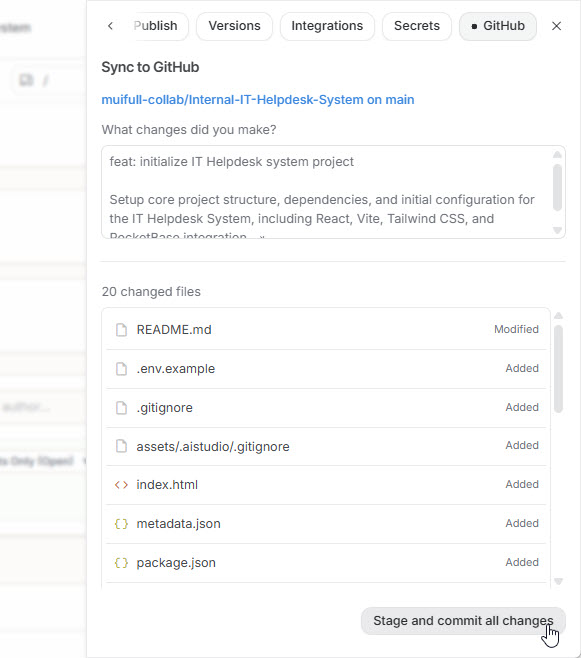
Review the files, click “Stage and commit all changes,” and wait for the sync confirmation.
4.2 Deploying to Vercel
-
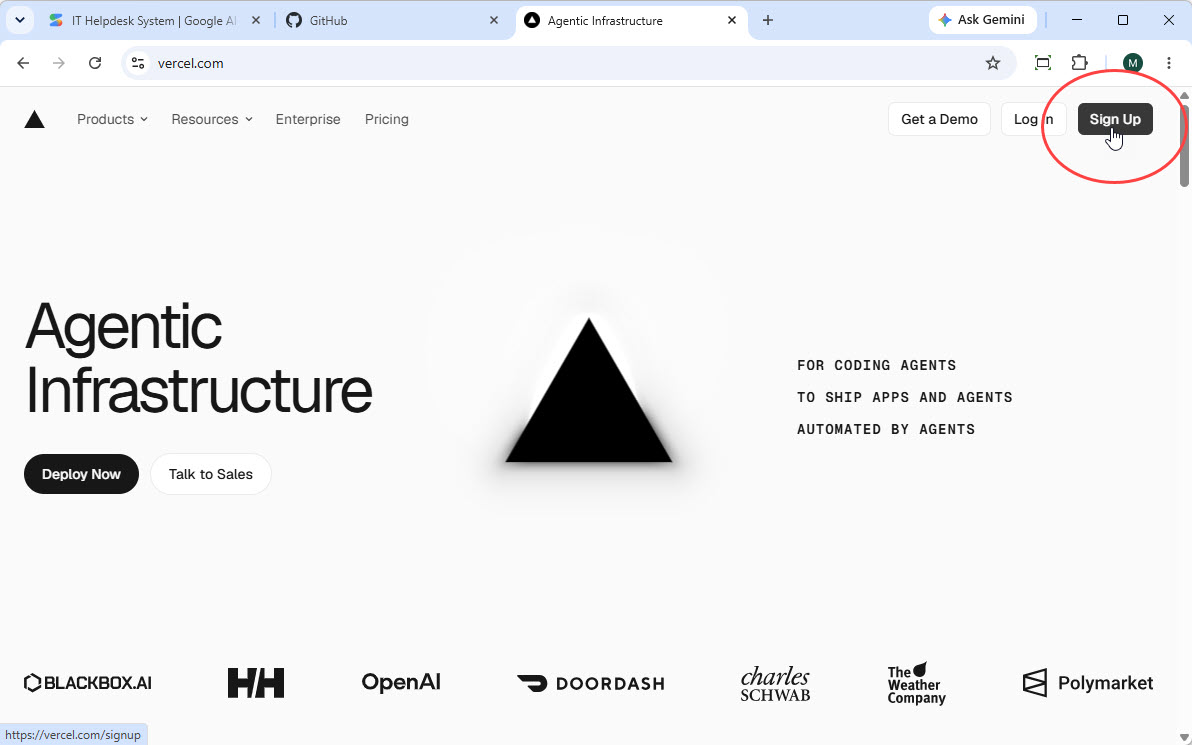
Sign up or log in to Vercel using your GitHub account.
-
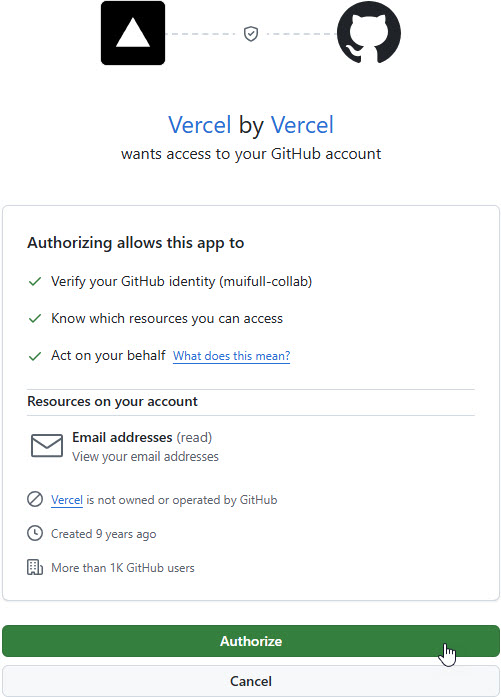
Authorize Vercel to access your GitHub account.
-
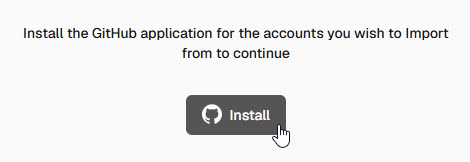
Install the Vercel GitHub application on your dashboard.
-
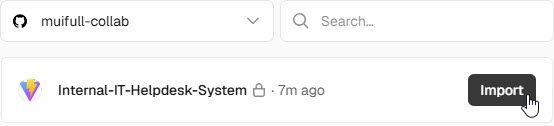
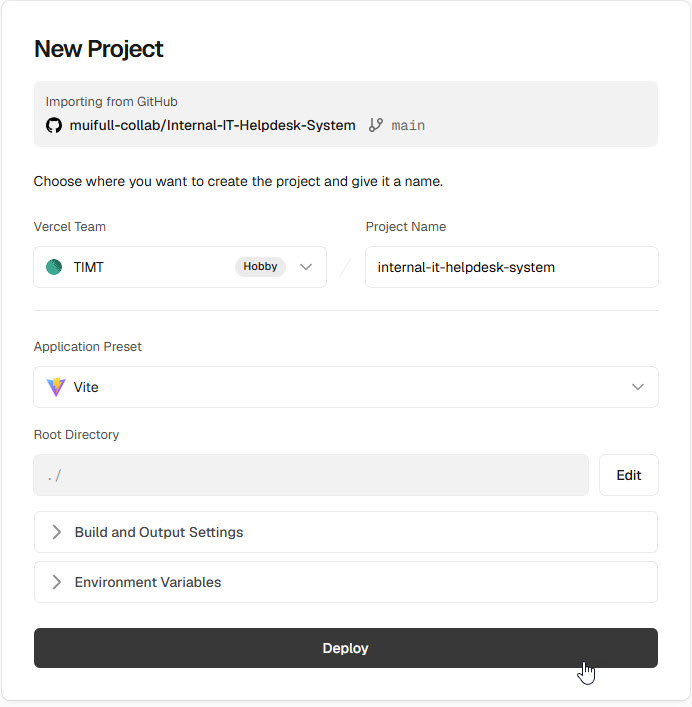
Select and “Import” your newly created repository.
-
Vercel will auto-detect settings. Click “Deploy.”
-
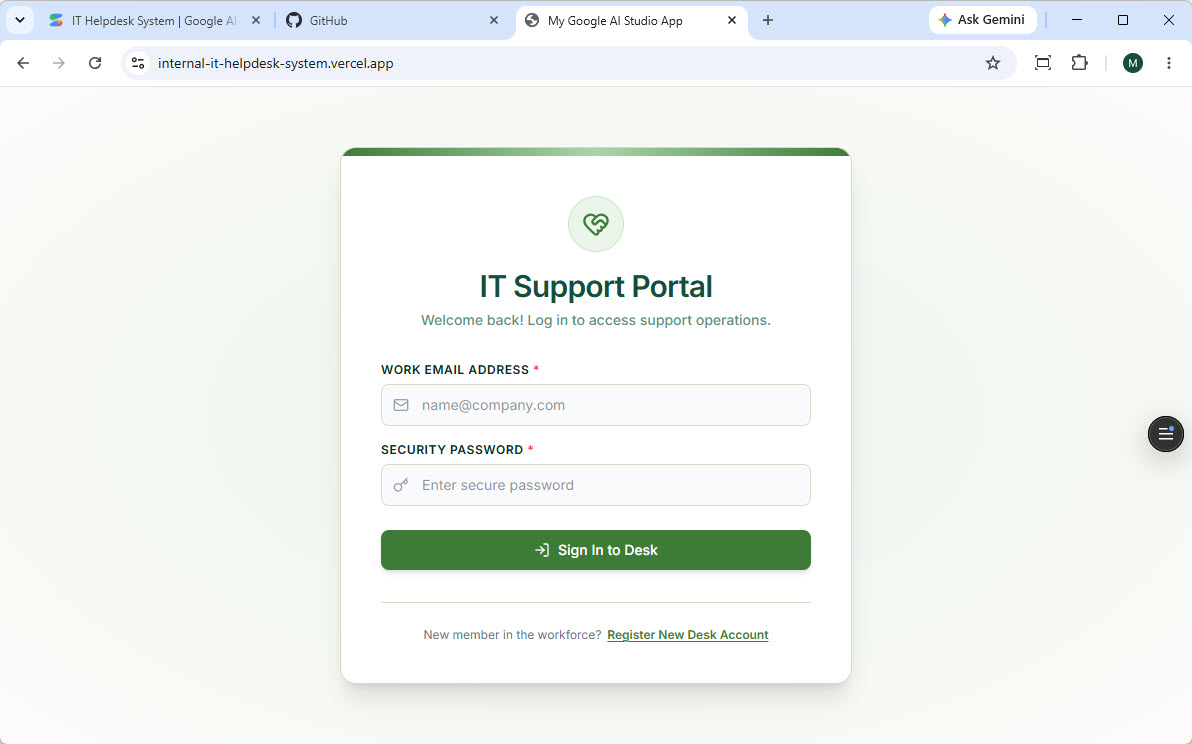
Once the build finishes, click “Visit Deployment” to see your live app.
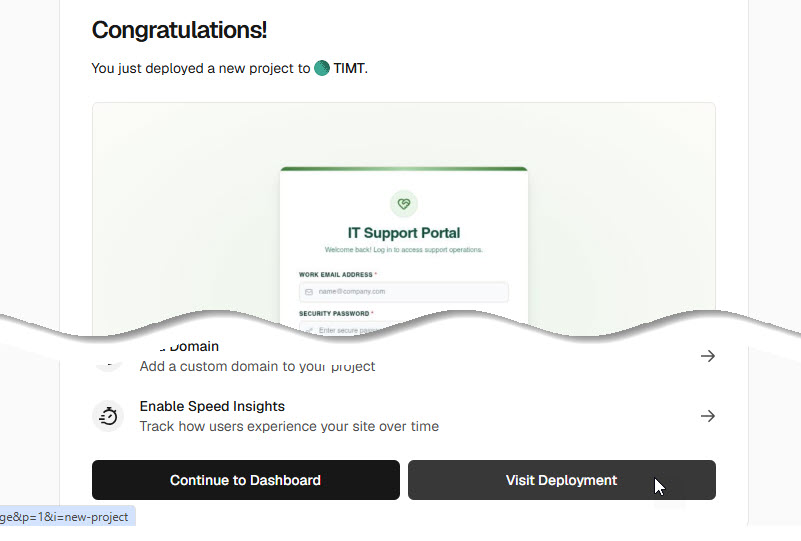
Congratulations! You have successfully built and deployed a production-ready application.
Conclusion: Accelerating Time-to-Market with Data-Driven AI
The introduction of Visual Paradigm AI App Studio marks a significant maturation in the AI-assisted development space. For Product Managers and engineering teams, the ability to decouple backend data architecture from frontend generation is a game-changer.
By enforcing a data-first methodology, App Studio eliminates the technical debt and vendor lock-in typically associated with rapid prototyping tools. It ensures that when the AI generates your frontend code, it is connecting to a robust, scalable, and properly structured database. Combined with the seamless deployment pipelines offered by platforms like Vercel, this workflow empowers teams to go from a raw concept to a fully hosted, production-grade application in a matter of hours.
As AI continues to automate the heavier lifting of software engineering, tools like App Studio allow product teams to refocus their energy where it matters most: solving user problems, refining business logic, and delivering exceptional product experiences. The future of rapid application development is here, and it is fundamentally data-driven.