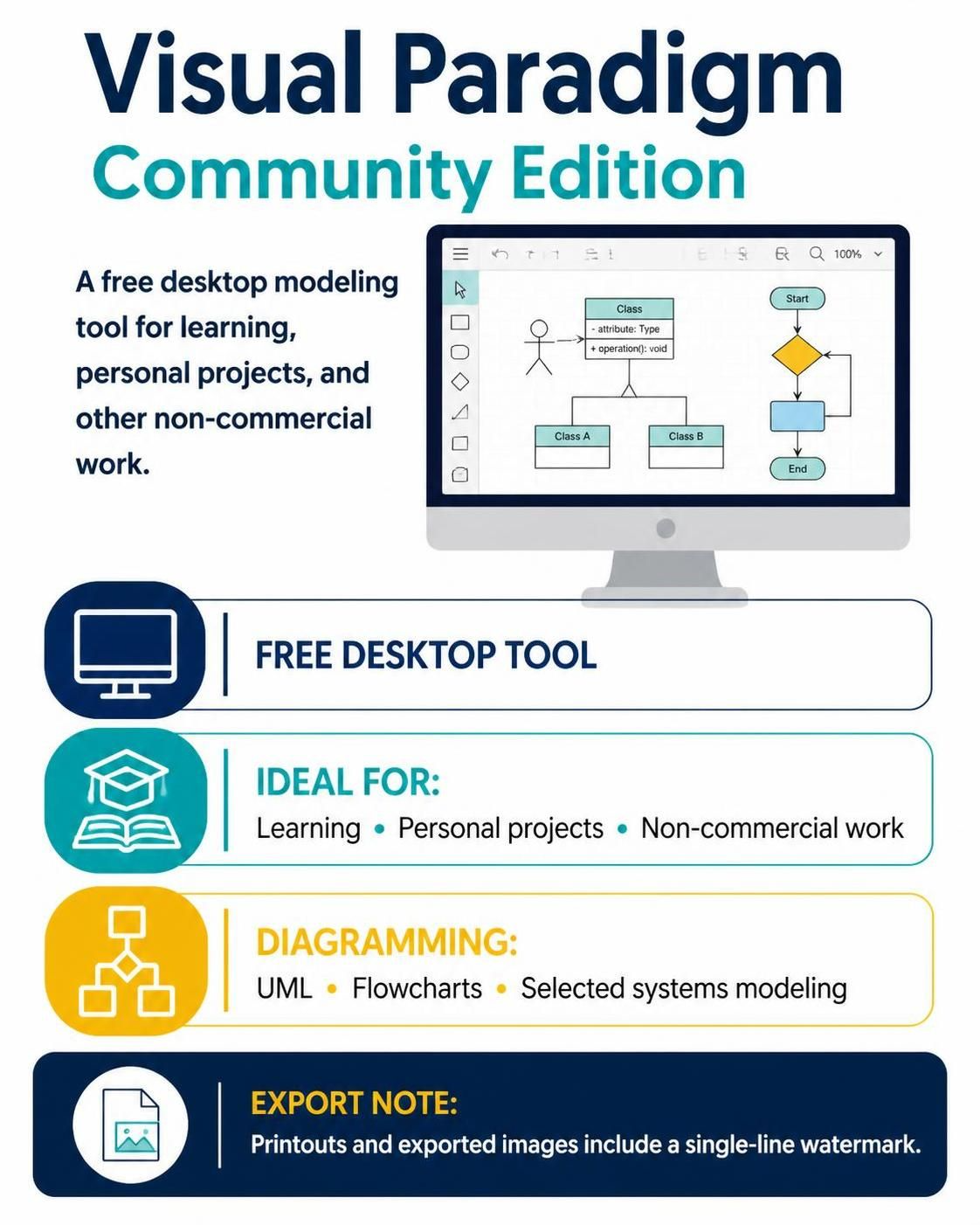
Visual Paradigm Community Edition is a free desktop modeling tool suited to learning, personal projects, and other non-commercial work. It covers a broad set of diagramming needs, especially UML, flowcharts, and selected systems-modeling tasks. The official comparison also notes that printouts and exported images from the Community Edition carry a single-line watermark.
What you can do
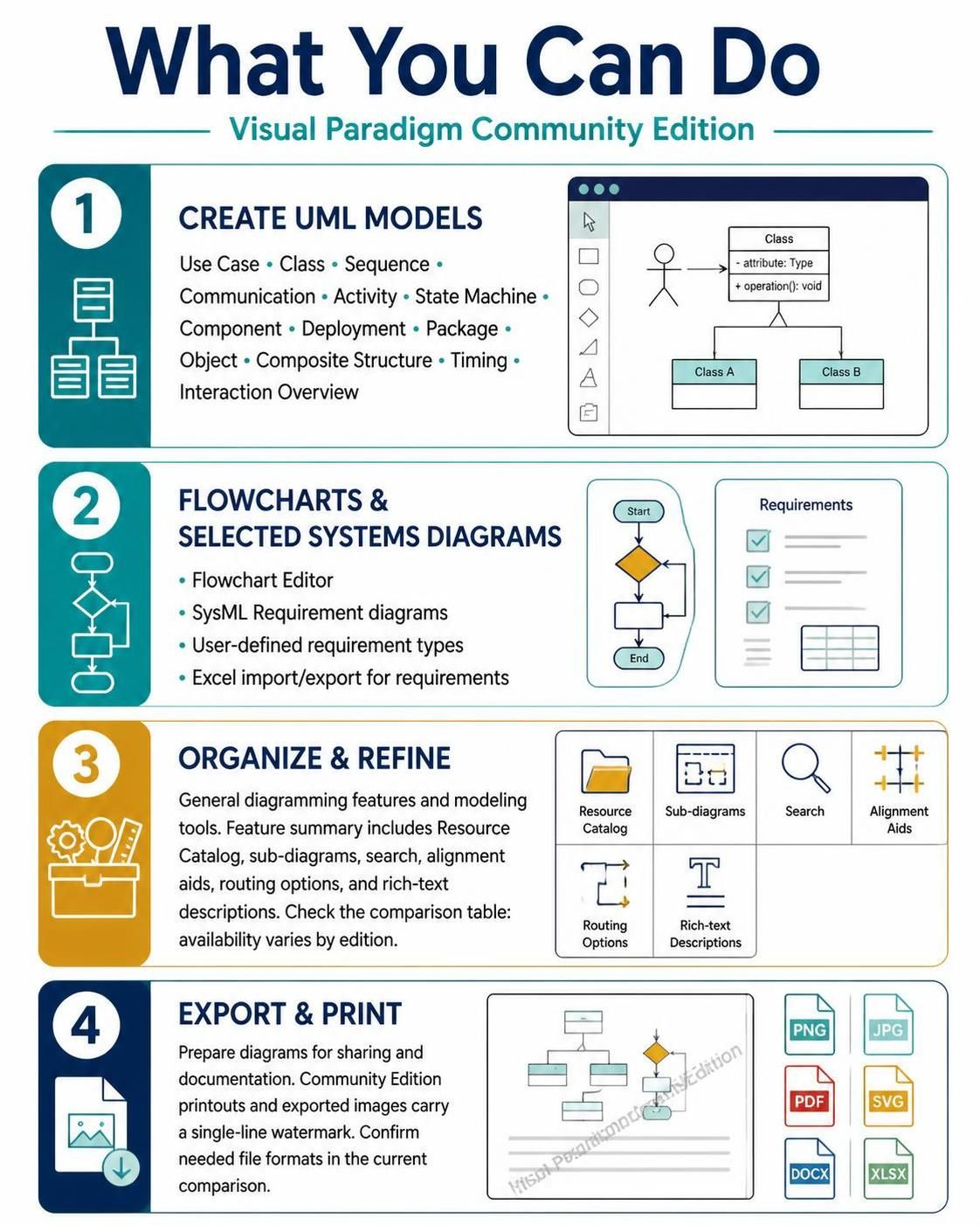
Create UML models. The edition includes Use Case, Class, Sequence, Communication, Activity, State Machine, Component, Deployment, Package, Object, Composite Structure, Timing, and Interaction Overview diagrams. These can help you describe system behavior, structure, components, and deployment plans.
Make flowcharts and selected systems diagrams. The comparison lists a Flowchart Editor and SysML Requirement diagrams among the Community Edition features. It also lists user-defined requirement types and Excel import/export for requirements.
Organize and refine diagrams. The edition comparison lists general diagramming features and modeling tools across its tables. The supplied feature summary additionally describes conveniences such as a Resource Catalog, sub-diagrams, search, alignment aids, routing options, and rich-text descriptions. Check the comparison table for the specific feature you plan to rely on, since availability varies by edition.
Export and print. You can prepare diagrams for sharing or documentation, but remember that the official comparison specifies a single-line watermark on Community Edition printouts and exported images. Confirm the exact file formats you need in the current comparison before settling on an export workflow.
A practical workflow
-
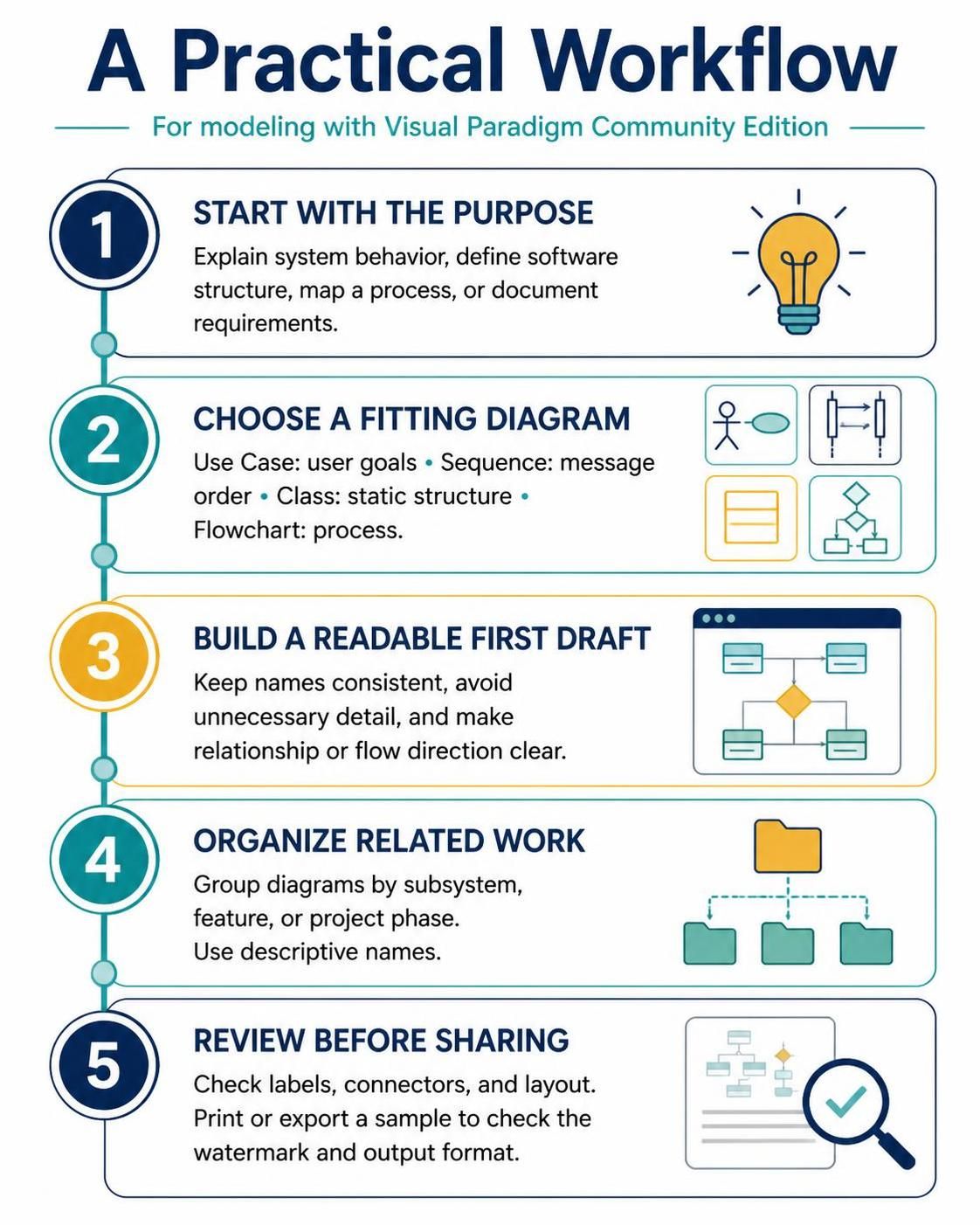
Start with the purpose. Decide whether you need to explain system behavior, define software structure, map a process, or document requirements.
-
Choose a diagram that fits. For example, use a Use Case diagram to show user goals, a Sequence diagram to show message order, a Class diagram to show static structure, or a Flowchart to outline a process.
-
Build a readable first draft. Keep names consistent, avoid unnecessary detail, and make the direction of relationships or flows clear.
-
Organize related work. Group diagrams by subsystem, feature, or project phase, and use descriptive names so you can find them later.
-
Review before sharing. Check labels, connectors, and layout, then print or export a sample to see whether the watermark and output format meet your needs.
What to plan around
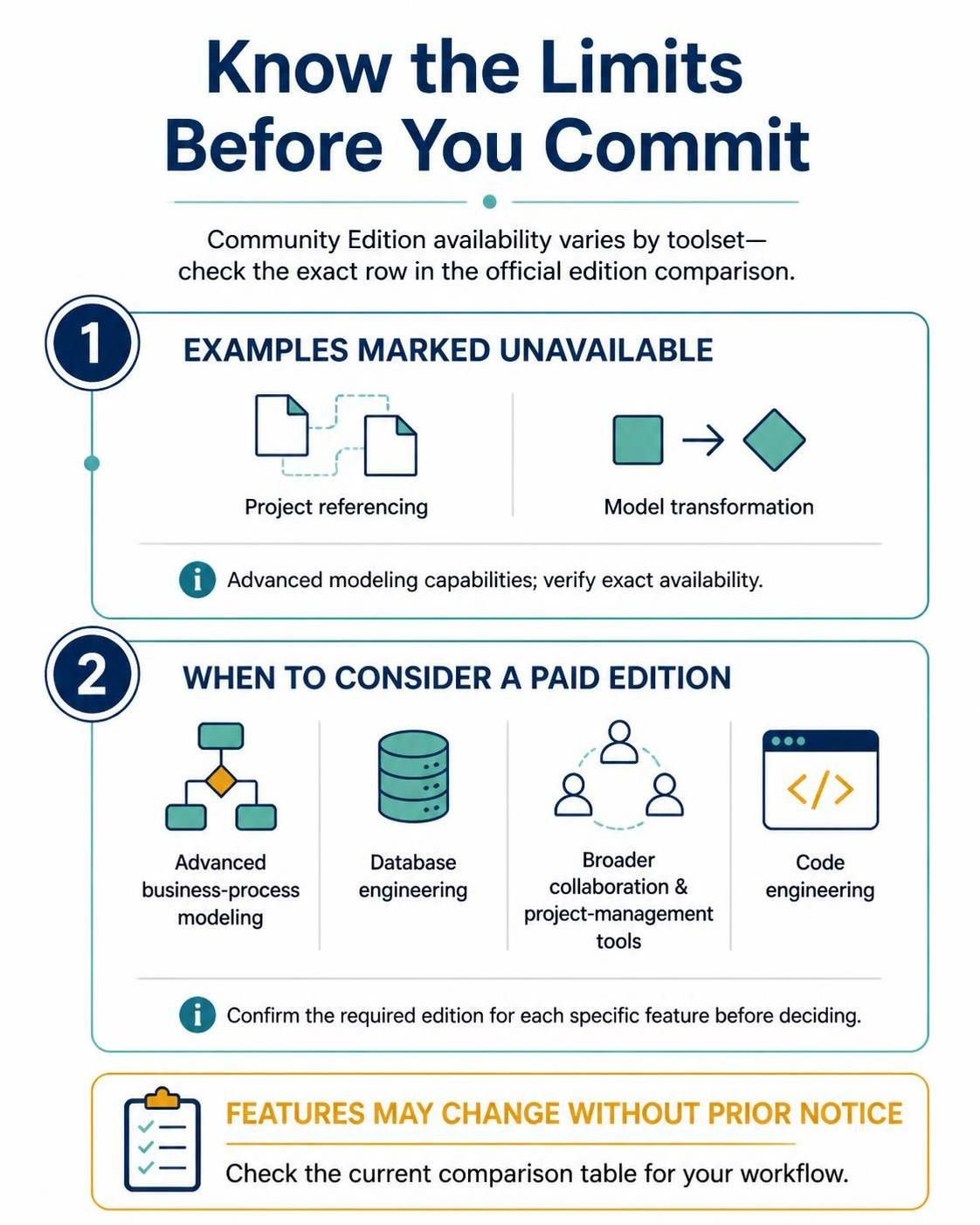
The edition comparison marks many capabilities as unavailable in Community Edition, including advanced modeling features such as project referencing and model transformation. The specific omissions depend on the toolset, so check the relevant row in the official table rather than assuming a whole category is included or excluded.
The description you provided also flags advanced business-process modeling, database engineering, broader collaboration and project-management tools, and code engineering as reasons to consider a paid edition. If you need one of these for a real workflow, verify its exact edition requirement in the current comparison before deciding. The official table notes that features may change without prior notice.
Is Community Edition a good fit?
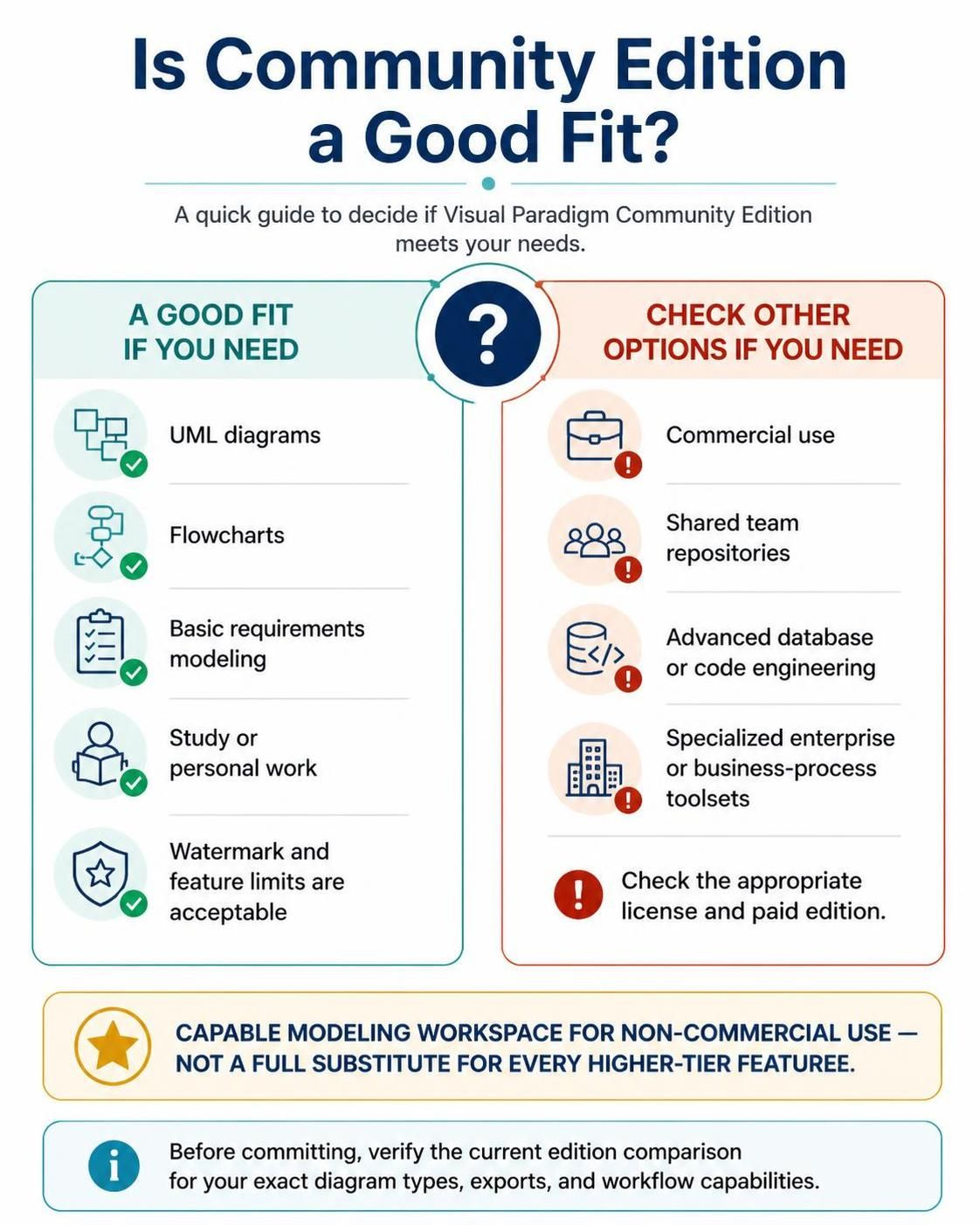
It is a strong fit if you primarily need UML diagrams, flowcharts, or basic requirements modeling for study or personal work, and the watermark and feature boundaries are acceptable. It is a poor fit if your work requires commercial use, shared team repositories, advanced database or code engineering, or specialized enterprise/business-process toolsets; those needs call for checking the appropriate license and paid edition.
Bottom line: treat Community Edition as a capable modeling and diagramming workspace for non-commercial use, not as a full substitute for every higher-tier feature. Before committing, verify the current edition comparison for the exact diagram types, exports, and workflow capabilities you need.