
Mastering UML Model Element Referencing in Visual Paradigm
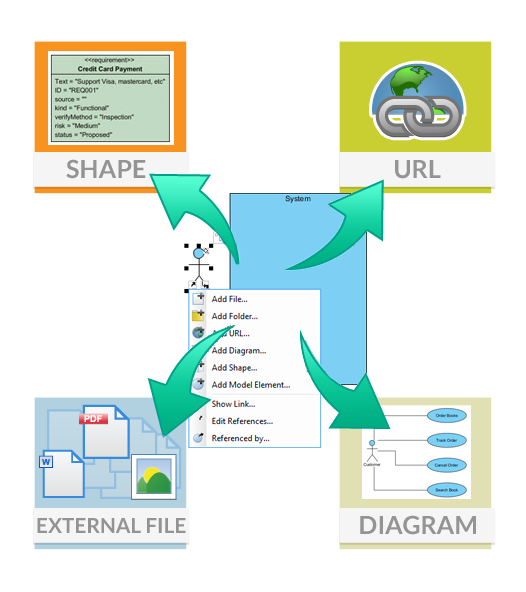
In the realm of complex software engineering and business process modeling, maintaining a single source of truth is paramount. Visual Paradigm empowers modelers to break down silos between different types of documents and diagrams through its robust Model Element Referencing feature. This capability transforms a static collection of diagrams into a dynamic, interconnected web of knowledge.
This tutorial explores the architecture of referencing, demonstrating how to link Shapes, URLs, External Files, and Diagrams to your core models. By mastering these connections, you ensure that your design decisions are traceable and your documentation remains synchronized.
The Architecture of References
Visual Paradigm categorizes references into two primary streams: Internal and External. Understanding the distinction between these is crucial for designing a scalable modeling environment.
1. Internal References
Internal references are the backbone of your project’s consistency. They allow you to link diagrams, shapes, and model elements directly within your current project file. When you create an internal reference, you are essentially creating a pointer to an object’s unique identifier (ID). This ensures that even if you rename a class or move a diagram, the link remains intact because it points to the ID, not the visual location.
- Link Diagrams: Navigate between high-level context diagrams and detailed sequence diagrams seamlessly.
- Link Shapes: Associate a specific actor or data store with a requirement or use case.
2. External References
External references bridge the gap between software engineering and business analysis. They connect your technical design to real-world artifacts outside the modeling tool. This is vital for “Why” tracing—understanding the business justification behind a technical decision.
- Business Documents: Link to Word documents (.docx) or PDFs containing requirement specifications.
- Web Resources: Connect to online documentation, wikis, or API endpoints via URLs.
Step-by-Step: Creating Rich References
Visual Paradigm provides an intuitive context menu system to manage these references. The process is designed to be non-intrusive, allowing you to add layers of information to your models without cluttering the visual space.
Step 1: Accessing the Context Menu
To begin, right-click on the shape, diagram, or model element you wish to enhance. You will see a comprehensive list of options. Look for the References section within this menu.
Right-Click Context Menu:
+ Add File...
+ Add Folder...
+ Add URL...
+ Add Diagram...
+ Add Shape...
+ Add Model Element...
+ Show Link...
+ Edit References...
+ Referenced By...
Step 2: Adding External Artifacts
When you select Add File… or Add URL…, Visual Paradigm allows you to browse your local file system or input a web address. Once added, the system creates a persistent link. This is particularly useful for requirements engineering, where you might link a “Credit Card Payment” requirement directly to a PDF specification document.
Step 3: Linking to Other Diagrams
For complex systems, you often need to show how a high-level system interacts with a detailed sequence diagram. By selecting Add Diagram…, you can create a bi-directional link. This allows stakeholders to jump from a System Architecture view directly into the logic of a specific process without losing context.
Step 4: Rich Text Integration
Perhaps the most powerful feature is the ability to insert references directly into text. You can type a description for a shape and, using the reference insertion tool, embed a live link to another model element. This ensures that your documentation text stays synchronized with your diagrams. If you update the referenced element, the documentation reflects that change immediately.
Visual Indicators and Auditing
One of the common pitfalls in modeling is creating links that go stale or become invisible. Visual Paradigm solves this with Visual Indicators. When a reference is successfully added to a shape or model element, tiny markers appear within the shape’s body.
These markers act as a quick visual audit tool. If you see a marker, you know that the element is connected to external data, a requirement, or another diagram. This visual cue prompts the modeler to verify the link’s validity during design reviews.
Example: The Requirement Link
Consider a scenario where you have a shape representing a “Credit Card Payment” module. By linking this shape to a requirements document, the system displays a visual indicator. This instantly tells the architect: “This design element is backed by a formal requirement.”
Conclusion
By leveraging the referencing capabilities of Visual Paradigm, you move beyond simple diagramming into true model-based engineering. Whether you are linking to external PDFs, connecting diagrams, or embedding references in text, these features ensure that your models are not just pictures, but comprehensive, living documentation of your system architecture.