
Mastering Sequence Diagrams: A UML Guide to User-System Interactions
In the realm of software architecture and systems analysis, communication is key. One of the most effective ways to visualize the dynamic behavior of a system—specifically how users interact with software over time—is through a Sequence Diagram. This type of UML (Unified Modeling Language) diagram provides a chronological snapshot of interactions, making it an indispensable tool for developers, architects, and business analysts.
This tutorial explores the anatomy of a sequence diagram, focusing on a classic “User-System” interaction pattern. We will break down the components, the flow of logic, and the tools used to create professional-grade diagrams.
What is a Sequence Diagram?
A Sequence Diagram is an interaction diagram that details how operations are carried out. It captures the time-ordered interactions between objects or actors in a system. Unlike a static class diagram, a sequence diagram tells a story: it shows the sequence of messages sent and received to achieve a specific goal.
Key characteristics include:
- Time Flow: Interactions are arranged vertically, from top to bottom, representing the passage of time.
- Participants: Objects, actors, or subsystems involved in the interaction.
- Messages: Arrows representing the communication between participants.
- Lifelines: Vertical dashed lines that extend down from a participant, representing their existence over time.
Case Study: The User Login and Task Workflow
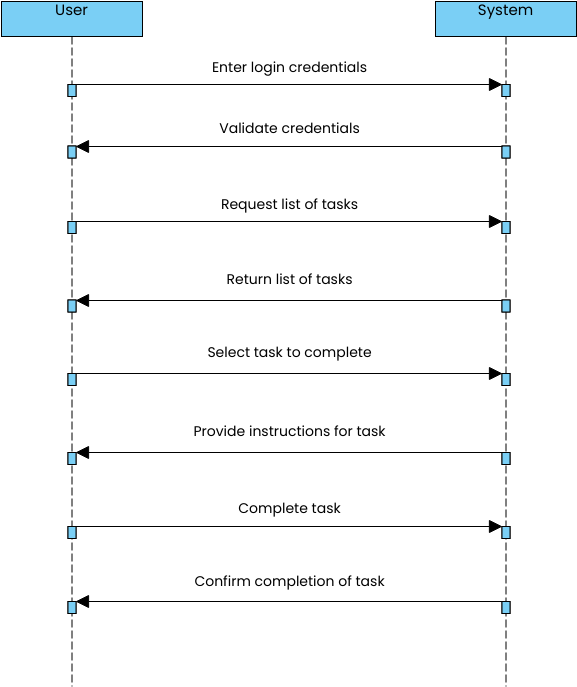
Let us analyze a common scenario often found in web applications: a user logging in and managing tasks. This scenario involves two primary participants: the User (an external actor) and the System (the software application).
1. The Participants (Lifelines)
At the top of the diagram, we see two boxes representing the Participants.
- User: The human actor initiating the process. In a real application, this could be a browser window or a mobile app interface.
- System: The backend logic, API, or user interface handling the requests.
2. The Activation Bars
Notice the thin blue rectangles on the vertical dashed lines. These are called Activation Bars (or Focus of Control).
- They indicate the period during which an object is performing an action or is active.
- When the System receives a message, it becomes active. When it sends a response, it remains active until the message is delivered.
3. The Interaction Flow
The core of the diagram lies in the horizontal arrows connecting the lifelines. These represent Messages.
Step-by-Step Analysis
- Synchronous Call: Enter Login Credentials
The User sends a message to the System to input credentials. The arrow is solid with a filled arrowhead, indicating a synchronous message (the user waits for the system to process this).
- Return: Validate Credentials
The System processes the data and returns a result (success or failure) to the User. The arrow is dashed with an open arrowhead, indicating a return message.
- Request: List of Tasks
Once authenticated, the User requests data. The System becomes active again to query the database.
- Return: Return List of Tasks
The System processes the request and sends the data back to the User’s screen.
- Selection: Select Task to Complete
The User interacts with the UI to choose a specific item.
- Instruction: Provide Instructions
The System responds by providing guidance or specific details related to the selected task.
- Action: Complete Task
The User performs the action (e.g., clicking “Submit”).
- Confirmation: Confirm Completion
The System acknowledges the action and confirms the task is done.
Tools for Modeling: Visual Paradigm
Creating these diagrams manually on paper is great for brainstorming, but for professional documentation and software development, specialized tools are required. Visual Paradigm (VP Online) is a leading web-based modeling tool that supports UML diagrams, BPMN, ERD, and more.
VP Online allows users to:
- Drag and drop participants to create lifelines.
- Automatically generate sequence arrows.
- Export diagrams to various formats (PNG, PDF, XML).
- Collaborate in real-time with team members.
By using such tools, teams can ensure that the “Contract” between the User and the System is clearly defined before a single line of code is written.
Conclusion
Sequence diagrams are not just static drawings; they are dynamic maps of logic. By understanding the flow of messages between the User and the System, you can identify bottlenecks, missing error handling, or confusing user interfaces early in the design phase. Whether you are building a simple task manager or a complex enterprise system, mastering the sequence diagram is a fundamental step toward robust software architecture.