
Mastering UML Sequence Diagrams: A Visual Paradigm Guide
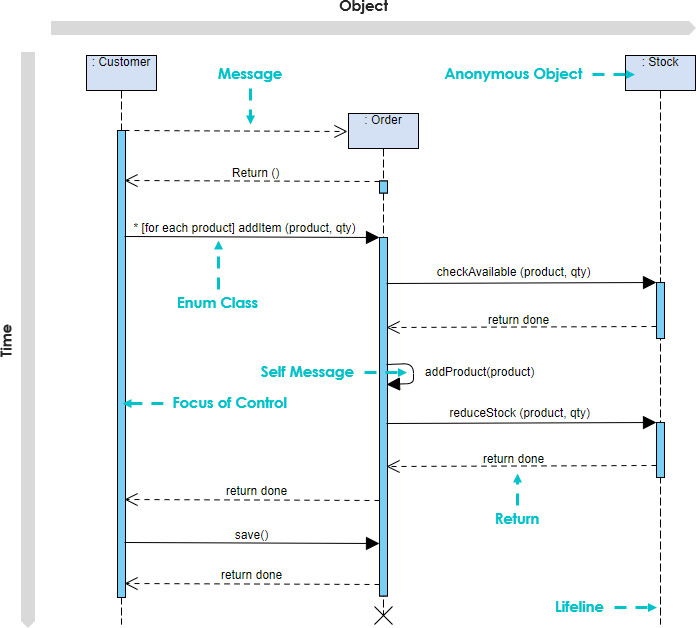
Sequence diagrams are the backbone of dynamic system modeling in the Unified Modeling Language (UML). They provide a visual representation of how objects in a system interact with one another over time. Unlike static diagrams like Class Diagrams, which show structure, a Sequence Diagram tells the story of a specific use case or scenario. In this tutorial, we will deconstruct the provided sequence diagram to understand the anatomy of these interactions and learn how to model them effectively using Visual Paradigm.
1. The Foundation: Lifelines and Time
At the top of any sequence diagram, you will find the Lifelines. These represent the participants in the interaction. In our diagram, we see four key participants:
- :Customer – The initiator of the interaction.
- :Order – The object managing the transaction.
- :Stock – The external system handling inventory.
- :Anonymous Object – A temporary object created specifically for this interaction.
These lifelines are vertical dashed lines that extend downwards. This vertical axis represents Time, flowing from top to bottom. The higher up the diagram a message appears, the earlier it occurs in the sequence. Notice the Focus of Control (the blue rectangles on the lifelines); these indicate the period during which the object is actively executing a method or performing an action.
2. Messages: The Language of Interaction
The horizontal arrows between lifelines are called Messages. They represent method calls, events, or data transfers. Visual Paradigm distinguishes between several types of messages, each with specific visual cues:
Synchronous Messages
These are solid arrows with a filled arrowhead. When object A sends a synchronous message to object B, A waits for B to finish processing before continuing. In the diagram, the message addProduct(product) sent by :Order to itself is an example of a self-message, indicated by a curved arrow looping back to the same lifeline.
Asynchronous Messages and Returns
Asynchronous messages are typically represented by a solid line with an open arrowhead, indicating that the sender does not wait for the receiver. Conversely, Return Messages are shown as dashed lines with open arrowheads. In the diagram, you can see the dashed line labeled return done flowing back from :Stock to :Order, and from :Order back to :Customer.
3. Advanced Concepts: Fragmentation and Loops
Real-world logic is rarely linear. To handle complexity, UML uses Combined Fragments. These are frames that define specific behaviors for the messages contained within them.
The Loop Fragment
One of the most powerful features shown in the diagram is the Loop frame. This is the box surrounding the [for each product] addItem(product, qty) message. The symbol is the standard UML notation for a loop. The condition [for each product] inside the frame specifies the iteration rule: the enclosed interaction will repeat for every product in the collection.
This is crucial for modeling scenarios like a shopping cart checkout, where the system must perform the same validation and stock-checking logic for multiple items without drawing a separate sequence for every single line item.
4. Defining Interactions with Visual Paradigm
Visual Paradigm provides a robust environment to create these diagrams. The tool allows for precise control over the “Operator” and “Meaning” of various frames. For instance, while our diagram uses a Loop (loop) frame, the tool also supports:
- Alt (Alternative): For branching logic (if/else statements).
- Opt (Optional): For conditional execution where the block runs only if a specific condition is met.
- Par (Parallel): To show that two or more messages are executed simultaneously.
- Critical: To denote sections where only one thread can execute at a time.
When modeling the “Self Message” seen in our diagram, Visual Paradigm automatically handles the geometry, allowing you to draw a curved arrow that loops back to the same object, visually emphasizing that the object is processing internal logic.
5. Best Practices for Modeling
When creating your own sequence diagrams, keep these principles in mind to ensure clarity:
- Keep it Linear: Time should always flow downwards. If you need to show a return value, ensure the arrow points up.
- Use Frames for Logic: Do not clutter the diagram with nested if-statements. Use Alt frames for branches and Loop frames for iterations.
- Define Parameters: Always include parameters in message labels (e.g.,
checkAvailable(product, qty)) to make the interaction self-explanatory. - Manage Scope: Ensure that the Focus of Control bars are aligned correctly with the messages to show exactly when an object is busy.
By mastering these elements—Lifelines, Messages, and Combined Fragments—you can create powerful system architecture diagrams that effectively communicate complex business logic and technical interactions.