
Mastering Video Conferencing: UML Use Case Modeling Guide
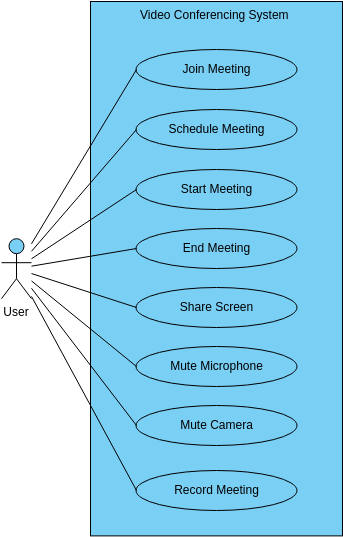
Welcome to this comprehensive tutorial on Use Case Modeling. In this guide, we will deconstruct the architecture of a modern Video Conferencing System. By the end of this article, you will understand how to translate user requirements into a visual system boundary diagram, identify the correct actors, and define the core interactions that drive the application.
Understanding the System Boundary
The foundation of any use case diagram is the System Boundary. This is the box that defines the scope of our software. Everything inside the box is part of the system we are building, and everything outside is external.
In the Video Conferencing System example, the large blue rectangle represents the system itself. It encapsulates all the logic required to facilitate remote communication. When modeling, it is crucial to define this boundary clearly so that stakeholders know exactly what features are included in the current release versus those that might be added later.
Identifying the Actors
On the left side of the diagram, we see a stick figure labeled User. In UML (Unified Modeling Language), this symbol represents an Actor. An actor is not necessarily a specific person; rather, it represents a role played by an entity that interacts with the system.
- Primary Actor: In this scenario, the User is the primary actor. They are the one initiating the actions (e.g., starting a meeting, scheduling a call).
- Association: The lines connecting the User to the ovals are called associations. They indicate that the User has a relationship with these specific use cases.
Analyzing the Use Cases (The Ovals)
Inside the system boundary, the ovals represent Use Cases. These are specific functional goals or actions that the actor can perform. Let’s break down the specific capabilities modeled in this system:
1. Meeting Lifecycle Management
The core functionality of any conferencing tool revolves around the timeline of a meeting. We see four distinct use cases that cover this lifecycle:
- Join Meeting: Allows the user to enter an existing session. This is critical for the “attendee” role.
- Schedule Meeting: Enables users to plan ahead, setting times and inviting others. This is a preparatory action.
- Start Meeting: The initiation of the session. This action triggers the signaling protocols required to connect audio and video streams.
- End Meeting: The termination of the session, cleaning up resources and notifying participants.
2. Real-Time Interaction & Control
Once a meeting is active, the user needs to control their presence and the data flow. The diagram includes specific control mechanisms:
- Share Screen: A high-bandwidth action where the user’s desktop or application window is streamed to others.
- Mute Microphone: A simple toggle to stop audio input.
- Mute Camera: A simple toggle to stop video input.
3. Data Persistence
Finally, we have Record Meeting. This use case is interesting because it often runs in the background or requires specific permissions. It represents a secondary goal where the system captures the session data for later playback.
Step-by-Step Modeling Process
How do we arrive at this diagram? Here is the logical process you should follow when modeling a system:
- Define the Goal: Ask, “What is the purpose of this software?” (e.g., To enable remote collaboration).
- Identify Actors: Who uses the system? (e.g., Hosts, Attendees, Administrators). In this simplified model, we group them all into a generic User.
- Brainstorm Use Cases: List every distinct action the actor can perform. Don’t worry about technical implementation yet; focus on the “what.”
- Draw the Boundary: Create a box to contain your use cases.
- Map Relationships: Draw lines connecting actors to the use cases they are responsible for.
- Refine and Validate: Review the diagram with stakeholders to ensure no critical features are missing.
Mermaid Diagram Representation
To help you visualize the code behind this diagram, here is the Mermaid syntax used to generate the structure. You can copy this into a Mermaid editor to render the diagram.
flowchart TD
    subgraph System["Video Conferencing System"]
        direction LR
        UC1[Join Meeting]
        UC2[Schedule Meeting]
        UC3[Start Meeting]
        UC4[End Meeting]
        UC5[Share Screen]
        UC6[Mute Microphone]
        UC7[Mute Camera]
        UC8[Record Meeting]
    end

    User[User]

    User --> UC1
    User --> UC2
    User --> UC3
    User --> UC4
    User --> UC5
    User --> UC6
    User --> UC7
    User --> UC8
Conclusion
This Video Conferencing System diagram serves as a perfect example of Requirements Engineering. By visualizing the User interacting with Join Meeting, Start Meeting, and Record Meeting, we create a blueprint that developers can use to build the backend logic. Whether you are a business analyst defining requirements or a developer planning architecture, this diagram provides the clarity needed to succeed.