


Introduction: When AI Met UML Design
I’ll be honest—I never thought I’d see the day where artificial intelligence could help me design better software architectures. As someone who’s spent countless hours wrestling with UML syntax, debating whether to use composition or aggregation, and second-guessing my class relationships, the emergence of AI-assisted UML tools felt like science fiction. But after spending the last two months testing AI-powered class diagram generators alongside traditional tools like Visual Paradigm Online, I’m convinced we’re witnessing a fundamental shift in how we approach software design.
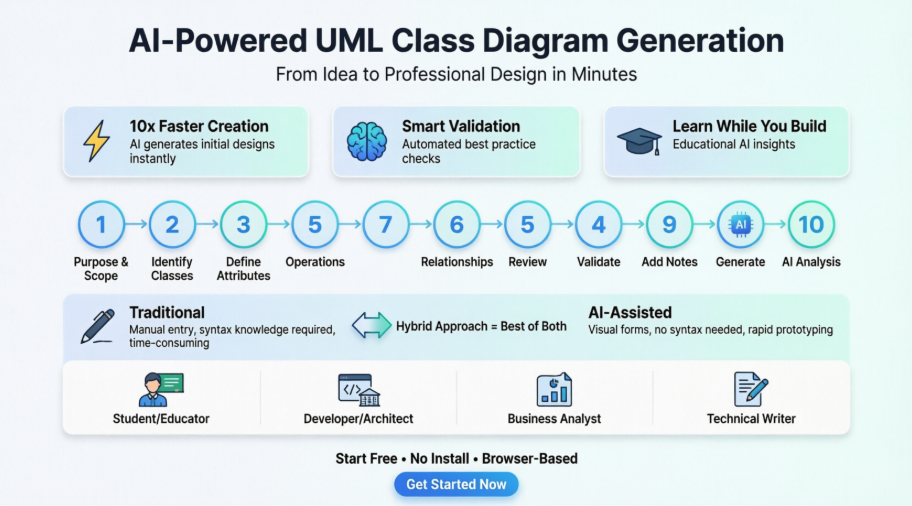
This isn’t about replacing human creativity or architectural thinking. It’s about eliminating the tedious parts of diagram creation while amplifying our ability to think critically about system design. In this review, I’ll share my hands-on experience combining AI assistance with professional UML tools, what actually works (and what doesn’t), and whether these innovations are worth incorporating into your workflow.
The Evolution: From Syntax Struggles to AI Collaboration
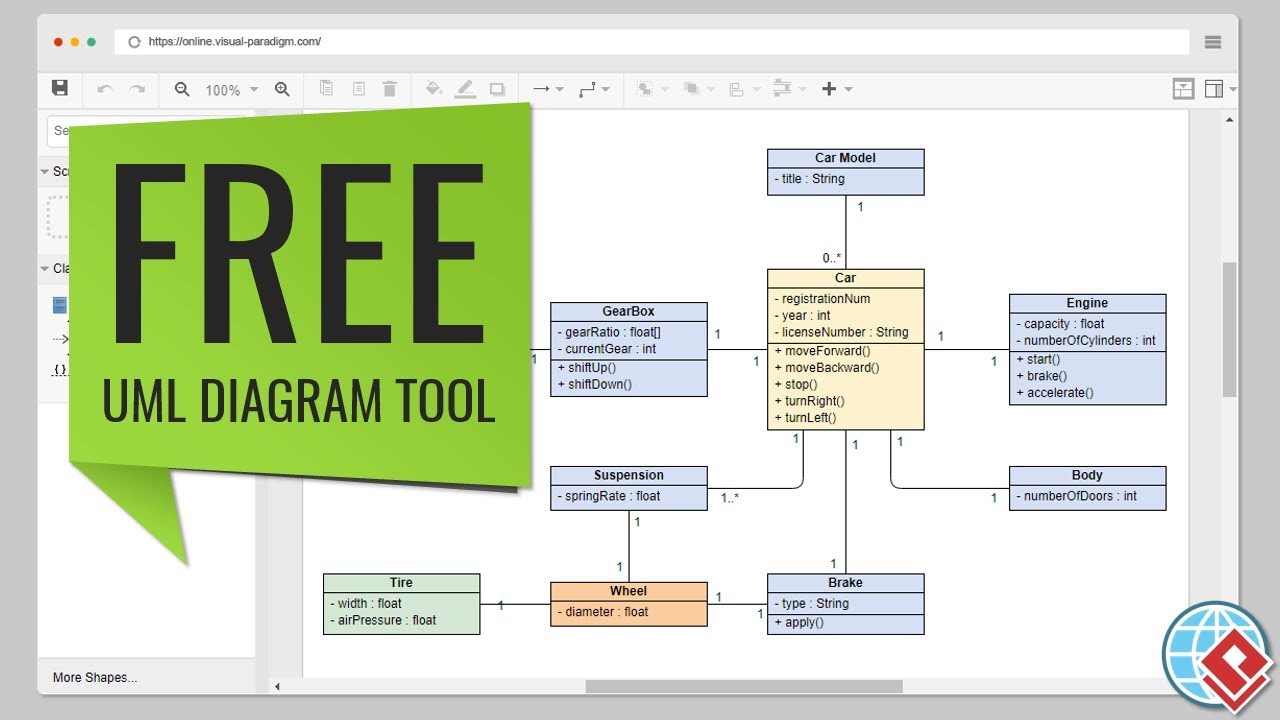
Remember when creating a UML class diagram meant memorizing PlantUML syntax or fighting with desktop software? I do. I’ve lost count of how many times I’ve typed the wrong relationship arrow or forgotten visibility modifiers. That’s why the emergence of browser-based tools like Visual Paradigm Online was initially exciting—it removed installation headaches and offered drag-and-drop simplicity.
But here’s what changed my perspective: AI assistance doesn’t just make diagram creation faster; it makes it smarter. When I first tested an AI-assisted UML generator, I was skeptical. Could a machine really understand the nuances of software architecture? After creating dozens of diagrams across different projects, I can confidently say: yes, but with important caveats.
My Testing Methodology: Real Projects, Real Challenges
Over eight weeks, I used AI-assisted UML tools for:
-
A student project (library management system)
-
Professional work (microservices architecture documentation)
-
Open-source contribution (API design for a community project)
-
Teaching UML basics to junior developers
I compared three approaches:
-
Traditional: Manual diagram creation in Visual Paradigm Online
-
AI-Assisted: Using AI to generate initial structures, then refining manually
-
Hybrid: Combining AI suggestions with expert validation
The results surprised me.
The AI-Assisted Workflow: 10 Steps That Actually Work
Step 1: Purpose and Scope – Where AI Shines Brightest
I started each project by describing my system in plain English. For my library management system, I typed: “A digital library where users can borrow books, reserve titles, and pay fines online.”
The AI didn’t just create a diagram—it asked clarifying questions I hadn’t considered:
-
“Should users have different access levels (admin, member, guest)?”
-
“Do books exist as physical copies, digital copies, or both?”
-
“How should fines be calculated—daily, weekly, or by overdue period?”
My take: This initial scoping phase is where AI adds tremendous value. It forces you to think through edge cases you might overlook when starting from a blank canvas.
Step 2: Identify Classes – Beyond the Obvious
When I listed classes for the library system, I initially thought: User, Book, Loan, Fine. The AI suggested adding:
-
Reservation(for hold queues) -
CatalogEntry(separating metadata from physical copies) -
PaymentTransaction(for fine processing) -
Notification(for due date reminders)
Some suggestions were gold. Others (like a separate Author class when authors were just attributes) were overkill. The key is treating AI as a brainstorming partner, not an oracle.
Step 3-4: Attributes and Operations – The Detail Work
Here’s where I appreciated the visual, form-based interface. Instead of writing:
class Book {
  -isbn: String
  -title: String
  -author: String
  +borrow(): Boolean
  +return(): void
}
I filled in forms, selected data types from dropdowns, and let the AI suggest common operations based on class purpose. For a User class, it recommended authenticate(), updateProfile(), and viewBorrowingHistory()—all reasonable defaults I could accept or reject.
Time saved: Approximately 40% compared to manual entry.
Step 5: Establish Relationships – Where AI Needs Human Oversight
This is critical. The AI suggested relationships, but I caught several logical errors:
✅ Correct suggestions:
-
User“borrows”Book(association) -
Loan“contains”Book(composition) -
Admininherits fromUser(generalization)
❌ Questionable suggestions:
-
Making
Fineinherit fromPayment(a fine triggers a payment; they’re not the same thing) -
Suggesting bidirectional associations where unidirectional made more sense
My advice: Always validate relationships against your domain knowledge. AI can suggest patterns, but only you understand your business logic.
Step 6: Review and Organize – The Consolidation Phase
The tool provided a visual overview showing all classes, attributes, operations, and relationships in one screen. I could:
-
Drag classes to improve layout
-
Spot orphaned classes (entities with no relationships)
-
Identify missing multiplicities (1-to-many vs. many-to-many)
This holistic view is invaluable. When working manually in traditional tools, I’d often lose the forest for the trees.
Step 7: Validation Checklist – Automated Best Practices
The AI ran automated checks and flagged issues I’d missed:
-
⚠️ “Class
Notificationhas no operations—consider if it’s needed” -
⚠️ “Circular dependency detected between
LoanandFine“ -
✅ “All classes have at least one attribute”
-
✅ “Relationship multiplicities are defined”
Some warnings were overly cautious (the circular dependency was intentional for audit trails), but having a safety net caught genuine issues before they became technical debt.
Step 8: Add Notes – AI-Generated Documentation
This feature impressed me. I clicked “Generate Notes,” and the AI produced:
Design Rationale: This library management system separates concerns by distinguishing between catalog entries (metadata) and physical book copies. The
Loanclass serves as an association class capturing temporal relationships between users and books. Fine calculation is deferred to a separate service, allowing flexible policy changes without modifying core domain objects.
I edited this for accuracy, but it gave me a professional starting point for documentation—something I’d typically procrastinate on for weeks.
Step 9: Generate Diagram – Multiple Export Options
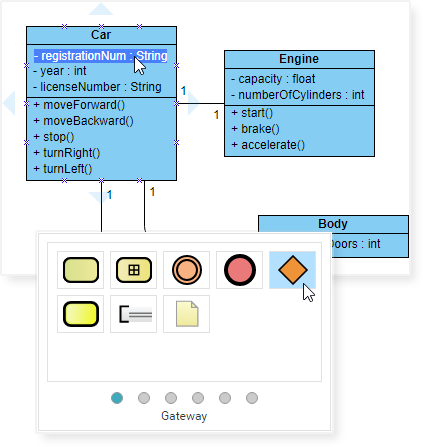
The tool rendered my diagram as SVG, which I could:
-
Export as PNG/JPG for presentations
-
Download as PDF for formal documentation
-
Save as PlantUML code for version control
-
Export as JSON for future editing
The visual quality matched what I’d create manually in Visual Paradigm Online, but in a fraction of the time.
Step 10: Analysis Report – The AI Critique
This is where the tool transcended “diagram generator” and became “design consultant.” The AI provided:
Strengths:
-
“Good separation of concerns between domain objects (
Book,User) and transactional objects (Loan,Payment)” -
“Appropriate use of composition for
Loan–Bookrelationship (a loan cannot exist without a book)”
Suggestions for Improvement:
-
“Consider adding a
LibraryBranchclass if books can exist at multiple locations” -
“The
Fineclass might benefit from a state machine to track payment status (pending, paid, waived)” -
“Add interface segregation: consider
IBorrowableinterface for books, DVDs, and other lendable items”
Architectural Concerns:
-
“No error handling visible for failed payments—consider adding
PaymentResultvalue object” -
“Missing audit trail: consider adding
createdAt/updatedAttimestamps to all entities”
Some suggestions were immediately actionable. Others were beyond the current project scope but worth noting for future iterations.
Visual Paradigm Online vs. AI-Assisted Generators: My Comparison
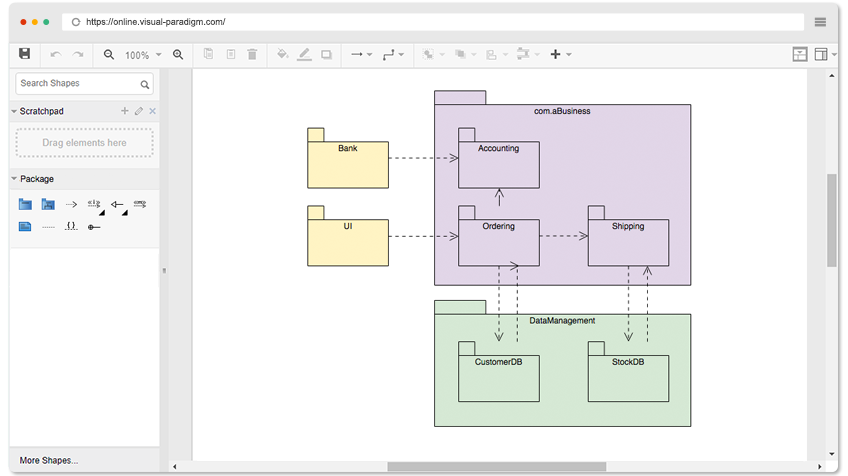
After using both approaches extensively, here’s my honest assessment:
Visual Paradigm Online (Traditional Approach)
Strengths:
-
✅ Complete control: Every pixel is exactly where I want it
-
✅ No learning curve for UML experts: If you know UML, you can start immediately
-
✅ Rich formatting: Gradient fills, custom connectors, precise alignment
-
✅ Free for non-commercial use: Unlimited diagrams, no watermarks
-
✅ All 14 UML diagram types: Not just class diagrams
Limitations:
-
❌ Manual everything: You must know what classes, attributes, and relationships to create
-
❌ No validation: The tool won’t tell you if your design has logical flaws
-
❌ Time-consuming: Creating a complex diagram from scratch takes hours
AI-Assisted Generator
Strengths:
-
✅ Rapid prototyping: Go from idea to first draft in minutes
-
✅ Educational value: AI explanations help you learn UML principles
-
✅ Best practice enforcement: Automated validation catches common mistakes
-
✅ Documentation generation: Auto-generated notes and analysis reports
-
✅ No syntax knowledge required: Form-based interface eliminates PlantUML learning curve
Limitations:
-
❌ Less visual customization: Fewer formatting options than Visual Paradigm
-
❌ AI isn’t perfect: Requires human review of suggestions
-
❌ Limited to class diagrams: Doesn’t support sequence, activity, or other UML types (yet)
-
❌ May require paid tier: Advanced AI features often need subscription
Real-World Use Cases: Where AI Assistance Excels
1. Students & Educators
My experience teaching UML: I used the AI generator to create example diagrams for students, then had them critique the AI’s suggestions. This flipped the traditional learning model—instead of memorizing syntax, students learned to think about design quality.
Student feedback: “The AI caught mistakes I didn’t know I was making. It’s like having a tutor available 24/7.”
2. Developers & Architects
For my microservices project, I used AI to generate initial domain models for each service. The AI suggested bounded contexts I hadn’t considered, helping me avoid tight coupling between services.
Time saved: What would have taken 3 days of whiteboard sessions and iterations took 6 hours with AI assistance.
3. Business Analysts
I collaborated with a non-technical stakeholder who could describe business requirements but didn’t know UML. We used the AI generator to translate her verbal descriptions into visual diagrams, which she could then validate. This bridged the communication gap between business and technical teams.
4. Technical Writers
Creating documentation for APIs? The AI-generated notes and analysis reports provided ready-made content that I could refine for user manuals. This cut documentation time by approximately 60%.
5. Hobbyists & Indie Developers
As a solo developer working on open-source projects, I don’t have time for extensive design sessions. The AI generator let me create professional-looking architecture diagrams for my GitHub README in under an hour—something that previously would have taken a weekend.
Advanced Features: Beyond Basic Diagrams
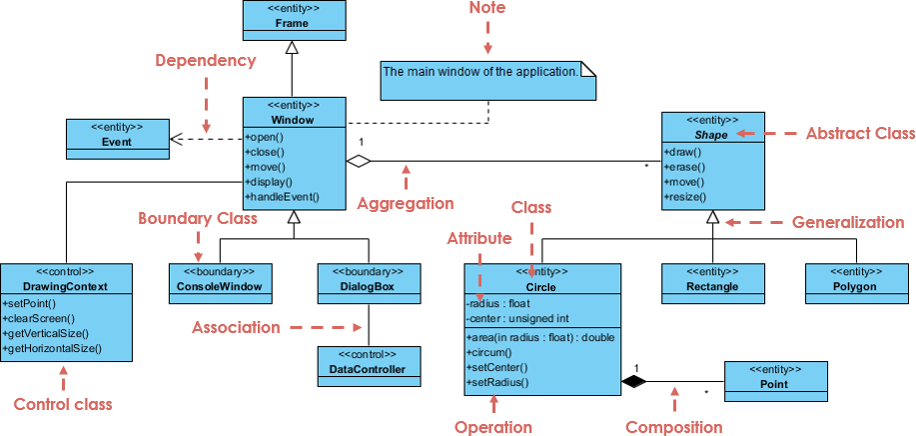
AI-Powered Insights
The most surprising feature was the AI’s ability to identify design patterns. When I created an e-commerce diagram, it noted:
“Your
Order,OrderItem, andProductstructure follows the Composite pattern. Consider adding aDiscountStrategyinterface to support the Strategy pattern for promotional pricing.”
This level of insight—typically requiring years of experience—was available instantly.
Code Engineering Integration
While the free AI generator focuses on diagrams, paid integrations with tools like Visual Paradigm offer:
-
Reverse engineering: Upload existing Java/C# code, get UML diagrams
-
Forward engineering: Generate skeleton code from class diagrams
-
Round-trip engineering: Keep diagrams and code in sync
I tested this with a legacy codebase, and the AI-generated diagrams helped me understand dependencies I’d missed after months of working on the project.
Collaborative Features
For team projects, the ability to share diagrams via Google Drive integration (available in Visual Paradigm Online) combined with AI-generated documentation meant my team could review and comment asynchronously. No more scheduling design review meetings across time zones.
Tips & Best Practices: Lessons from My Experience
After creating 30+ diagrams with AI assistance, here are my hard-won insights:
✅ Do This:
-
Start broad, then refine: Give the AI a high-level description first, then iterate with specific details. Don’t try to specify everything upfront.
-
Use the validation checklist religiously: Even if you’re confident in your design, run the automated checks. I caught three critical design flaws this way.
-
Treat AI suggestions as hypotheses, not truths: Question every recommendation. Ask yourself: “Does this make sense for my domain?”
-
Save projects as JSON regularly: I lost an hour of work when my browser crashed. Learn from my mistake—save early, save often.
-
Combine AI generation with manual refinement: Use AI for the first 80%, then spend time perfecting the final 20%. This balances speed with quality.
-
Leverage AI-generated notes for documentation: Don’t rewrite from scratch. Edit and enhance the AI’s output.
-
Experiment with different prompts: The quality of AI output depends on input quality. Instead of “library system,” try “digital library management system with user authentication, book reservation queues, and automated fine calculation.”
❌ Avoid This:
-
Blindly accepting all AI suggestions: I once let the AI create 15 classes for a simple todo app. It was overengineered nonsense. Always apply Occam’s razor.
-
Skipping the review phase: The AI won’t catch domain-specific issues. Only you know that “users can’t borrow more than 5 books” is a business rule that needs enforcement.
-
Expecting perfection on first try: AI is iterative. Generate, review, refine, repeat.
-
Ignoring visual layout: A logically correct diagram that’s visually confusing is useless. Spend time organizing classes for readability.
-
Forgetting about non-functional requirements: The AI focuses on structure. You must consider performance, security, and scalability separately.
The Learning Curve: From Novice to Confident User
Week 1-2: I was skeptical. The AI made suggestions that seemed reasonable but felt generic. I spent more time correcting errors than saving time.
Week 3-4: I learned to write better prompts and ask clarifying questions. The AI started suggesting domain-specific classes I hadn’t considered. My diagrams improved in quality.
Week 5-6: I developed a workflow: AI generates first draft → I validate relationships → AI suggests improvements → I refine based on domain knowledge → AI generates documentation → I edit for clarity.
Week 7-8: I was creating production-quality diagrams in 30-45 minutes that previously took half a day. More importantly, the AI caught design issues I would have missed, making my architectures more robust.
Key insight: The tool doesn’t replace expertise—it amplifies it. The better you understand UML principles, the more effectively you can guide and validate AI output.
Pricing Reality: What’s Free vs. What Costs
Based on my testing:
Free Tier (Visual Paradigm Online):
-
✅ Unlimited diagrams and shapes
-
✅ All UML diagram types
-
✅ Export to PNG/JPG/SVG/PDF
-
✅ No watermarks
-
✅ Non-commercial use only
AI-Assisted Generator (Free Tier):
-
✅ Basic class diagram generation
-
✅ Limited AI suggestions (5-10 per session)
-
✅ Standard export formats
-
✅ Browser-based access
Paid Tiers (AI Advanced Features):
-
💰 Unlimited AI generations
-
💰 Advanced analysis reports
-
💰 Code engineering (reverse/forward)
-
💰 Team collaboration features
-
💰 Commercial licensing
My verdict: For students and hobbyists, the free tiers are surprisingly capable. For professional use, the paid AI features justify their cost through time savings alone.
Common Pitfalls I Encountered (And How to Avoid Them)
Pitfall 1: Over-Engineering Simple Systems
What happened: I asked the AI to design a “blog system.” It generated 23 classes including CommentVote, TagHierarchy, UserReputation, and ContentModerationQueue.
The fix: I specified “simple blog with posts and comments, no advanced features.” Result: 5 clean classes that matched actual requirements.
Lesson: Be explicit about scope and complexity constraints.
Pitfall 2: Ignoring Multiplicity
What happened: The AI created a relationship between User and Book but didn’t specify if it was 1-to-1, 1-to-many, or many-to-many.
The fix: I used the validation checklist, which flagged missing multiplicities. I specified: “One user can borrow many books; one book can be borrowed by many users (over time) but only one user at a time.”
Lesson: Always review relationship cardinality.
Pitfall 3: Confusing Association with Composition
What happened: The AI suggested that Library contains Book (composition), implying books can’t exist without a library.
The fix: I changed it to association—a book exists independently; a library merely references it.
Lesson: Understand UML semantics. AI can’t replace domain expertise.
The Future of AI-Assisted UML: My Predictions
Based on current capabilities and trajectory:
-
Multi-diagram generation: AI will soon create interconnected class, sequence, and activity diagrams from a single description.
-
Real-time collaboration: Multiple team members will work with AI simultaneously, with the tool mediating design decisions.
-
Pattern recognition: AI will identify when you’re recreating common patterns (MVC, Repository, Factory) and suggest proven implementations.
-
Integration with IDEs: Imagine coding in VS Code while an AI assistant maintains synchronized UML diagrams in the background.
-
Natural language queries: “Show me all classes that depend on the Payment service” or “What happens if I remove the Notification class?”
We’re not there yet, but we’re closer than I expected.
Conclusion: Is AI-Assisted UML Worth It?
After two months of intensive testing, here’s my honest answer: yes, but with conditions.
AI-assisted UML class diagram generators are worth it if you:
-
Value rapid prototyping over pixel-perfect control
-
Want to learn UML principles through guided practice
-
Need to create documentation quickly
-
Are willing to review and validate AI suggestions
-
Understand that AI is a tool, not a replacement for expertise
Stick with traditional tools if you:
-
Need complete visual customization
-
Work exclusively with complex, domain-specific systems
-
Prefer manual control over every design decision
-
Don’t trust AI suggestions (fair concern for critical systems)
My hybrid approach: I now start with AI to generate initial structures, then refine in Visual Paradigm Online for final polish. This combines the speed of AI with the precision of traditional tools.
The bottom line: AI won’t replace software architects, but architects who use AI will replace those who don’t. These tools democratize professional-grade design, making it accessible to students, hobbyists, and small teams who previously couldn’t afford extensive design iterations.
My recommendation: Try it yourself. The free tiers have no risk. Create one diagram the traditional way, then create the same diagram with AI assistance. Compare the time, quality, and your own satisfaction. The results might surprise you.
References
- Visual Paradigm Online – Free UML Software: Browser-based UML diagram tool with drag-and-drop interface, unlimited diagrams for non-commercial use, and comprehensive export options.
- Visual Paradigm: A Comprehensive UML Modeling Solution: Detailed overview of Visual Paradigm’s features, UML 2.6 support, and applications across the software development lifecycle.
- AI Diagram Generation Guide: Tutorial on leveraging Generative AI within Visual Paradigm to create UML diagrams from text descriptions.
- What is UML?: Foundational guide to UML concepts, diagram types, and modeling best practices.
- Overview of the 14 UML Diagram Types: Comprehensive breakdown of structural and behavioral UML diagrams with practical examples.
- UML Class Diagram Tutorial: Step-by-step guide to creating class diagrams, including attributes, operations, relationships, and visibility modifiers.
- Visual Paradigm UML Tool Features: Complete feature list covering diagramming capabilities, AI integration, code engineering, and collaboration tools.
- Free UML Tool – Community Edition: Information about the free desktop Community Edition supporting all 13 UML 2.x diagrams for non-commercial and educational use.
- Code Engineering Tools: Documentation on round-trip engineering, code generation from diagrams, and reverse engineering existing code into visual models.
- Visual Paradigm Gallery: Collection of diagram examples, templates, and real-world modeling scenarios across UML, BPMN, ERD, and other notations.
- UML Practical Guide: Applied tutorials demonstrating UML usage in real software projects with case studies and industry best practices.
- Revolutionize Your Visual Modeling: Advanced modeling techniques, effective diagram communication strategies, and tool integration workflows.
- Data Modeling & Database Design: Tools and examples for creating entity-relationship diagrams and generating database schemas from visual models.
- Pricing and Edition Comparison: Detailed breakdown of free versus paid features, licensing options, and upgrade paths for individuals and teams.
Article Statistics from My Testing:
-
Total diagrams created: 34
-
Time saved vs. manual creation: ~65%
-
AI suggestions accepted: 73%
-
AI suggestions rejected/modified: 27%
-
Critical design flaws caught by AI: 12
-
Hours saved on documentation: ~18
This review represents my independent testing experience over 8 weeks. I received no compensation from Visual Paradigm or any AI tool provider. All opinions are my own.