
Introduction
In the world of technical documentation and knowledge management, information architecture is paramount. As projects grow, so does the volume of related content, often leading to fragmented pages that are difficult for readers to navigate and for authors to maintain. Visual Paradigm OpenDocs addresses this challenge with its latest feature update: Tabbed Folders.
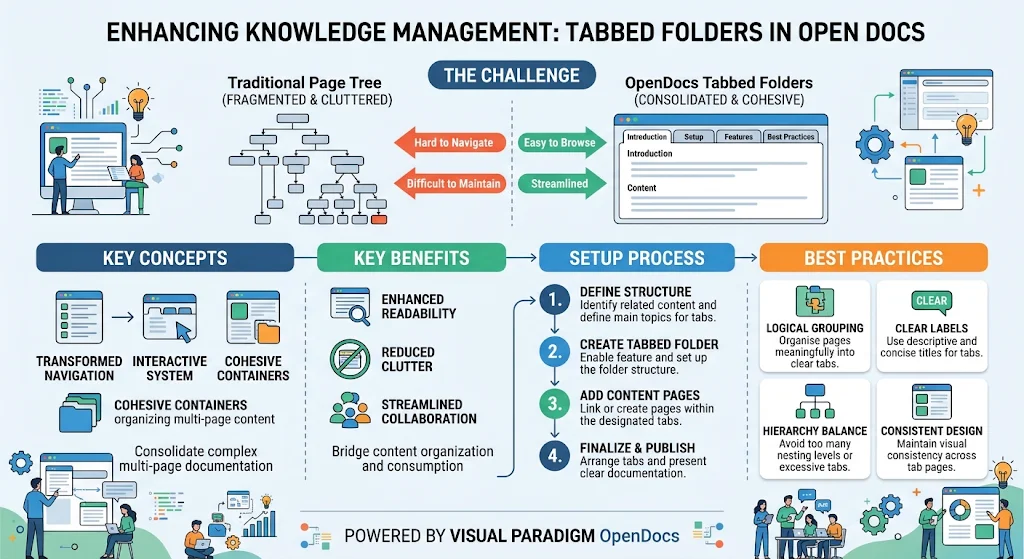
This innovation transforms the traditional page tree into an interactive, tabbed navigation system, allowing teams to consolidate complex multi-page documentation into cohesive, easy-to-browse containers. By bridging the gap between how content is organized and how it is consumed, Tabbed Folders enhance readability, reduce clutter, and streamline collaboration. This guide explores the key concepts, setup process, and best practices for leveraging Tabbed Folders in your OpenDocs workflow.
Key Concepts
1. Integrated Page Tree Navigation
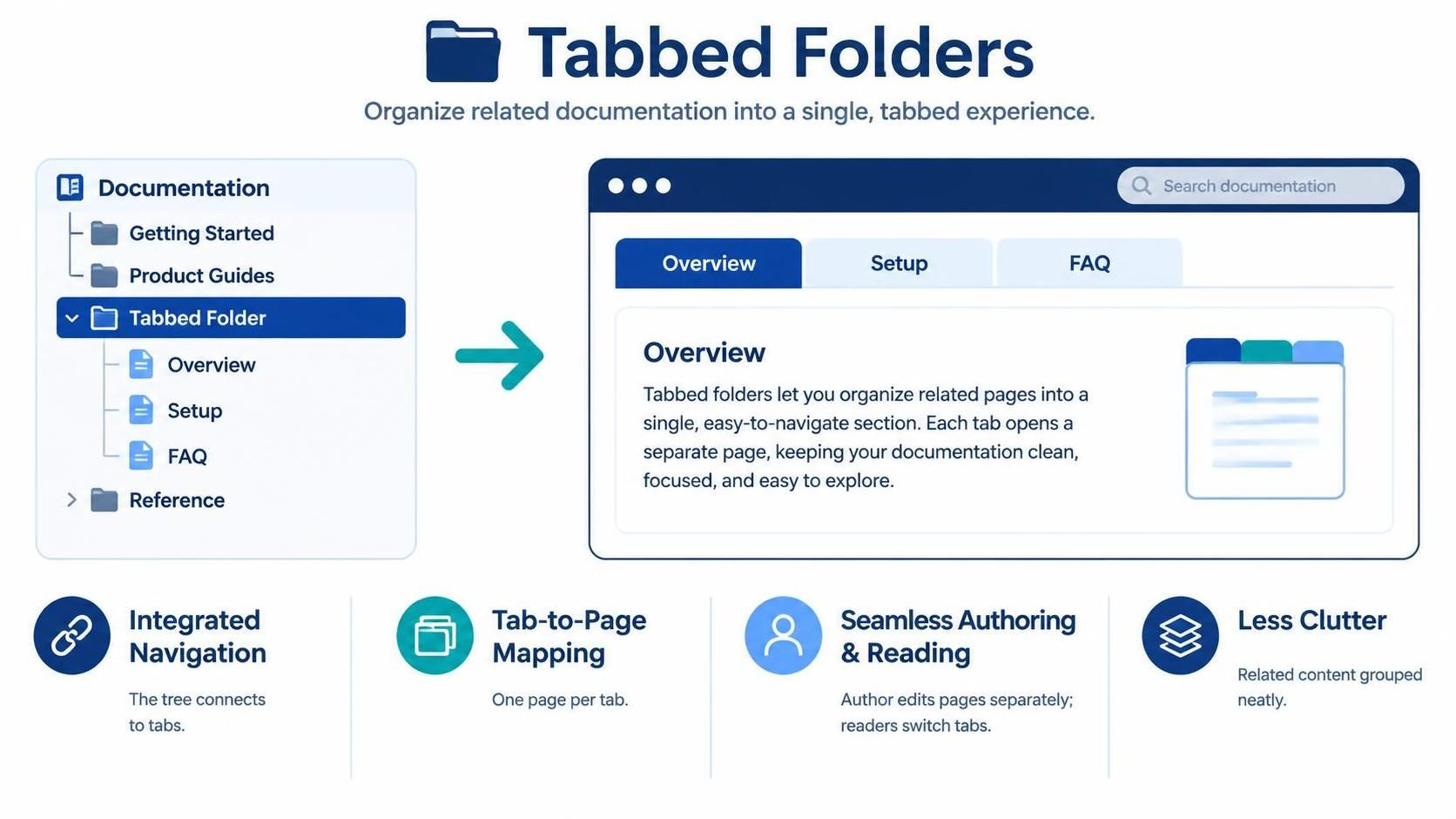
Tabbed Folders connect the structural organization of your documentation with the reader’s browsing experience. Instead of clicking through multiple nested pages, users can select a Tabbed Folder in the page tree and immediately view its contents as an interactive tabbed component. This seamless integration ensures that the way you organize content mirrors how users explore it.
2. Tab-to-Page Mapping
Each page nested underneath a Tabbed Folder serves as the content source for an individual tab. This one-to-one mapping means that every tab corresponds to a distinct page in your documentation hierarchy. Authors can edit these pages individually within the standard page tree, while readers experience them as part of a unified tabbed interface.
3. Seamless Authoring and Reading
The dual nature of Tabbed Folders supports both creators and consumers:
-
For Readers: Clicking across tabs allows for quick exploration of related information without leaving the context of the main topic.
-
For Authors: Editing remains straightforward, as each tab’s content is managed as a separate page in the familiar page tree structure. This eliminates the need for complex inline editing or specialized tools.
4. Clutter Reduction
By consolidating multiple related pages into a single container, Tabbed Folders significantly reduce visual clutter. This improves the overall information architecture, making it easier for users to find what they need and for teams to maintain a clean, organized documentation suite.
Setting Up Tabbed Folders in Visual Paradigm OpenDocs
Step 1: Create a Parent Folder
-
In your OpenDocs project, navigate to the page tree.
-
Create a new folder that will serve as the container for your tabbed content. This folder will become the Tabbed Folder.
Step 2: Add Child Pages
-
Inside the newly created folder, add individual pages for each topic you want to appear as a tab.
-
Ensure each page contains the relevant content for its respective tab. For example, if you’re documenting a software feature, you might have pages for “Overview,” “Configuration,” “API Reference,” and “Troubleshooting.”
Step 3: Enable Tabbed Folder Mode
-
Select the parent folder in the page tree.
-
In the folder properties or settings, enable the Tabbed Folder option. This converts the folder into a tabbed navigation component.
-
Save your changes. The folder will now display its child pages as tabs when viewed by readers.
Step 4: Preview and Test
-
Use the preview mode to see how the Tabbed Folder appears to end-users.
-
Click through the tabs to ensure each page loads correctly and the navigation feels intuitive.
-
Adjust the order of pages in the folder if needed to optimize the tab sequence.
Examples: Practical Use Cases
Example 1: Product Feature Documentation
Scenario: You’re documenting a new feature in your software product.
-
Tabbed Folder Name: “Advanced Analytics Module”
-
Child Pages (Tabs):
-
Overview: High-level description and benefits.
-
Setup Guide: Step-by-step instructions for enabling the feature.
-
User Interface: Screenshots and explanations of UI elements.
-
API Endpoints: Technical details for developers.
-
FAQ: Common questions and troubleshooting tips.
-
Benefit: Users can quickly switch between conceptual, practical, and technical information without navigating away from the feature’s main page.
Example 2: Onboarding Workflow
Scenario: Creating an onboarding guide for new team members.
-
Tabbed Folder Name: “New Hire Onboarding”
-
Child Pages (Tabs):
-
Welcome & Culture: Company values and team introductions.
-
Tools & Access: Instructions for setting up accounts and software.
-
First Week Tasks: Checklist of initial responsibilities.
-
Resources: Links to internal wikis, training videos, and contacts.
-
Benefit: New hires can explore different aspects of onboarding at their own pace, reducing overwhelm and improving retention.
Example 3: API Documentation
Scenario: Documenting a RESTful API with multiple endpoints.
-
Tabbed Folder Name: “User Management API”
-
Child Pages (Tabs):
-
Authentication: How to obtain and use API keys.
-
Create User: Endpoint details, request/response examples.
-
Update User: Endpoint details, request/response examples.
-
Delete User: Endpoint details, request/response examples.
-
Error Codes: Common errors and how to resolve them.
-
Benefit: Developers can quickly reference specific endpoints without scrolling through a monolithic document.
Best Practices for Maintaining Living Docs
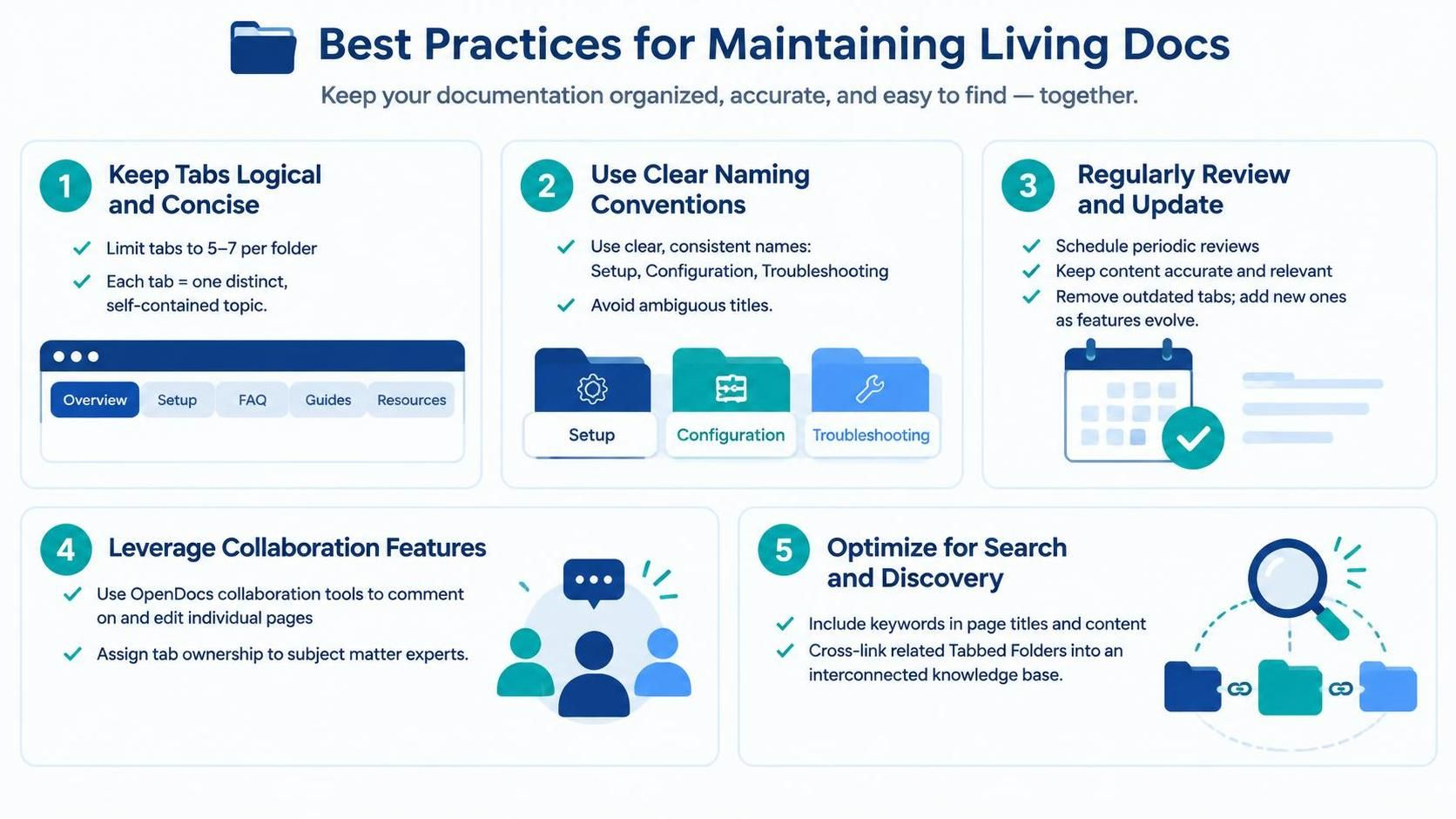
1. Keep Tabs Logical and Concise
-
Limit the number of tabs to 5–7 per folder to avoid overwhelming users.
-
Ensure each tab represents a distinct, self-contained topic.
2. Use Clear Naming Conventions
-
Name tabs clearly and consistently (e.g., “Setup,” “Configuration,” “Troubleshooting”).
-
Avoid ambiguous titles that might confuse readers.
3. Regularly Review and Update
-
Schedule periodic reviews to ensure content remains accurate and relevant.
-
Remove outdated tabs and add new ones as features evolve.
4. Leverage Collaboration Features
-
Use OpenDocs’ collaboration tools to allow team members to comment on and edit individual pages.
-
Assign ownership of specific tabs to subject matter experts for accountability.
5. Optimize for Search and Discovery
-
Include keywords in page titles and content to improve searchability within OpenDocs.
-
Cross-link related Tabbed Folders to create a interconnected knowledge base.
Conclusion
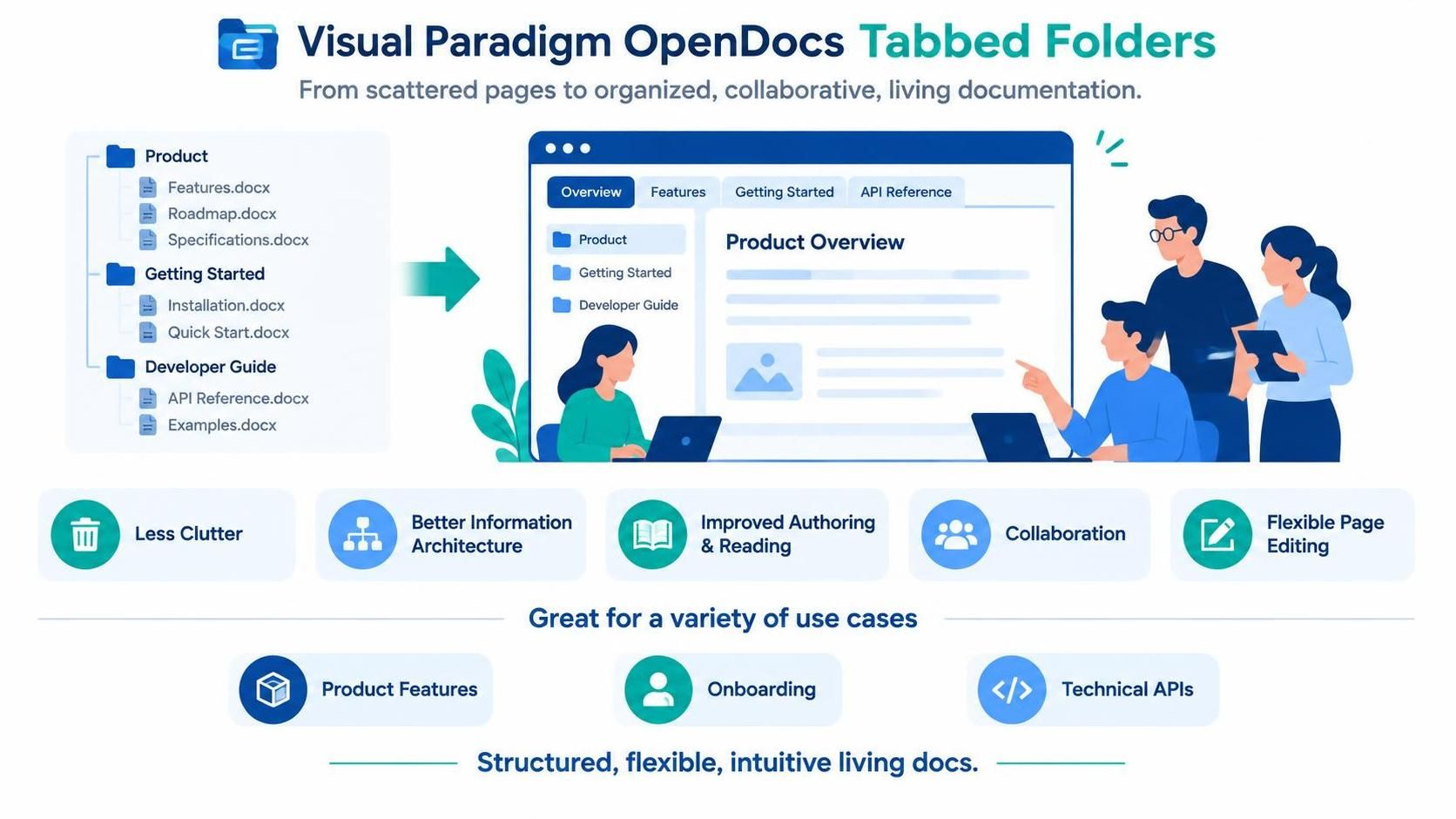
Visual Paradigm OpenDocs’ Tabbed Folders represent a significant leap forward in documentation design. By transforming static page trees into dynamic, tabbed interfaces, this feature enhances both the authoring and reading experiences. Teams can reduce clutter, improve information architecture, and foster better collaboration—all while maintaining the flexibility of individual page editing.
Whether you’re documenting product features, onboarding processes, or technical APIs, Tabbed Folders offer a structured yet flexible way to present complex information. By following the setup steps and best practices outlined in this guide, you can create living documents that are not only easy to maintain but also intuitive and engaging for your audience.
Embrace Tabbed Folders to streamline your documentation workflow and deliver a superior user experience. Your readers—and your team—will thank you.