
Mastering Visual Paradigm AI: A 6-Step VP OpenDocs Workflow for UML
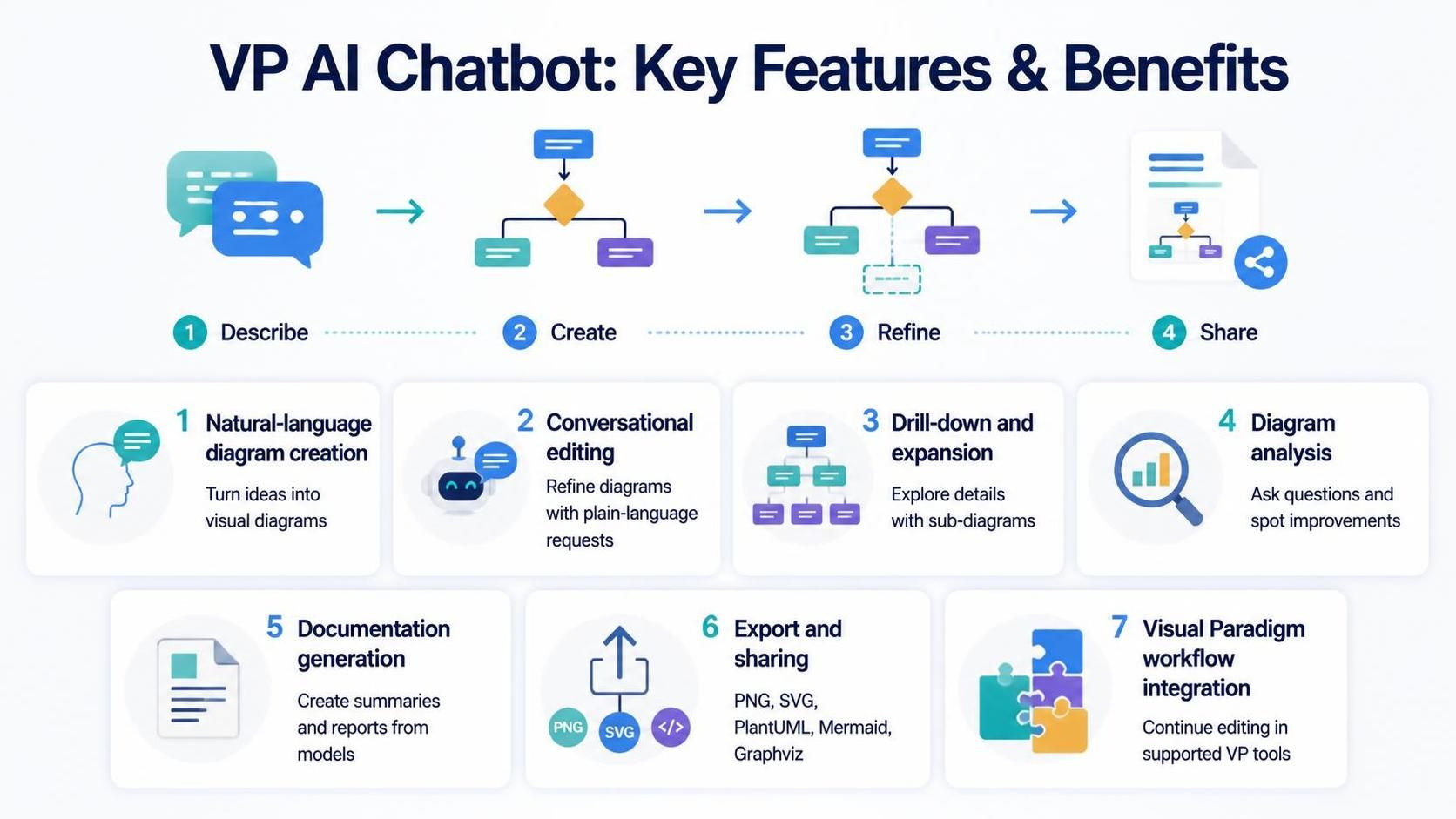
In the modern era of software engineering, the gap between abstract requirements and concrete technical documentation can be bridged efficiently using Generative AI. Visual Paradigm’s AI Chatbot, powered by VP OpenDocs, transforms how architects and developers create system models. This tutorial explores the core workflow of utilizing VP AI to generate, refine, and analyze UML diagrams, moving beyond simple syntax generation to true architectural thinking.
The Strategic 6-Step Workflow
Whether you are modeling a complex enterprise system or a simple mobile application feature, the AI Chatbot follows a structured logic to ensure accuracy. By adhering to this six-step process, you can leverage the tool to produce professional-grade diagrams.
Step 1: Define Purpose and Diagram Type
The foundation of any successful model is a clear intent. When initiating a session with the AI, your prompt must explicitly state the type of diagram you require. Ambiguity is the enemy of precision; therefore, specifying the diagram type immediately focuses the AI’s generative engine.
Example Prompt:
Create a UML sequence diagram for a mobile application password reset process.Step 2: Describe Key Elements and Actors
Once the diagram type is established, the AI needs context regarding the participants and the flow of interaction. You must list the critical actors (human or system) and the primary steps involved. This includes defining the flow of messages, conditional logic, and potential exception handling.
Example Prompt:
Include the following participants: User, Mobile App, Backend Server, and Email Service.
The steps are:
1. User requests a reset.
2. System sends a link via email.
3. User clicks the link.
4. User sets a new password.
Step 3: Review the Initial Draft
Upon receiving the generated diagram, a critical review phase is essential. Do not assume the AI has captured every nuance. You must verify that the actors, relationships, sequence order, and underlying assumptions align with your architectural requirements. Look for missing arrows, incorrect lifeline durations, or logical gaps in the message flow.
Step 4: Refine with Specific Instructions
Software modeling is an iterative process. If the initial draft misses a specific branch or entity, use the chat interface to issue precise modification commands. You can request the addition of new scenarios or the re-structuring of existing elements.
Refinement Examples:
- “Add a branch for ‘Link Expired’ to handle invalid tokens.”
- “Display the Email Service as a separate, external participant.”
Step 5: Request Analysis and Explanation
One of the most powerful features of the AI Chatbot is its ability to act as a technical reviewer. Instead of just drawing, ask the AI to analyze the diagram for potential blind spots, security risks, or performance bottlenecks. This turns the tool from a passive drawing assistant into an active design partner.
Analysis Prompt:
Does this diagram assume the network is always available? What potential failure points are not currently represented?Step 6: Export or Continue Editing
The final step involves integrating the diagram into your wider documentation or development workflow. The VP AI Chatbot supports various export formats to ensure compatibility with different stakeholders and tools. You can export to standard image formats, vector graphics, or code-based formats for version control.
Supported Export Formats:
- PNG / SVG: For static documentation and presentations.
- PlantUML / Mermaid / Graphviz: For code-based documentation (Docs-as-Code).
- Visual Paradigm Desktop: Import the work directly into the desktop/online tools for deep, manual editing.