


Ever feel like you’re building a software project from scratch, but the first step is just staring at a blank screen? The Use Case Driven Development Assistant from Visual Paradigm is here to save the day. It’s like having a super-smart, AI-powered project manager who guides you through every step, from defining the problem to generating the final report. This isn’t just a tool; it’s a full-fledged development partner that makes complex software projects feel surprisingly simple. With its AI-powered features, it automates the tedious parts, so you can focus on the creative and strategic aspects of your project. Let’s dive into how it works, using a real-world example of building an online course platform.
Quick summary
-
Visual Paradigm’s AI-powered tool guides you through software development from start to finish.
-
It uses AI to generate problem statements, use cases, diagrams, and reports, saving you time and effort.
-
Key features include AI suggestions for use cases, automatic PlantUML diagram generation, and Gherkin scenario creation.
-
It provides a clear, structured workflow with a dashboard to track progress and prioritize tasks.
Step 1: Define Your Project’s Core Problem
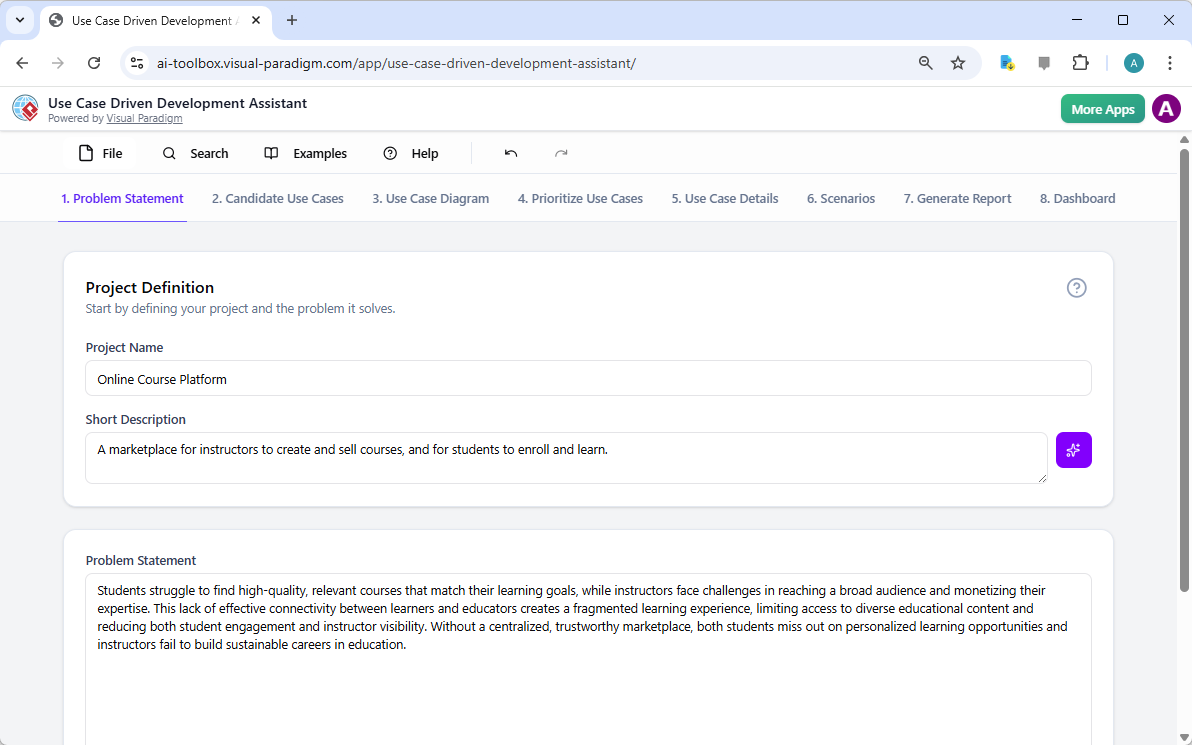
Before you can build anything, you need to know what you’re building. The first step in the Use Case Driven Development Assistant is to define your project’s problem statement. This is where you articulate the core challenge your software aims to solve. In our example, the project is an “Online Course Platform.” You simply enter the project name, and the AI can generate a concise short description. Then, with a click, it generates a detailed problem statement. Why this matters: It ensures everyone on the team—developers, designers, and stakeholders—is aligned from day one. Without a clear problem statement, you risk building the wrong thing.
Step 2: Let AI Suggest Your Use Cases
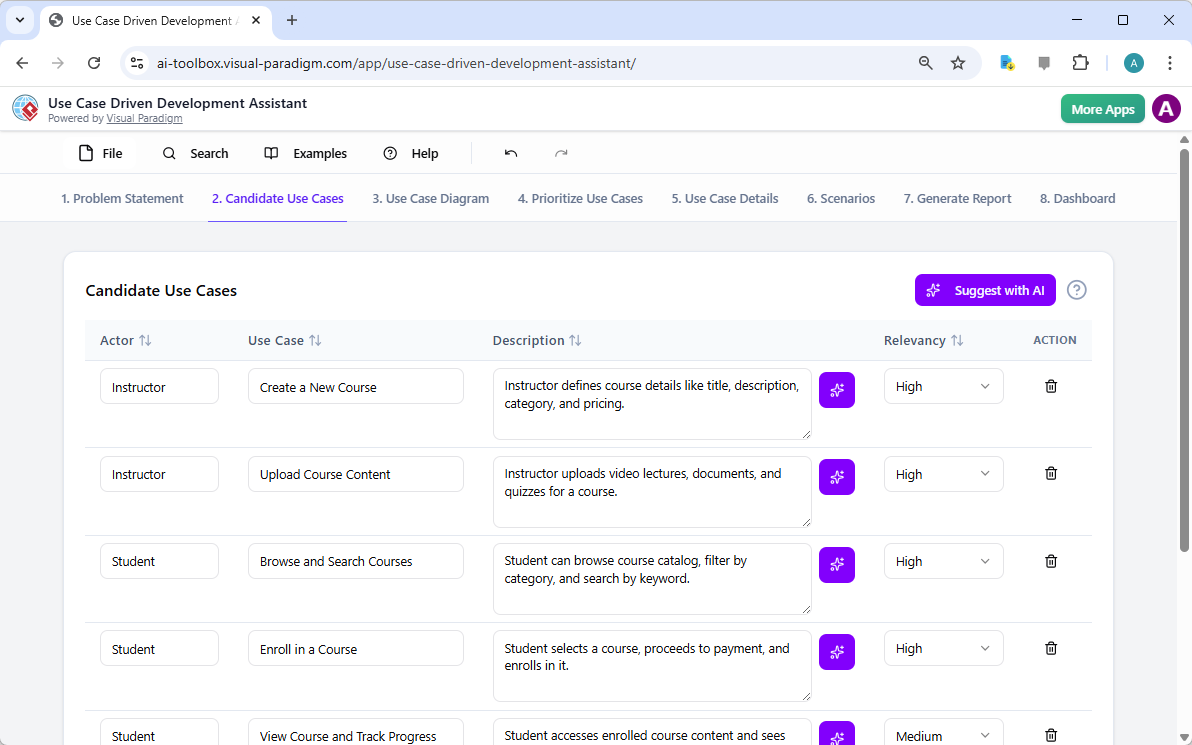
Now that you know the problem, it’s time to figure out what the system needs to do. The tool’s AI takes your problem statement and suggests a list of candidate use cases. These are the key interactions between users (actors) and your system. For our online course platform, the AI identifies actors like “Instructor” and “Student,” and suggests use cases like “Create a New Course” and “Browse and Search Courses.” You can review these suggestions and add or remove them as needed. Why this matters: It’s a huge time-saver. Manually brainstorming all possible use cases is a daunting task. This AI-powered suggestion feature gives you a solid starting point, ensuring you don’t miss critical functionalities.
Step 3: Visualize Your System’s Functionality
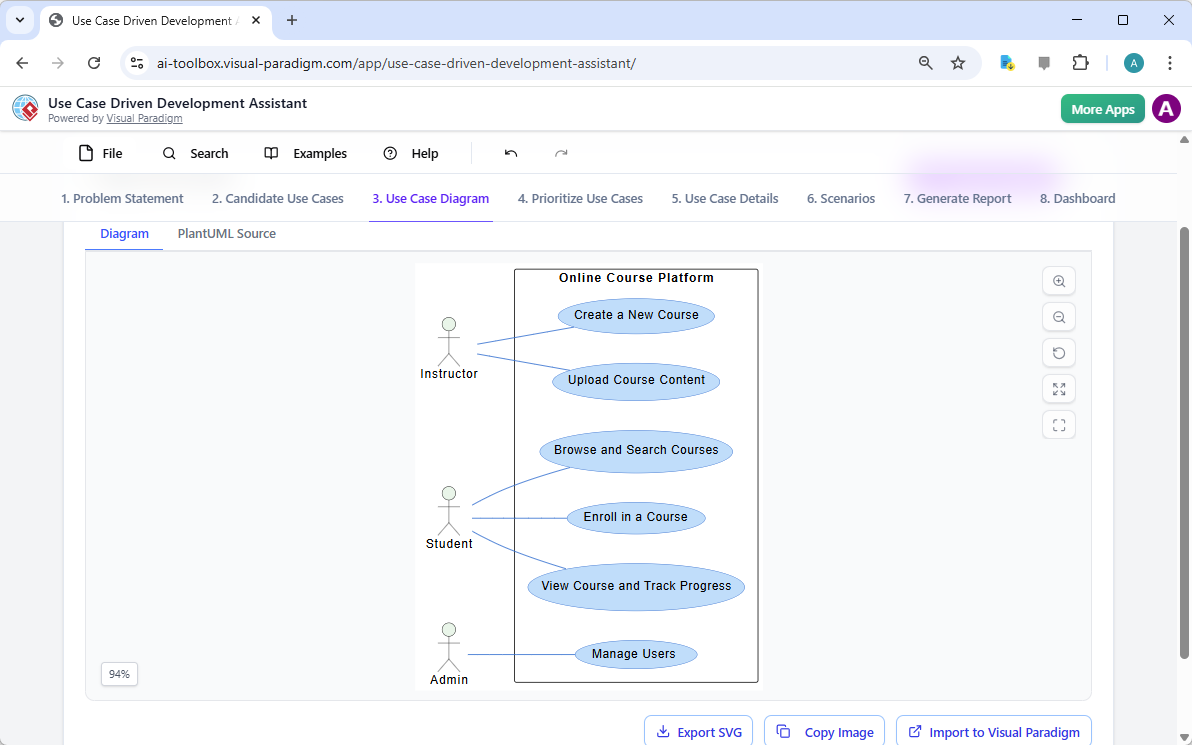
Now that you have your use cases, it’s time to see the big picture. The tool automatically generates a UML Use Case Diagram using PlantUML. This diagram visually represents the actors and their interactions with the system’s functionalities. In our example, you can see the “Instructor” interacting with “Create a New Course” and “Upload Course Content,” while the “Student” can “Browse and Search Courses” and “Enroll in a Course.” This visual representation is crucial for communication and understanding. Why this matters: A picture is worth a thousand words. This diagram makes it easy for everyone to understand the system’s scope and how different users will interact with it.
Step 4: Prioritize Your Features
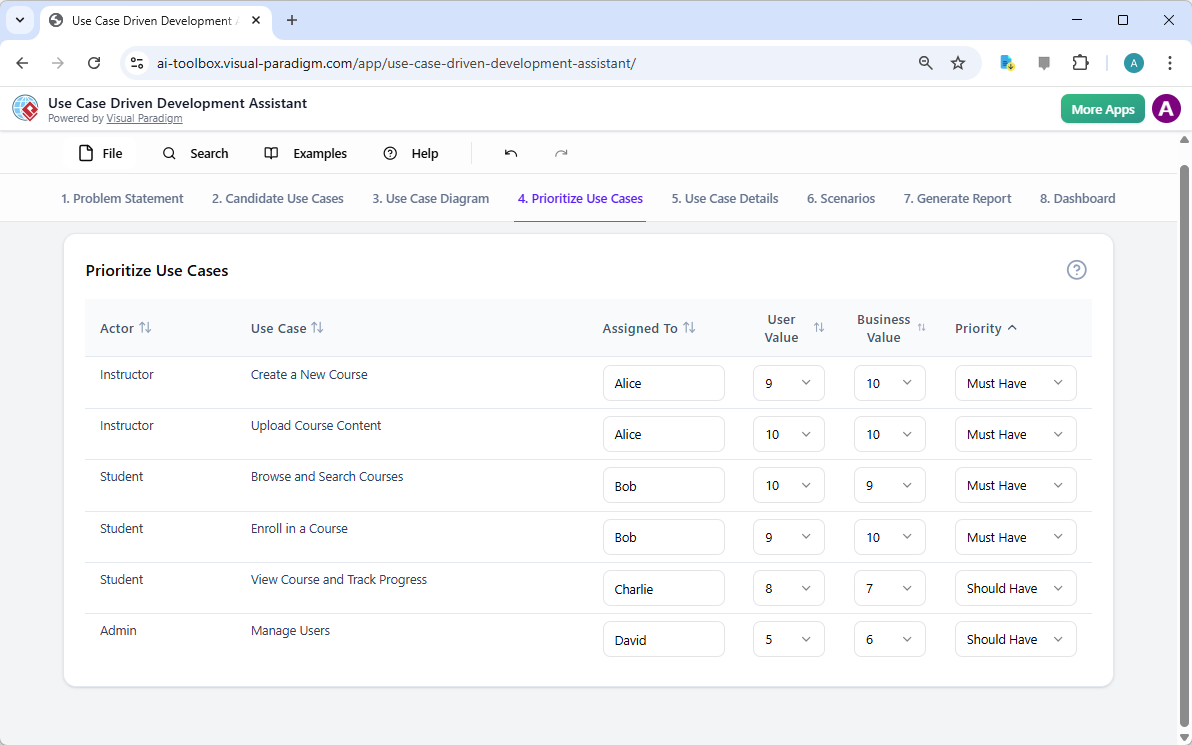
Not all use cases are created equal. Some are essential, while others are nice-to-have. The “Prioritize Use Cases” tab helps you decide what to build first. You can assign a user value and business value (on a scale of 1-10) to each use case, and then apply the MoSCoW prioritization method (Must Have, Should Have, Could Have, Won’t Have). This helps you focus your development efforts on the features that deliver the most value. Why this matters: It prevents scope creep and ensures your team is working on the most important tasks first. You can easily see which features are critical and which can be deferred.
Step 5: Detail Your Use Cases and Generate Activity Diagrams
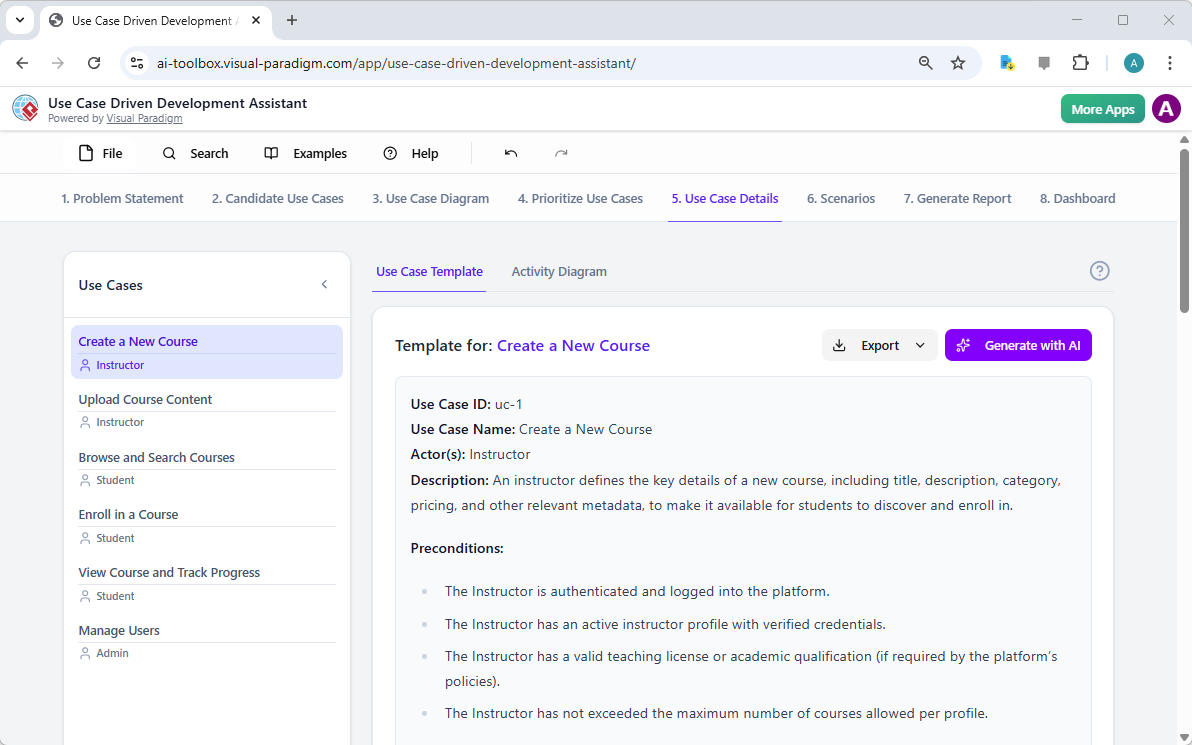
With your priorities set, it’s time to get into the nitty-gritty. The “Use Case Details” tab allows you to generate a detailed description for each use case. The AI can generate a full template, including the main flow, alternative flows, pre-conditions, and post-conditions. For example, for “Create a New Course,” the AI provides a comprehensive description of the steps an instructor must take. Why this matters: This level of detail is essential for developers to understand exactly what needs to be built. It reduces ambiguity and ensures everyone is on the same page.
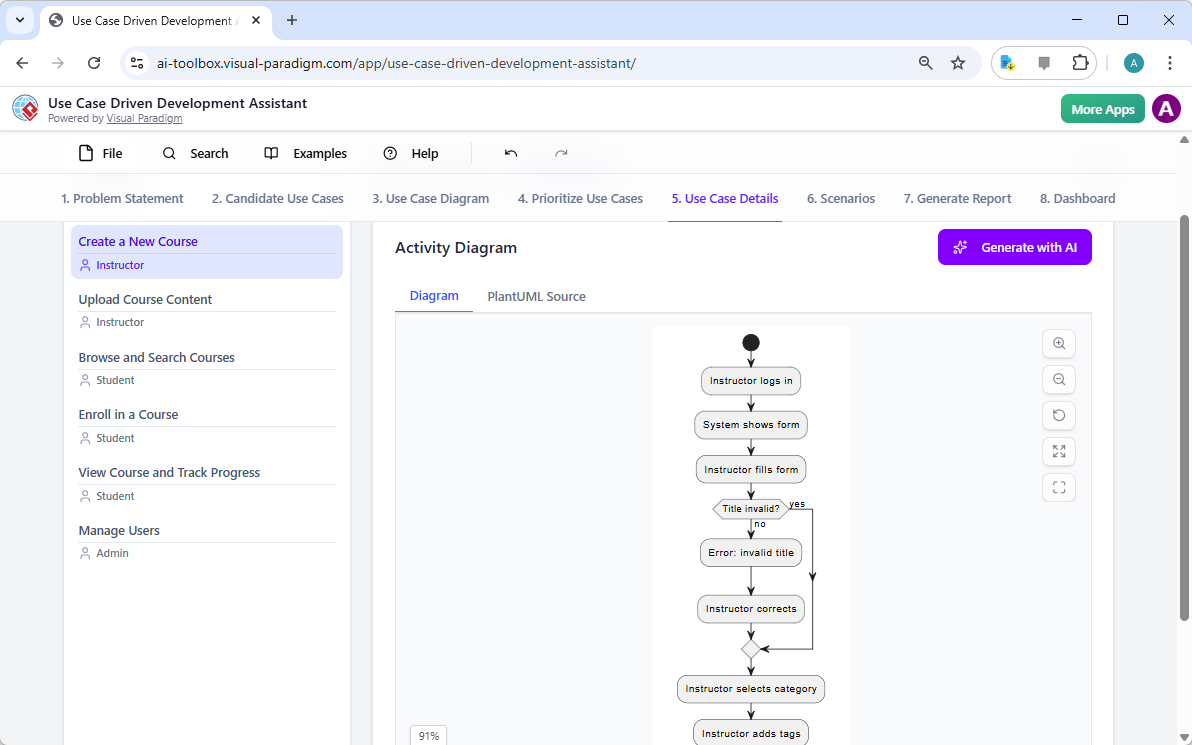
But that’s not all. The tool can also generate an Activity Diagram for each use case, showing the step-by-step workflow. For “Create a New Course,” the AI generates a diagram that shows the instructor logging in, filling out a form, and handling validation errors. This visual representation of the process is invaluable for understanding the flow of actions.
Step 6: Generate Test Scenarios and Sequence Diagrams
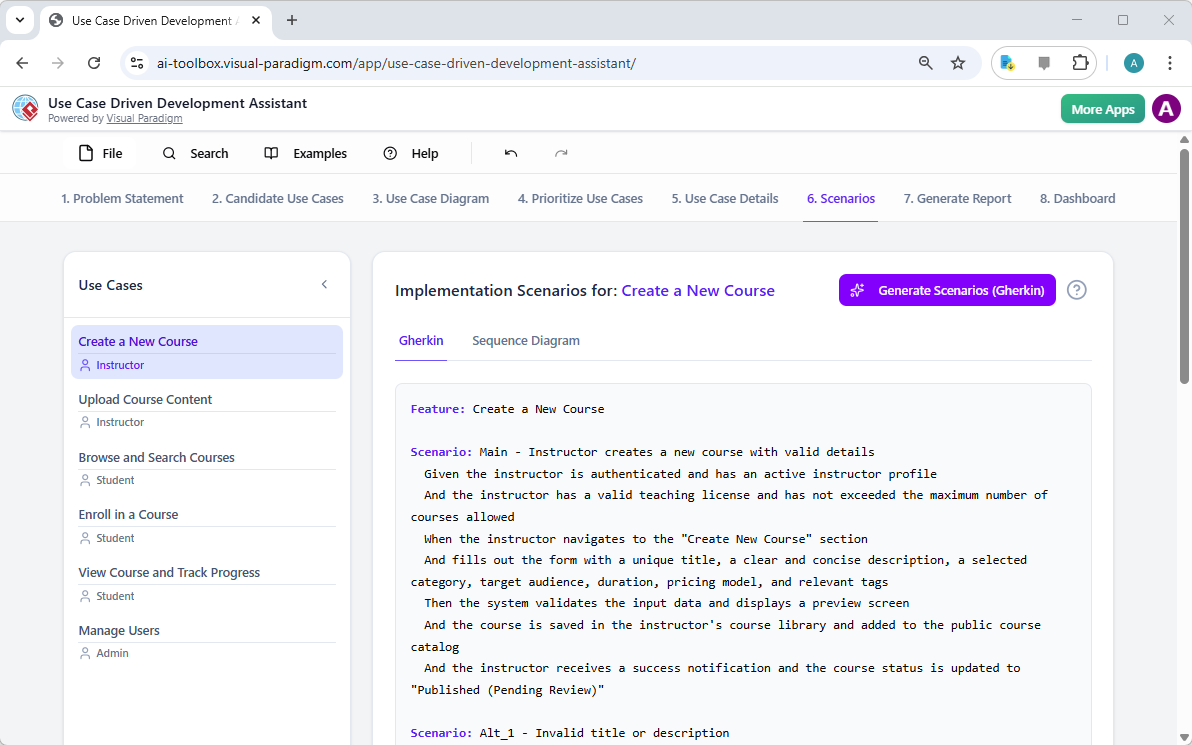
Now that you have your detailed use cases, it’s time to think about testing. The “Scenarios” tab allows you to generate Gherkin scenarios, which are executable test cases written in a plain-language format. The AI can generate these scenarios directly from your use case descriptions. This is a game-changer for QA teams, as it automates a significant portion of test case creation. Why this matters: It ensures comprehensive test coverage and reduces the time and effort required for manual test planning.
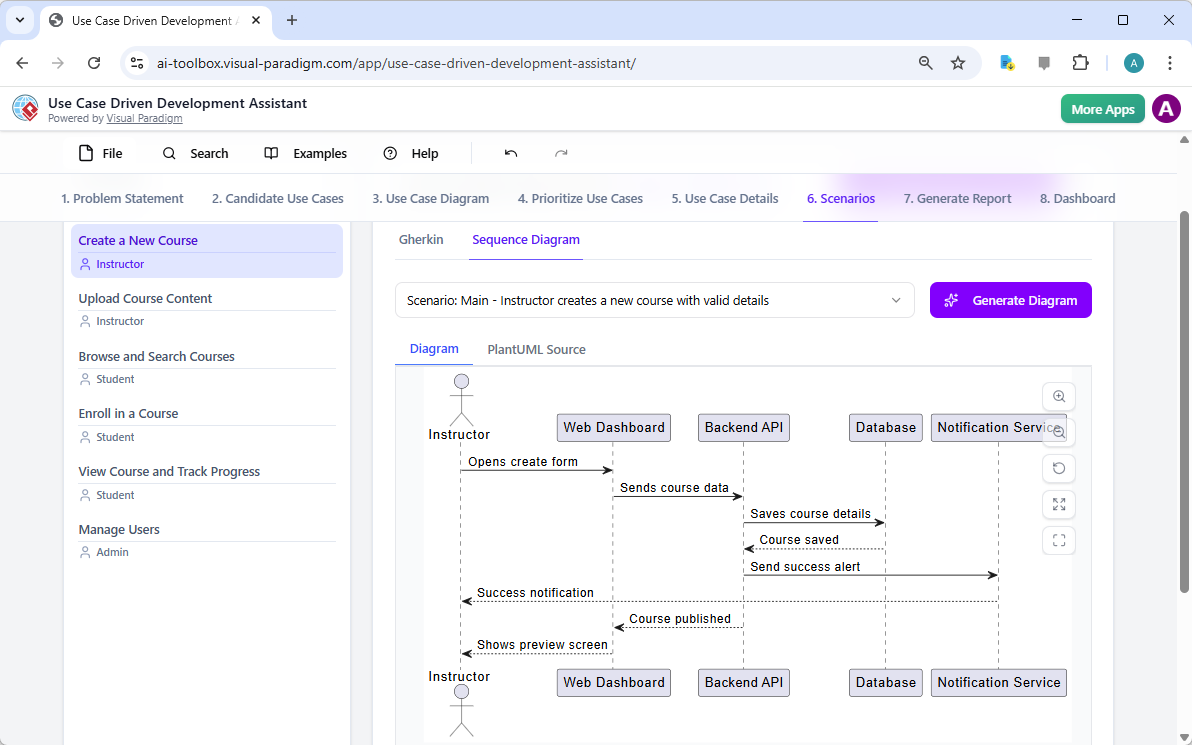
For an even deeper understanding of the system’s interactions, the tool can also generate a Sequence Diagram. This diagram shows the sequence of messages exchanged between different system components (like the Web Dashboard, Backend API, and Database) during a specific scenario. This is crucial for developers to understand the system architecture and data flow.
Step 7: Generate Comprehensive Reports
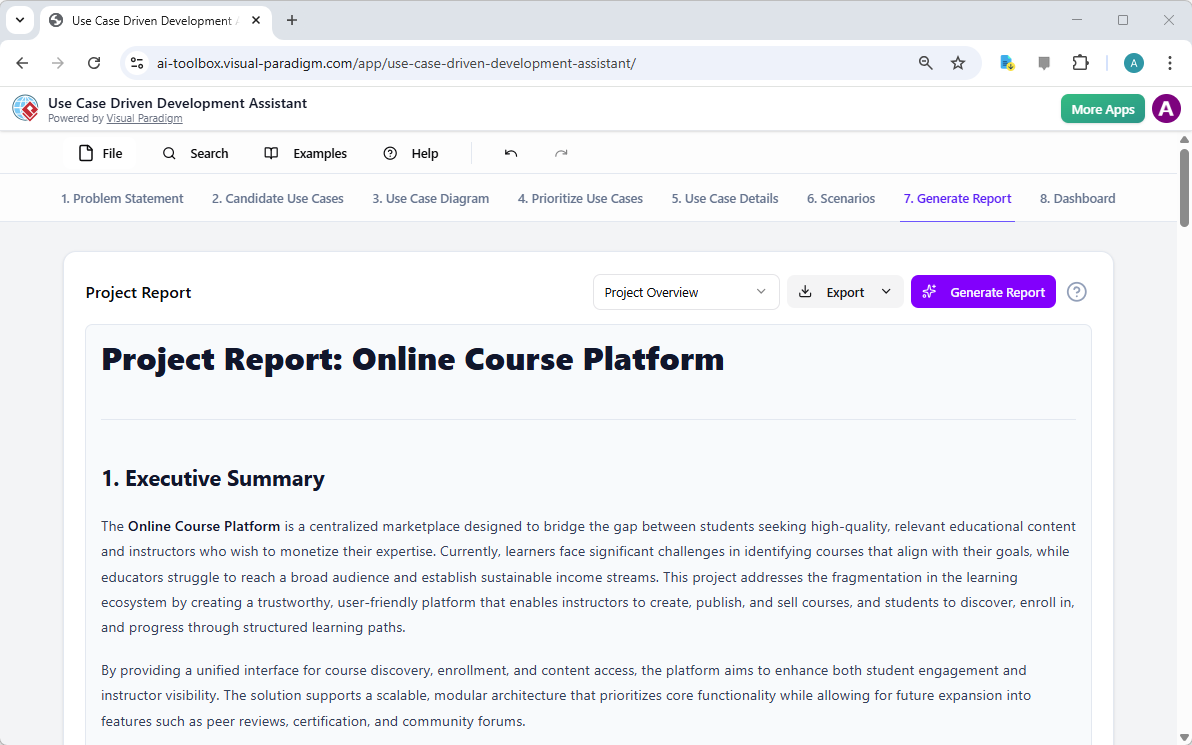
Finally, the tool can generate professional reports to share with stakeholders. The “Generate Report” tab allows you to create various types of reports, such as a Project Overview, Implementation Plan, or QA Test Plan. The AI can generate the entire report based on your project data. This saves you from having to write lengthy documents from scratch. Why this matters: It ensures everyone has access to clear, consistent documentation, which is essential for project success.
Step 8: Track Your Progress with the Dashboard
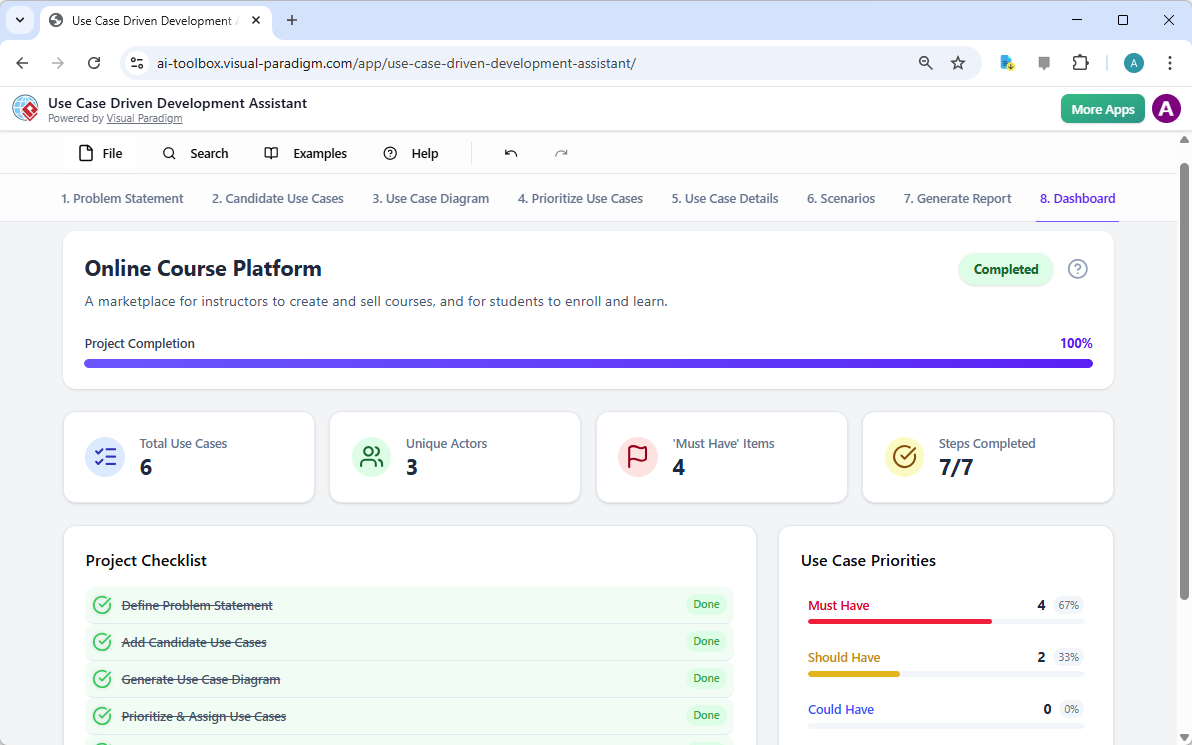
As you work through each step, the “Dashboard” provides a high-level overview of your project’s progress. You can see the project completion percentage, the total number of use cases, and the number of “Must Have” items. The project checklist shows which steps have been completed, making it easy to track your progress. Why this matters: It provides a sense of accomplishment and helps you stay on track. You can see how far you’ve come and what’s left to do.
The Use Case Driven Development Assistant from Visual Paradigm is a powerful tool that streamlines the entire software development process. It uses AI to automate many of the tedious tasks, allowing you to focus on the creative and strategic aspects of your project. From defining the problem to generating the final report, it guides you through every step. If you’re looking to accelerate your software development and ensure clarity and consistency, this AI-powered tool is a must-have.
Try the Use Case Driven Development Assistant now and see how it can transform your development process.
Related Links
Use case modeling is a fundamental technique in software engineering used to capture functional requirements by visualizing interactions between external actors and a system’s internal functions. Modern platforms now integrate AI-powered automation to refine diagrams, generate detailed use case descriptions, and convert models into test cases or activity diagrams to ensure design consistency and traceability. Advanced features like the Flow of Events editor and Scenario Analyzer enable teams to document and validate structured event sequences to improve system clarity.
-
What Is a Use Case Diagram? – A Complete Guide to UML Modeling: This resource provides an in-depth explanation of use case diagrams, including their essential components, purpose, and best practices for requirement modeling.
-
Step-by-Step Use Case Diagram Tutorial – From Beginner to Pro: A practical tutorial that walks users through foundational and advanced techniques for creating effective diagrams.
-
Mastering AI-Driven Use Case Diagrams with Visual Paradigm: This guide demonstrates the use of AI features to develop intelligent, dynamic use case diagrams for modern software systems.
-
All You Need to Know About Use Case Modeling: A comprehensive overview of the principles and applications of use case modeling within the software engineering lifecycle.
-
Visual Paradigm – Use Case Description Features: Details on specialized tools used by software teams to precisely document user interactions and system behavior.
-
Unraveling Scenarios with the Use Case Scenario Analyzer: A guide on utilizing scenario analyzers to examine and refine interaction flows for increased system clarity.
-
Guide to Using the Flow of Events Editor in Visual Paradigm: Step-by-step instructions for documenting structured and clear event sequences to define use case scenarios.
-
Generating Scenarios and Test Cases from Use Case Diagrams Using AI: An exploration of how AI tools automate the creation of requirement-driven test procedures directly from visual models.
-
Convert Use Case to Activity Diagram – AI-Powered Transformation: A resource explaining the automated conversion of use case descriptions into detailed activity diagrams for workflow visualization.
-
Use Case Diagram Gallery – Templates & Examples: A curated collection of real-world use case diagrams and templates designed for inspiration, learning, and rapid prototyping.
Related posts:
 How to Use Visual Paradigm’s AI Chatbot to Generate and Refine Component Diagrams
 Visual Paradigm Community FREE Edition: Your Complete Guide to UML Modeling with AI-Powered Enhancement
 Complete Guide to Visual Paradigm Online UML Diagram Tool
 UML Class Diagrams vs. Sequence Diagrams: When to Use Which (and How AI Helps)