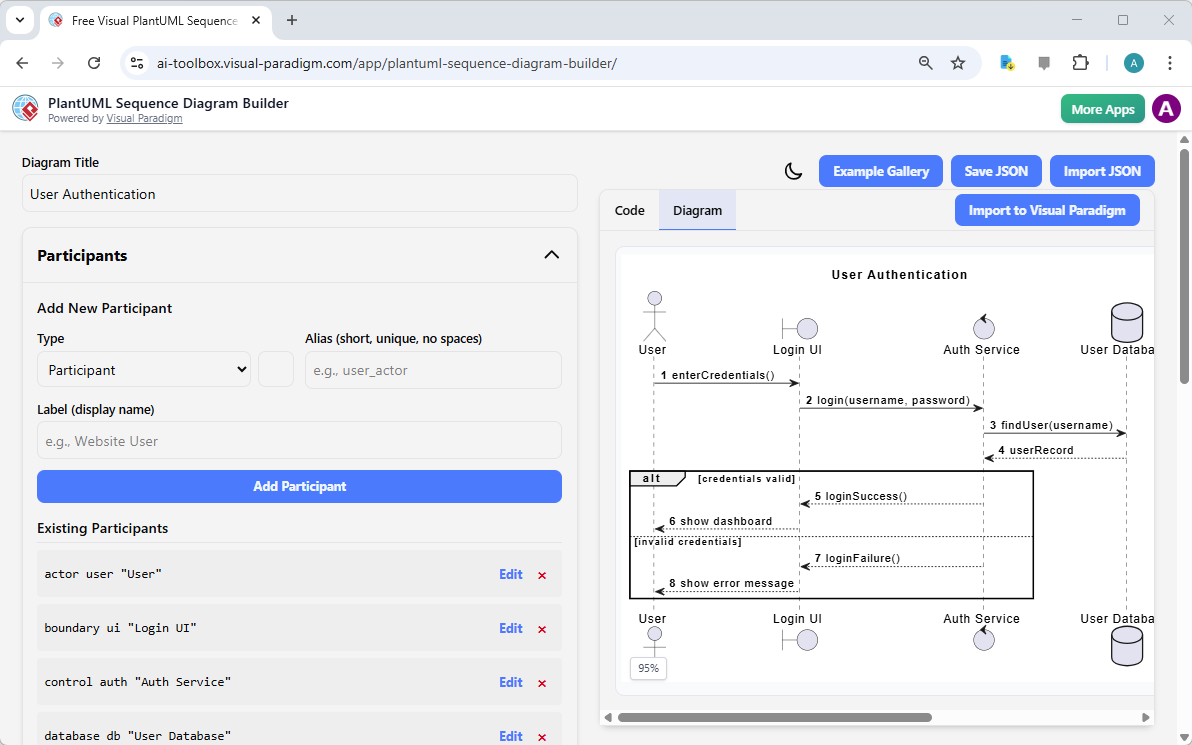
Ever stared at a complex system and thought, “How do these pieces actually talk to each other?” The PlantUML Sequence Diagram Builder from Visual Paradigm is your new best friend for demystifying those intricate interactions. It’s not just a tool; it’s a visual translator that turns abstract concepts into clear, step-by-step stories. Imagine being able to sketch out the entire journey of a user logging into a system—complete with success and failure paths—without writing a single line of code. That’s the power of this intuitive web-based editor. With its live preview and real-time code generation, it makes creating professional sequence diagrams as easy as dragging and dropping, even if you’re not a coding wizard. This guide will walk you through how to use this powerful tool to create a detailed “User Login Flow” diagram, just like the one shown in the image.
What is the PlantUML Sequence Diagram Builder?
The PlantUML Sequence Diagram Builder is a web-based application designed to simplify the creation of UML sequence diagrams. It acts as a visual editor that lets you define the participants (like users, systems, or databases) and the sequence of messages exchanged between them. The magic happens in real-time: as you build your diagram using simple forms, the tool automatically generates the underlying PlantUML code and renders a live visual preview. This means you can focus on the logic of your system’s interactions, not the syntax of the diagramming language. It’s perfect for software architects, business analysts, and anyone who needs to visualize how different components in a system communicate over time. The result is a clear, professional diagram that can be used for documentation, team discussions, or presentation.
Key Features of the Builder
Let’s break down the features that make this PlantUML Sequence Diagram Builder so effective. First, there’s the Structured Participant Editor. On the left side of the interface, you can easily add and manage all the entities involved in your interaction. You can define them as an “actor,” a “boundary,” a “control,” or a “database,” giving your diagram context and clarity. Next, the Structured Sequence Editor lets you define the flow of messages, notes, and control fragments. This is where you choreograph the exact communication between your participants. For example, you can add a “message” from the user to the login UI, then from the UI to the backend service. You can also add control flow fragments like alt (for alternative paths), opt (for optional steps), or loop (for repetitive actions) to model complex logic. The Live PlantUML Code Generation feature ensures you always see the text-based representation of your diagram, making it transparent and verifiable. And the Live Visual Diagram Preview gives you instant feedback, so you can see your diagram come to life as you build it. Finally, the Local Save/Load Functionality allows you to save your project as a JSON file directly to your computer, ensuring your work is secure and private.
How to Create a User Login Flow Diagram
Now, let’s get practical and create a “User Login Flow” diagram, just like the one in the image. The first step is to set your Diagram Title to something descriptive, like “User Authentication.” Then, you need to define your Participants. In this case, you’ll need a user (an actor), a login UI (a boundary), an authentication service (a control), and a user database (a database). You can add these by selecting the appropriate type and giving them a unique alias and a display label. Once your participants are set, it’s time for the Sequence editor. Start by adding a message from the user to the login UI, labeled “enterCredentials()”. Then, add a message from the login UI to the authentication service, labeled “login(username, password)”. This is where the alt fragment comes in. You can add an alt block to show the two possible outcomes: if the credentials are valid, the system shows the dashboard; if they’re invalid, it shows an error message. You can even add a loop fragment to model a scenario where the user has to try logging in multiple times. As you build, the Live Visual Diagram Preview will update instantly, showing you the complete flow.
Why Use This Tool?
So, why should you use the PlantUML Sequence Diagram Builder instead of other tools? The answer lies in its unique combination of simplicity and power. It’s incredibly easy to use, requiring no prior knowledge of PlantUML syntax. You can build a complex diagram by simply filling out forms and clicking buttons. Yet, it’s powerful enough to handle sophisticated scenarios with control fragments and conditional logic. The real-time preview is a game-changer, allowing you to see the impact of every change immediately. This makes it ideal for collaborative work, as you can easily share your diagram with team members for feedback. It’s also great for learning, as the live code generation shows you exactly how your inputs translate into PlantUML code. And the best part? It’s completely free to use, with no account required, and all your data is saved locally on your computer. It’s a professional-grade tool that feels like a breeze to use.
Quick Summary
-
What it is: A web-based tool for creating PlantUML sequence diagrams with a visual interface.
-
Key Benefit: Simplifies complex interaction modeling with live code and visual preview.
-
Core Features: Structured participant/sequence editors, live code generation, local JSON save/load.
-
Best For: Software architects, business analysts, and anyone needing to visualize system interactions.
-
Unique Advantage: No AI, no account, no online storage—just pure, local, real-time diagram creation.
Ready to turn your system’s inner workings into a clear, visual story? The PlantUML Sequence Diagram Builder from Visual Paradigm is waiting for you. It’s the easiest way to create professional sequence diagrams. Try it now and see how quickly you can build your own “User Login Flow” diagram.
Related Links
-
PlantUML Sequence Diagram Generator | Visual Builder Tool: Easily create professional UML sequence diagrams with our visual PlantUML generator. A step-by-step wizard for defining participants, messages, …
-
Free PlantUML Sequence Diagram Builder – Visual Paradigm AI: October 31, 2025 – Effortlessly create free and professional PlantUML sequence diagrams with our intuitive visual wizard. No coding required. Design, build, and export UML diagrams in minutes. Get started now!
-
Refine Your PlantUML Sequence Diagrams into MVC-Level Models …: Import PlantUML sequence diagrams into Visual Paradigm Generate structured MVC-level models for better system design This tool is ideal for software engineers, architects, and developers looking …
-
Free PlantUML Sequence Diagram Builder – Visual Paradigm Product Updates: September 12, 2025 – Effortlessly create PlantUML sequence diagrams with our free online builder. No syntax required. Use our visual wizard to generate code and diagrams instantly.
-
Free Visual PlantUML Sequence Diagram Builder | Visual Paradigm Online: Effortlessly create professional Free PlantUML sequence diagrams with our intuitive visual wizard. No coding required. Design, build, and export UML diagrams in minutes. Get started now!
-
Why Sequence Diagrams Are Commonly Stored in PlantUML – Visual Paradigm AI: November 3, 2025 – You can paste or type your PlantUML code, render it, let AI decompose it into view and model objects, and then generate a more detailed diagram . From there, you can export the results as SVG or open them in Visual Paradigm …