Introduction: Why Your Notes Need a Visual Home
Are you tired of juggling multiple apps just to document your ideas? Do you write notes in one place, create diagrams in another, and struggle to keep everything organized? You’re not alone. Most people rely on general AI tools that only generate text, leaving them to figure out visuals and organization separately.
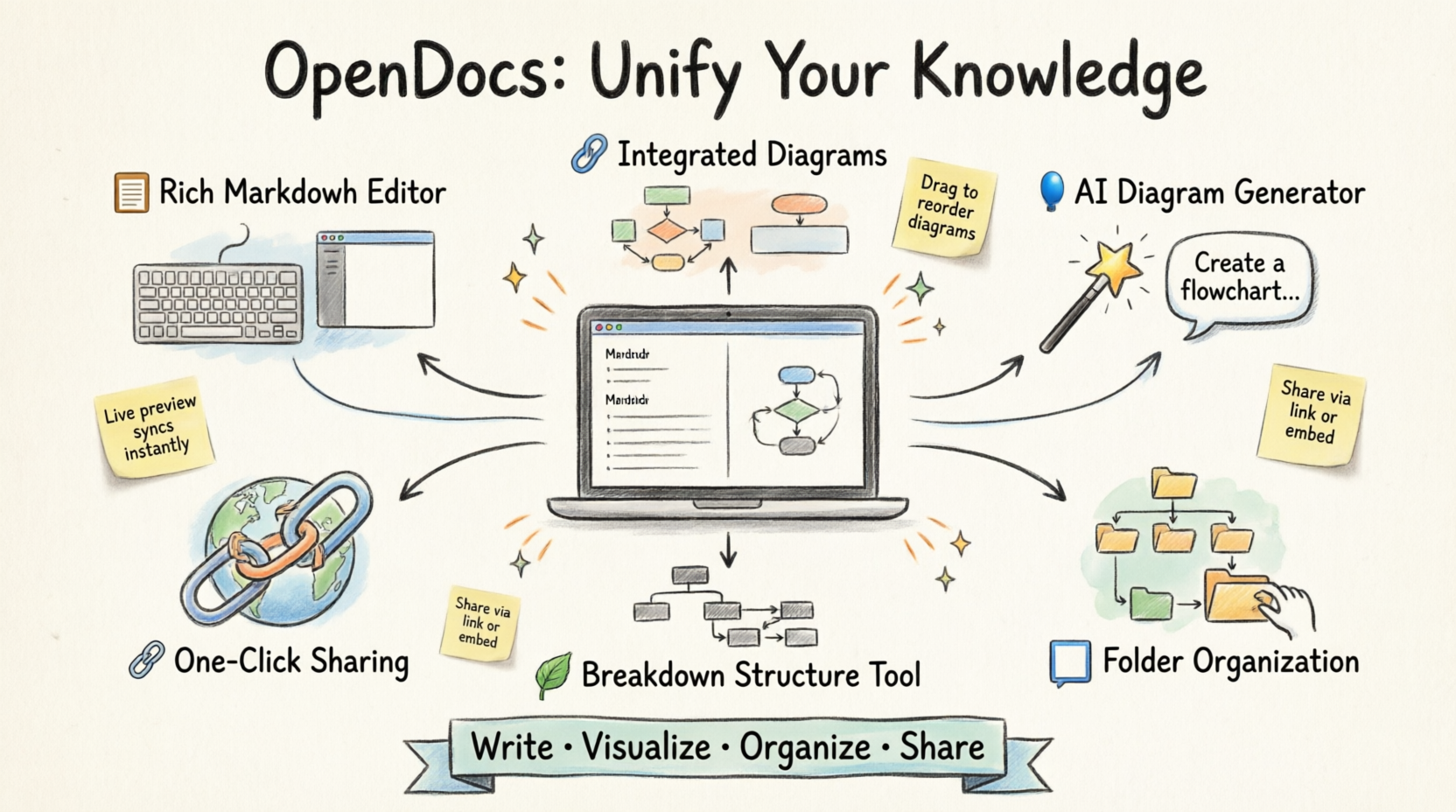
Enter OpenDocs by Visual Paradigm—a game-changing platform that combines writing, visual diagramming, AI assistance, and smart organization into one seamless workspace. Unlike generic AI chatbots that only spit out text, OpenDocs helps you create living documents where words and visuals work together. Whether you’re a student organizing research, a project manager documenting processes, or a team lead sharing knowledge, this guide will show you exactly how OpenDocs simplifies your workflow—no technical expertise required.
What Is OpenDocs? (And Why It’s Not Just Another AI Tool)
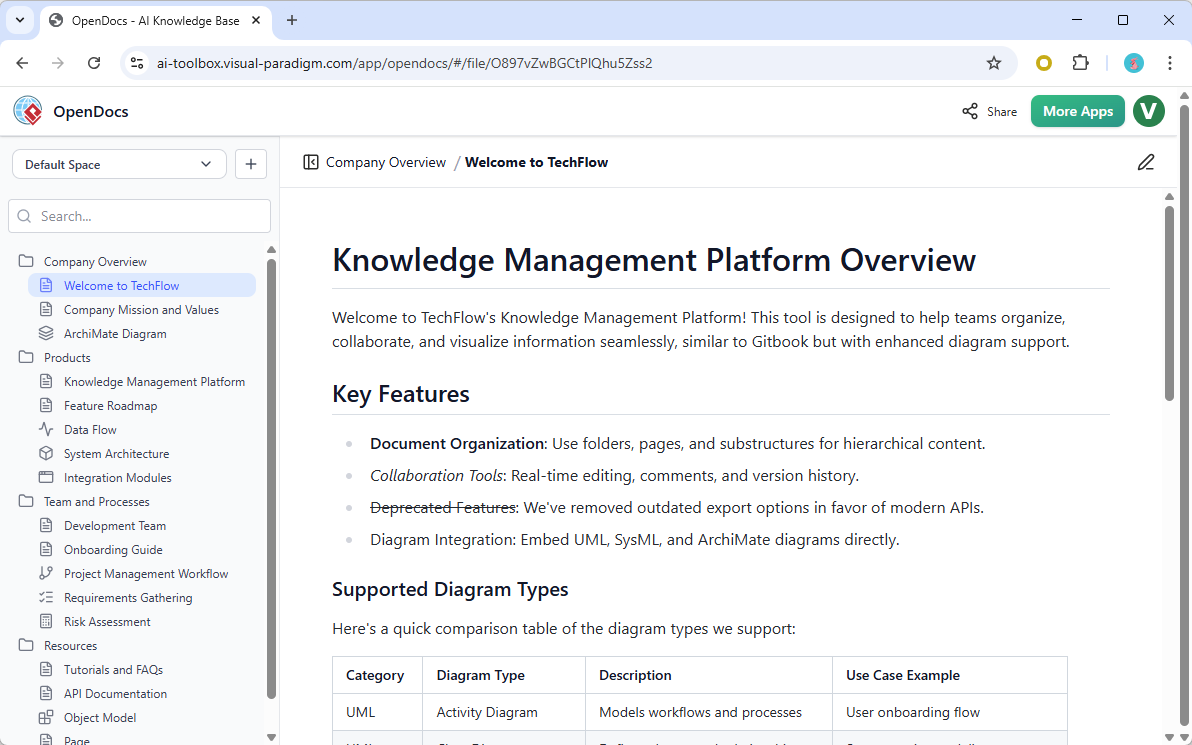
OpenDocs is your personal knowledge base and documentation hub. Think of it as a smart notebook that understands both words and pictures. While tools like ChatGPT or other general LLMs (Large Language Models) excel at generating text responses, OpenDocs goes further by giving you:
-
A permanent home for your documents and diagrams
-
Visual organization with folders and hierarchical structures
-
Professional diagramming tools built right into your documents
-
AI assistance that creates visuals, not just text
-
Easy sharing with a single link
The key difference? General LLMs are conversation-based—you ask, they answer, and the interaction disappears. OpenDocs is creation-based—you build lasting documentation that grows with your projects.
Who Should Use OpenDocs?
OpenDocs is designed for anyone who needs to document, organize, and share information clearly:
✅ Students & Researchers
-
Organize class notes with visual diagrams
-
Create study guides with flowcharts and mind maps
-
Document research processes
✅ Project Managers
-
Build Work Breakdown Structures (WBS)
-
Document project workflows visually
-
Share status reports with stakeholders
✅ Software Developers & IT Professionals
-
Write technical documentation with code blocks
-
Create UML diagrams and system architecture visuals
-
Document APIs and processes
✅ Business Analysts
-
Map business processes with flowcharts
-
Create organizational charts
-
Document requirements visually
✅ Team Leaders & Educators
-
Build knowledge bases for teams
-
Create training documentation
-
Share best practices with visual aids
Core Features Every Beginner Should Know
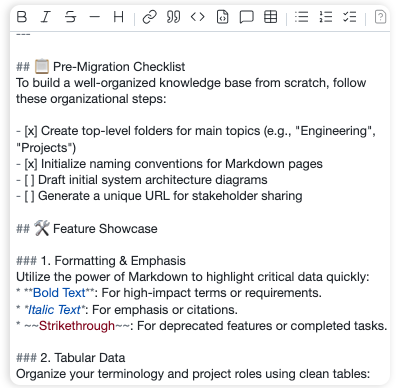
1. Rich Markdown Editor: Write Without Formatting Hassles
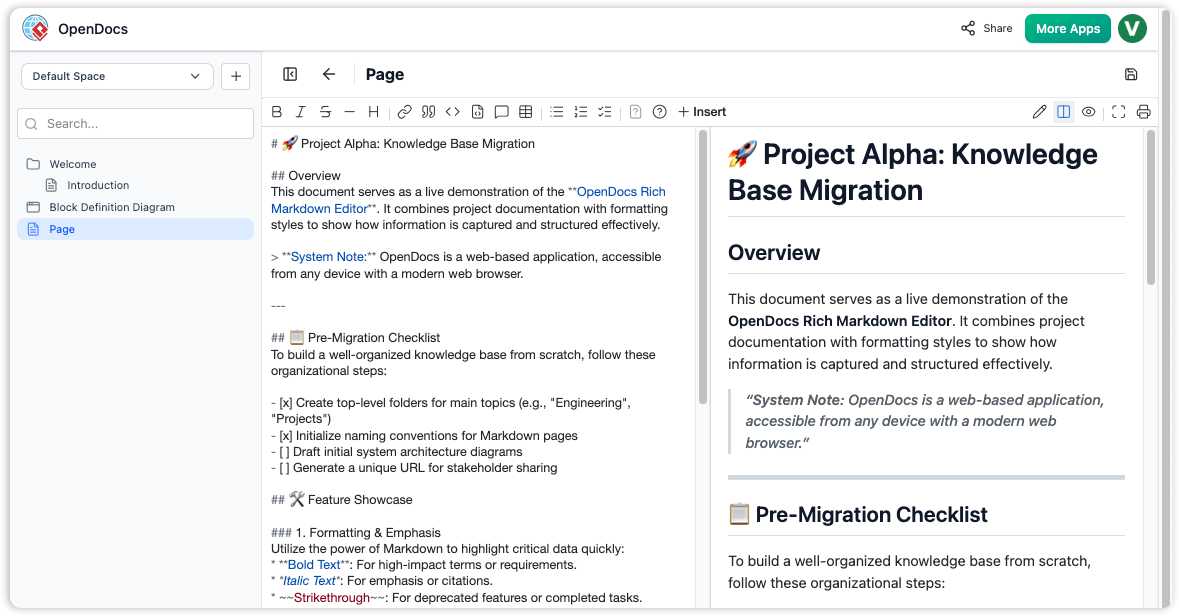
What it is: A writing tool that uses simple symbols (like # for headings and * for lists) to format text.
Why beginners love it:
-
Live preview: See your formatted document as you type
-
No mouse needed: Keep your hands on the keyboard
-
Clean formatting: Professional-looking documents without wrestling with toolbars
Example: Type # My Heading and instantly see a large, bold heading in the preview pane.
2. Integrated Diagram Editor: Draw Without Leaving Your Document
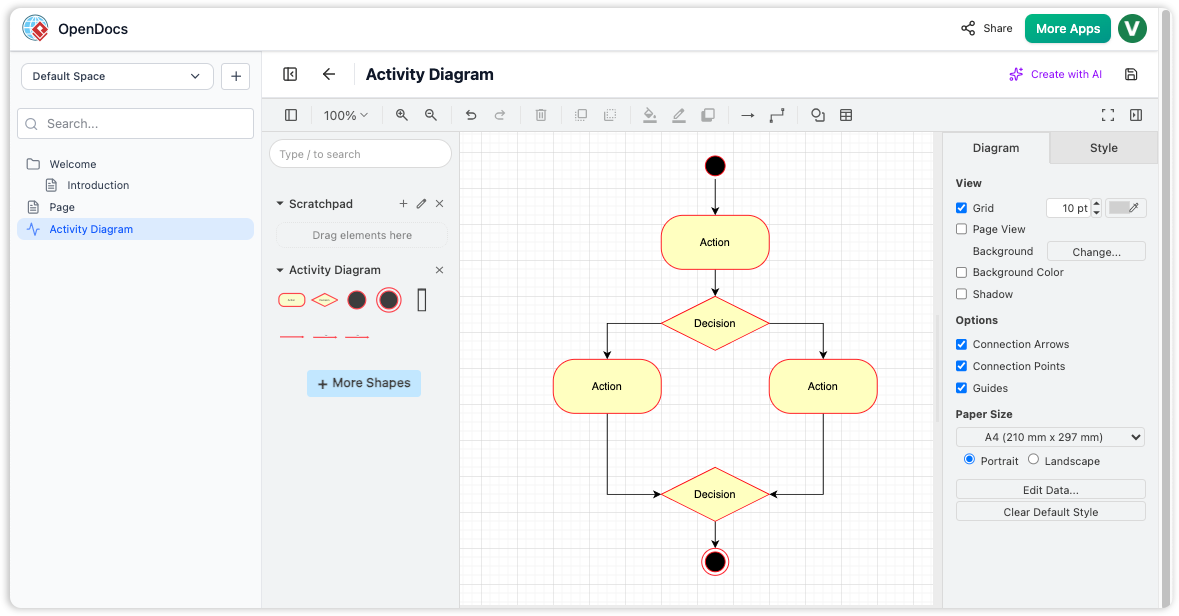
What it is: A professional drawing tool built directly into your document editor.
Why it matters:
-
No app-switching: Create visuals in the same place you write
-
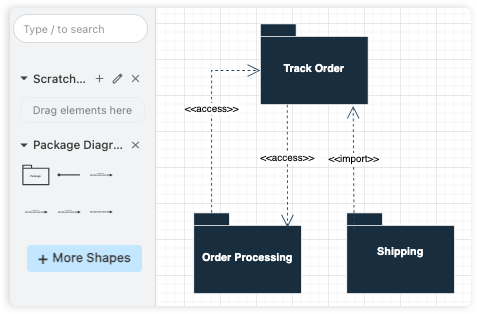
Professional shapes: Access hundreds of pre-built shapes for flowcharts, UML diagrams, and more
-
Drag-and-drop simplicity: Move elements around easily
Perfect for: Process flows, organizational charts, system diagrams, and mind maps.
3. AI-Powered Diagram Generation: From Words to Visuals in Seconds
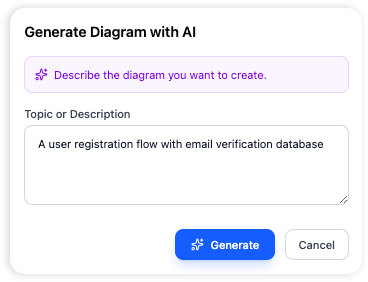
What it is: An AI tool that creates complete diagrams from simple text descriptions.
How it works:
-
Type: “Create a flowchart for our customer onboarding process”
-
The AI builds the entire diagram automatically
-
You customize and refine as needed
The beginner advantage: No diagramming experience required. The AI does the heavy lifting.
4. Hierarchical Folder Organization: Keep Everything in Its Place
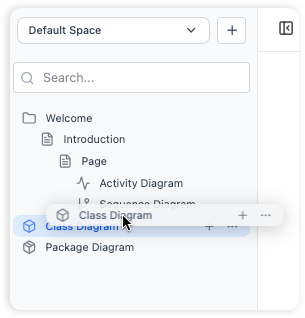
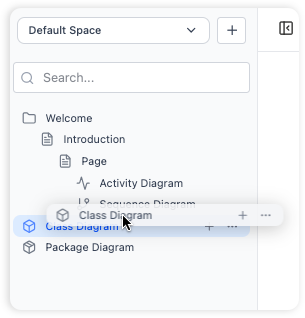
What it is: A familiar folder system (like on your computer) to organize documents and diagrams.
Why it helps:
-
Nested folders: Create folders inside folders for complex projects
-
Drag-and-drop: Rearrange files effortlessly
-
Scalable: Works for 10 documents or 10,000
Real-world example:
📁 Projects
  └─ 📁 Website Redesign
      ├─ 📄 Requirements.md
      ├─ 📁 Design Assets
      └─  Technical Specs
Why OpenDocs Stands Out from Free General LLMs
This is crucial: OpenDocs is NOT just another chatbot. Here’s how it differs from free general LLMs like ChatGPT, Google Bard, or Claude:
| Feature | General LLM (ChatGPT, etc.) | OpenDocs |
|---|---|---|
| Output Type | Text-only responses | Text + Professional diagrams + Visual organization |
| Permanence | Conversations disappear | Documents saved permanently in organized structure |
| Visual Creation | Cannot create editable diagrams | Built-in professional diagram editor |
| Organization | Linear chat history | Hierarchical folders and knowledge structure |
| Sharing | Copy-paste text only | One-click shareable knowledge base with visuals |
| Context | Limited conversation window | Unlimited growing knowledge base |
| Editing | Must regenerate entire response | Edit any part of document or diagram independently |
| Integration | Standalone tool | Unified workspace for writing + visuals |
The Bottom Line:
General LLMs are conversation tools—great for quick answers.
OpenDocs is a creation platform—designed for building lasting, visual documentation that grows with your needs.
Think of it this way:
-
ChatGPT = A smart assistant who answers questions
-
OpenDocs = A smart workspace where you build, organize, and share knowledge
Key Benefits for Your Daily Work
🎯 All-in-One Workspace
Stop switching between Word, Lucidchart, Notion, and Google Drive. OpenDocs combines:
-
Writing (Markdown editor)
-
Diagramming (Visual editor)
-
AI assistance (Diagram generator)
-
Organization (Folder system)
-
Sharing (Link generation)
Result: One tool, one link, zero confusion.
📊 Visual Communication That Actually Works
Text alone is hard to digest. OpenDocs helps you:
-
Turn complex processes into flowcharts
-
Show relationships with diagrams
-
Break down projects visually
Impact: Your team understands faster, asks fewer questions, and executes better.
🤖 AI That Creates Visuals, Not Just Text
While other AI tools write paragraphs, OpenDocs AI:
-
Generates complete diagrams from prompts
-
Creates structure automatically
-
Saves you hours of manual drawing
Time saved: What takes 30 minutes manually takes 30 seconds with AI.
🔗 Effortless Collaboration
Share your entire knowledge base with one link:
-
No login required for viewers
-
Read-only access keeps content safe
-
Professional presentation without extra work
Perfect for: Client documentation, team onboarding, stakeholder updates.
📱 Access Anywhere, No Installation
OpenDocs is web-based:
-
Works on any device with a browser
-
No software to install or update
-
Your documents sync automatically
Freedom: Work from your laptop, tablet, or phone seamlessly.
🌳 Structured Thinking Made Easy
The folder hierarchy helps you:
-
Think in systems, not scattered notes
-
Find information quickly
-
Scale from simple to complex projects
Mental clarity: Your external organization improves your internal thinking.
Getting Started: Your First 5 Steps
Ready to dive in? Follow this beginner-friendly roadmap:
Step 1: Launch & Initialize
Action: Open OpenDocs in your browser.
What you’ll see: A welcome screen with options to create your first document.
Time: 30 seconds
Step 2: Create Your First Page
Action: Click “New Page” in the sidebar.
Name it: Something descriptive like “My First Project” or “Meeting Notes – March 2026”
Why: Clear names make finding documents easier later.
Step 3: Write Your First Document
Action: Start typing in the Markdown editor.
Try these basics:
# Main Heading
## Subheading
- Bullet point 1
- Bullet point 2
**Bold text** and *italic text*
Watch: The right pane shows live formatting instantly.
Step 4: Add Your First Diagram
Option A – AI Generation (Easiest):
-
Click where you want the diagram
-
Use AI prompt: “Create a simple flowchart showing: Start → Decision → End”
-
Watch the AI build it automatically
Option B – Manual Creation:
-
Click “New Diagram” button
-
Choose diagram type (Flowchart, UML, Mind Map, etc.)
-
Drag shapes from the library
-
Connect them with arrows
Step 5: Organize with Folders
Action:
-
Click “+” in the sidebar
-
Select “New Folder”
-
Name it (e.g., “Work Projects”)
-
Drag your page into the folder
Result: You now have a structured knowledge base!
New Feature Spotlight: Breakdown Structure Tool
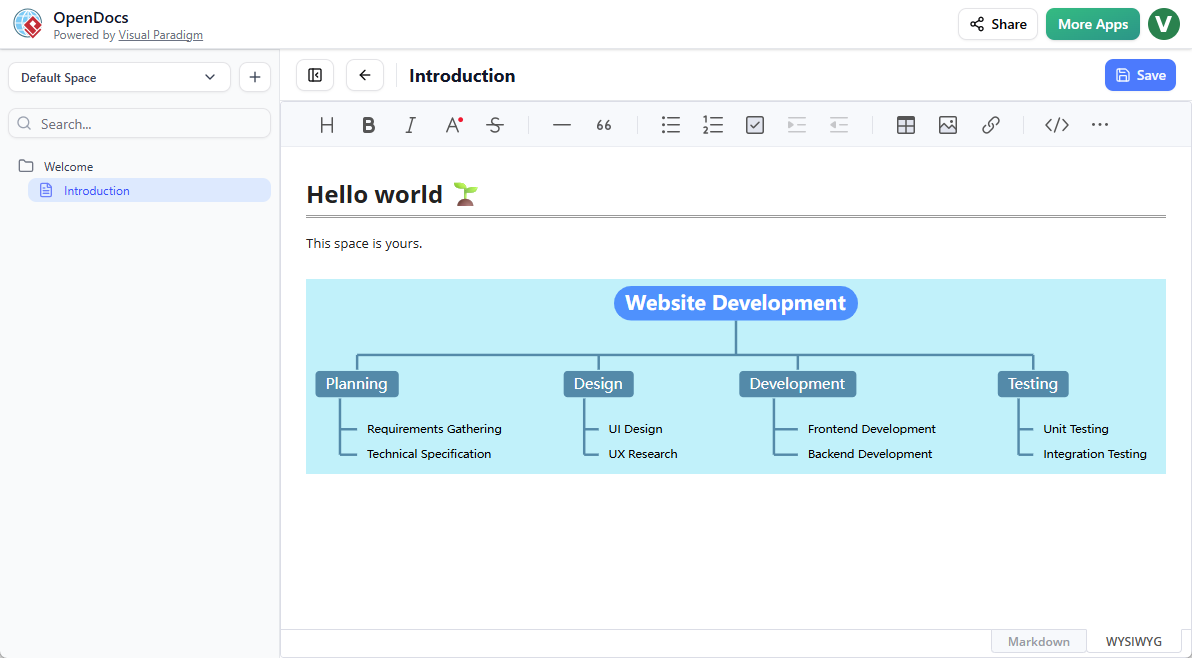
What’s new: Visual Paradigm recently added native Breakdown Structure chart support to OpenDocs—perfect for project managers and business analysts.
What Is a Breakdown Structure?
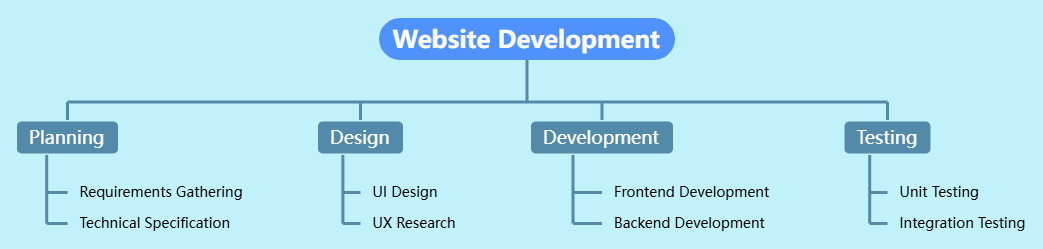
A visual hierarchy that breaks down complex projects into manageable parts. Common uses:
-
Work Breakdown Structure (WBS): Project management
-
Organizational Breakdown: Team structures
-
Functional Decomposition: System analysis
Two Ways to Use It:
Method 1: Embed in Documents
Create a breakdown chart directly inside your Markdown page for contextual visuals.
Step-by-Step:
-
Open your page and click Edit
-
Position cursor where chart should appear
-
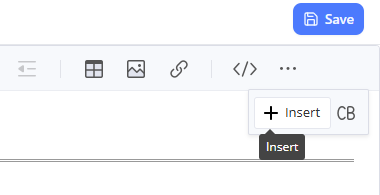
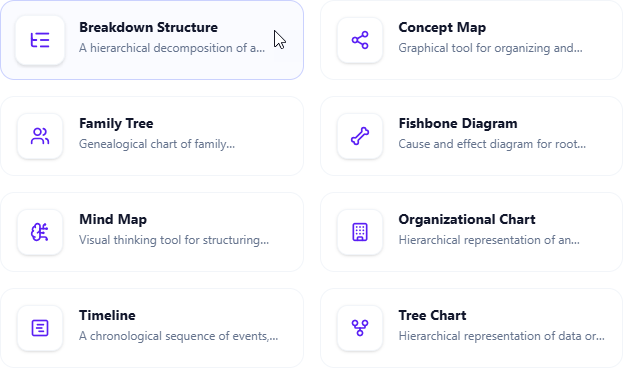
Click Insert → Mind Maps > Breakdown Structure
-
Edit your chart visually
-
Save and continue writing
Method 2: Standalone Diagram Page
Create a dedicated breakdown structure page for high-level overviews.
Step-by-Step:
-
Click + in sidebar → New Component Page
-
Select Mind Maps > Breakdown Structure
-
Build your hierarchy
-
Save as a separate page in your knowledge base
Why Beginners Love This Feature:
-
No drawing skills needed: AI can generate initial structure
-
Professional results: Looks polished without design experience
-
Easy updates: Drag to reorder, click to edit text
-
Clear communication: Stakeholders instantly understand project scope
Real-World Use Cases
📚 Student Research Project
Scenario: Writing a thesis on climate change impacts.
How OpenDocs helps:
-
Create folders for each chapter
-
Write literature review in Markdown
-
Generate flowcharts showing cause-effect relationships
-
Build mind maps connecting research themes
-
Share draft with advisor via link
Time saved: 5+ hours on diagram creation alone.
💼 Project Manager Onboarding
Scenario: New team member needs to understand project structure.
How OpenDocs helps:
-
Build Work Breakdown Structure (WBS) showing all deliverables
-
Document processes with flowcharts
-
Create timeline diagrams for milestones
-
Organize by project phase (Planning, Execution, Closure)
-
Share complete onboarding package with one link
Result: New hire productive in days, not weeks.
👨 Software Documentation
Scenario: Documenting a new API for developers.
How OpenDocs helps:
-
Write technical specs with code blocks
-
Create UML diagrams showing system architecture
-
Build flowcharts for authentication flows
-
Organize by module (API Reference, Tutorials, Examples)
-
Embed diagrams directly in documentation pages
Developer feedback: “Finally, docs I can actually understand!”
🏢 Business Process Mapping
Scenario: Documenting company workflows for ISO certification.
How OpenDocs helps:
-
Map each process with flowcharts
-
Create organizational breakdown structures
-
Write procedures in clear Markdown format
-
Link related processes with internal references
-
Generate fishbone diagrams for root cause analysis
-
Share audit-ready documentation instantly
Compliance win: All documentation centralized and professional.
Frequently Asked Questions
❓ Is OpenDocs free to use?
OpenDocs offers different access levels. Basic features may be available free, while advanced capabilities (like certain diagram types or AI features) require Visual Paradigm Online (Combo Edition) or Visual Paradigm (Professional Edition) licenses.
❓ Can I import my existing documents from Word or Google Docs?
Currently, OpenDocs is optimized for creating content within the application. There is no direct import feature for existing files. However, you can copy-paste text and reformat using Markdown.
❓ What if I’ve never used Markdown before?
No problem! OpenDocs provides a live preview, so you see formatting instantly. Plus, Markdown is intentionally simple:
-
#for headings -
*for bullet points -
**text**for bold -
Backticks for code
You’ll learn as you go!
❓ Can I export my documents to PDF or Word?
OpenDocs focuses on in-platform sharing via links. Direct export to external formats like PDF or Word is not currently available. For printed copies, you can use your browser’s “Print to PDF” function.
❓ Is there version history if I make a mistake?
OpenDocs does not currently include built-in version history. Recommendation: Regularly duplicate important documents as backups, or export critical content periodically.
❓ Can I share just one page instead of my entire knowledge base?
The sharing feature is designed to share the complete knowledge base to preserve context. Individual page or folder sharing is not currently supported.
❓ Do I need to install software?
No! OpenDocs is 100% web-based. Access it from any modern browser (Chrome, Firefox, Safari, Edge) on any device—no installation required.
❓ How is this different from Notion or Obsidian?
Great question!
-
Notion: Database-focused, requires internet, limited diagramming
-
Obsidian: Local files, markdown-based, needs plugins for diagrams
-
OpenDocs: Built-in professional diagramming, AI diagram generation, web-based with organized folders
OpenDocs advantage: Professional visual tools are native, not add-ons.
❓ Can multiple people edit the same document?
OpenDocs is primarily designed for individual knowledge management with sharing capabilities. Real-time collaborative editing (like Google Docs) is not the primary focus.
❓ What diagram types can I create?
The integrated editor supports:
-
Flowcharts
-
UML diagrams (Class, Sequence, Activity, etc.)
-
Mind maps
-
Breakdown structures (WBS)
-
Fishbone (Ishikawa) diagrams
-
Timelines
-
Network diagrams
-
Organizational charts
-
And many more!
Conclusion: Your Knowledge Deserves Better Than Scattered Notes
If you’ve made it this far, you understand the problem: knowledge work is broken when it’s scattered across text files, diagram tools, and chat histories. General AI LLMs help you generate text, but they don’t help you build, organize, and share lasting documentation.
OpenDocs changes the game by giving you:
-
✍️ A writing environment that respects your workflow (Markdown + live preview)
-
🎨 Professional diagramming without the learning curve (built-in editor + AI generation)
-
📁 Organization that scales with your needs (hierarchical folders)
-
🤖 AI that creates visuals, not just words (diagram generation from prompts)
-
🔗 Sharing that actually works (one link, zero friction)
Who is this for? Anyone tired of:
-
Copy-pasting between apps
-
Losing context in chat histories
-
Struggling to make diagrams look professional
-
Spending more time organizing than creating
The bottom line: OpenDocs isn’t just another tool—it’s a smarter way to think, document, and share. Whether you’re a student, project manager, developer, or business analyst, it meets you where you are and grows with your needs.
Ready to stop juggling apps and start building knowledge that lasts?
Get Started with OpenDocs Today
Your future self (and your team) will thank you.
Reference List
- OpenDocs – AI-Powered Knowledge Platform: Official feature overview of OpenDocs as an intelligent knowledge base for creating, organizing, and sharing text documents and diagrams, developed by Visual Paradigm.
- OpenDocs | All-in-One Knowledge Base & Diagramming Tool: Main product page highlighting the Markdown editor, integrated diagramming, and AI-powered diagram generation from simple text descriptions.
- OpenDocs: AI-Powered Knowledge Management Platform: Announcement introducing OpenDocs as a next-generation AI-powered knowledge management tool with hierarchical structure, searchability, and an built-in AI assistant (published Jan 19, 2026).
- AI State Diagram Generator: New Support in OpenDocs: Update adding AI-powered State Machine (UML) diagram generation from text descriptions within OpenDocs (published Feb 11, 2026).
- AI Deployment Diagram Generator in OpenDocs: Release note on new AI-powered UML Deployment Diagram support and generation capabilities in the OpenDocs knowledge platform (published Feb 10, 2026).
- AI Component Diagram Generator Now in OpenDocs: Announcement of AI-powered UML Component Diagram generation integrated into OpenDocs.
- Visual Paradigm AI: Advanced Software & Intelligent Apps: Overview of Visual Paradigm’s AI tools ecosystem, prominently featuring OpenDocs as the central knowledge base and documentation hub.
- AI PERT Chart Generator in OpenDocs: Update adding AI-powered PERT chart creation from natural language project descriptions.
- Mastering the Visual Paradigm AI Ecosystem: Third-party guide discussing OpenDocs as a bridge between technical models and human-readable documentation.